 By Andrew Armstrong
Error messages in screenshots, commands in video tutorials, passwords on the back of a router: the words are right there on screen, but you can’t select them, so you end up retyping them by hand and getting a character wrong.
In September 2026 a popular copy and OCR extension with around 70,000 users was pulled from the Chrome Web Store after security researchers found it hiding a backdoor, as PCWorld reported. So we built TextGeek. Drag a box over any picture or video and the text is read and copied, with the OCR engine built in and nothing ever uploaded. It’s free, open source and has no tracking at all.
Quick Facts
- Free. No Pro tier, no ads and no limit.
- Open source under the GPL-3.0, with the full source on GitHub.
- Works in Chrome, Edge, Brave, Opera, Vivaldi and Firefox.
- No account and nothing sent anywhere.
What it does
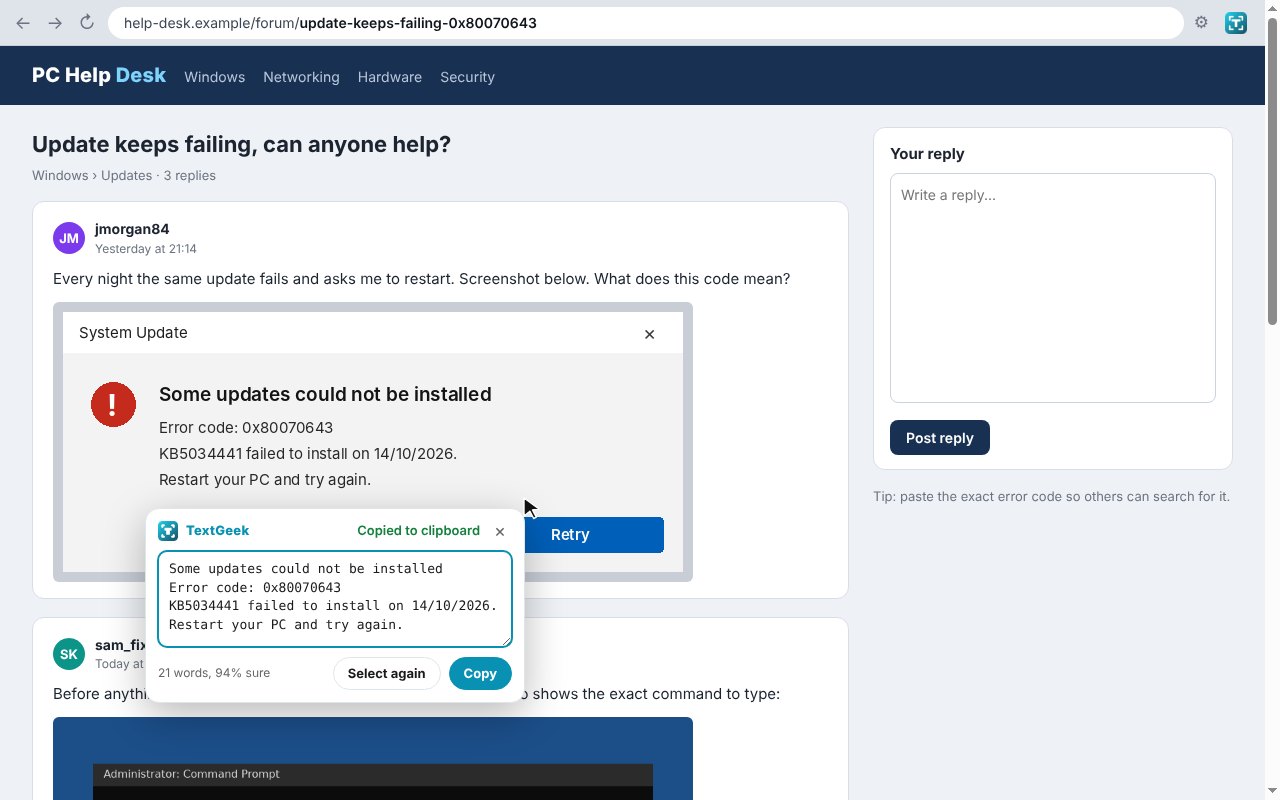
- Drag a box: click the button and drag a box around any text you can see.
- Works on video: Alt+Shift+O holds a playing video still while you choose.
- Right-click a picture: Copy text from image reads the whole picture.
- Edit and copy again: a small panel shows what was found.
- Scanned PDFs: box a page in the browser’s PDF viewer.
- Private: the OCR engine is built in, nothing is uploaded.
How it works
TextGeek takes a screenshot of the tab you are on, freezes it under a dimmed layer so a video holds still, and reads the box you draw with Tesseract, the open source OCR engine, which is bundled inside the extension with its English data. Everything happens on your own computer, and the extension makes no network requests of its own.
How to install it
Store listings for Edge and Firefox are on the way. Until then, adding it yourself takes about a minute:
- Download the ZIP and unzip it somewhere you’ll keep it.
- Go to
chrome://extensions(oredge://extensions) and switch on Developer mode. - Click Load unpacked and pick the
textgeekfolder.
On Firefox, grab the Firefox version instead and load it from about:debugging. The TextGeek page walks through every step with screenshots.
Download it
Found a bug or want a feature? Open an issue on GitHub. TextGeek joins ColorGeek, TabGeek, Markdown Saver, RefreshGeek, FocusGeek, Bluesky Saver, ErrorGeek, Image Format Saver, Reddit Saver, Page Saver, Board Saver for Pinterest, Grid Saver for Instagram and Clip Saver for TikTok in our browser extensions.
Discover more from TechyGeeksHome
Subscribe to get the latest posts sent to your email.
