100% Free · Version 1.0.5
CleanGeek: find the gigabytes nothing needs, and remove only what you tick
Temporary files, Windows Update leftovers, the delivery-optimisation cache, crash dumps, thumbnail and icon caches, browser caches, and the memory dump from a blue screen nobody is going to read. CleanGeek measures first, tells you in plain words what each one costs you, and removes only what you have ticked.
Windows 10 or 11, 64-bit · self-contained installer · nothing else to install
Video Demo
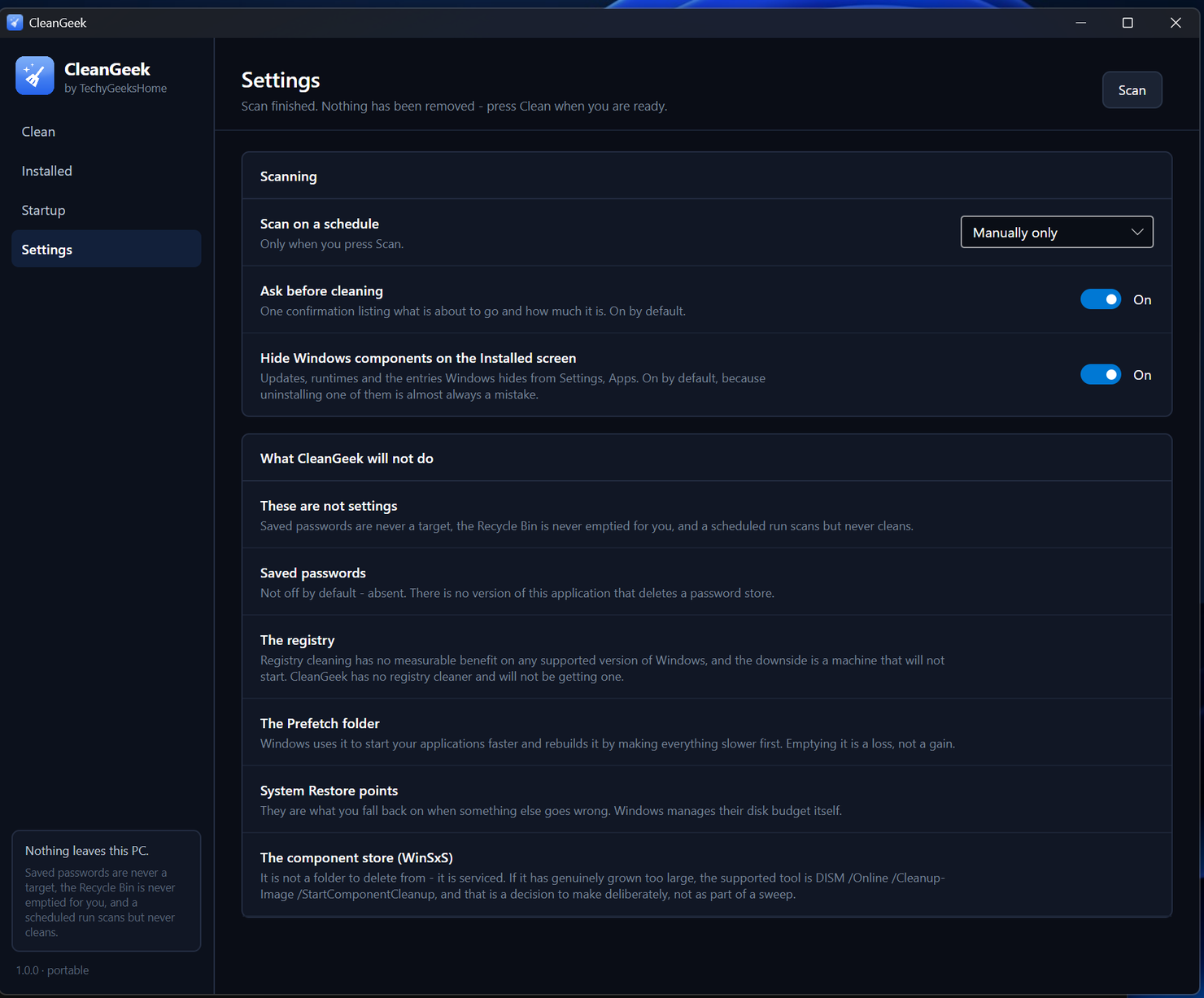
Thirty seconds: the clean-up list with its numbers, the installed and startup lists, and the settings screen that explains what it refuses to do.
A cleaner that does not lie to you about what it found
Every competitor has more features. The difference here is that the number on screen is the number that is actually going.
Two steps, always
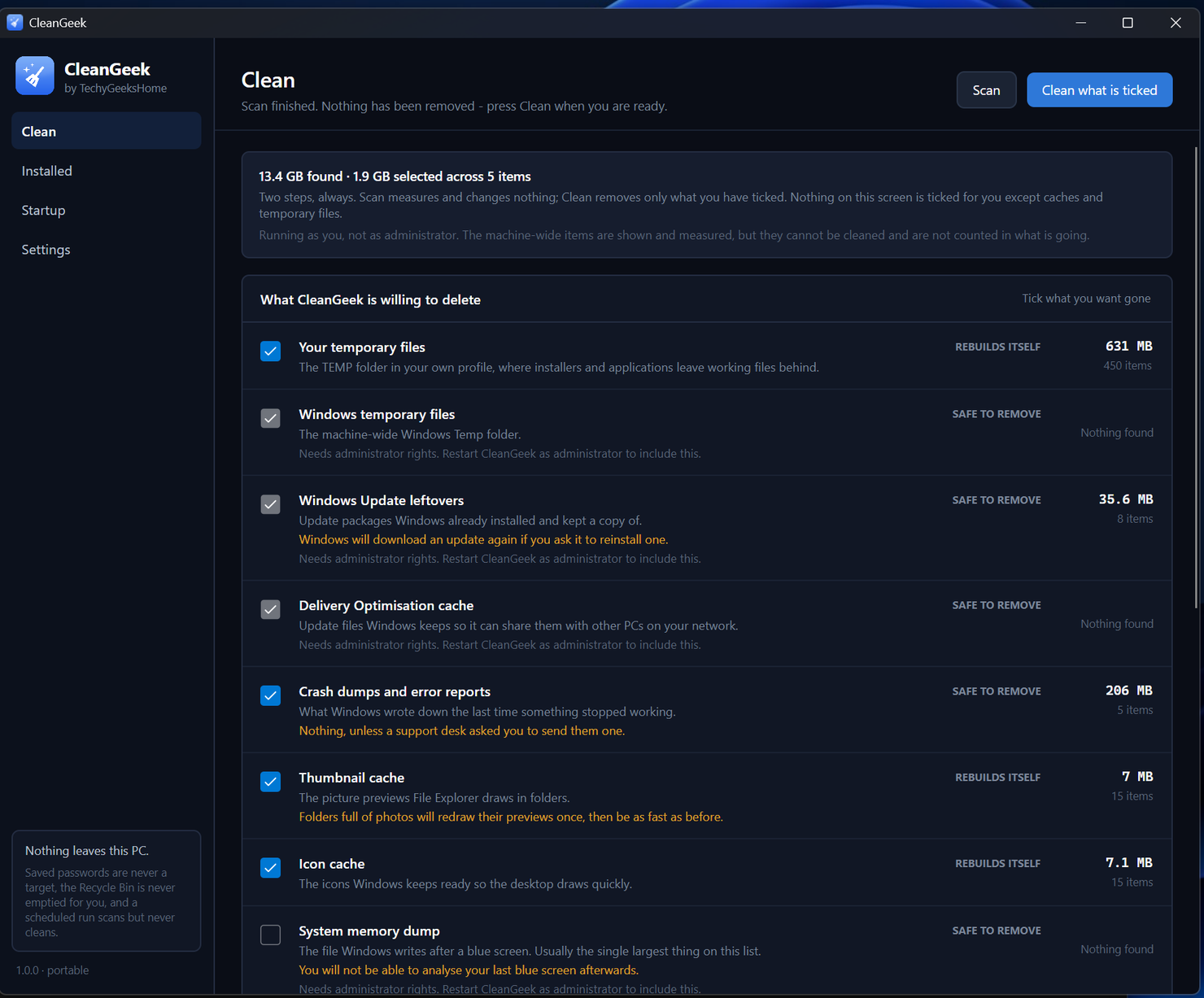
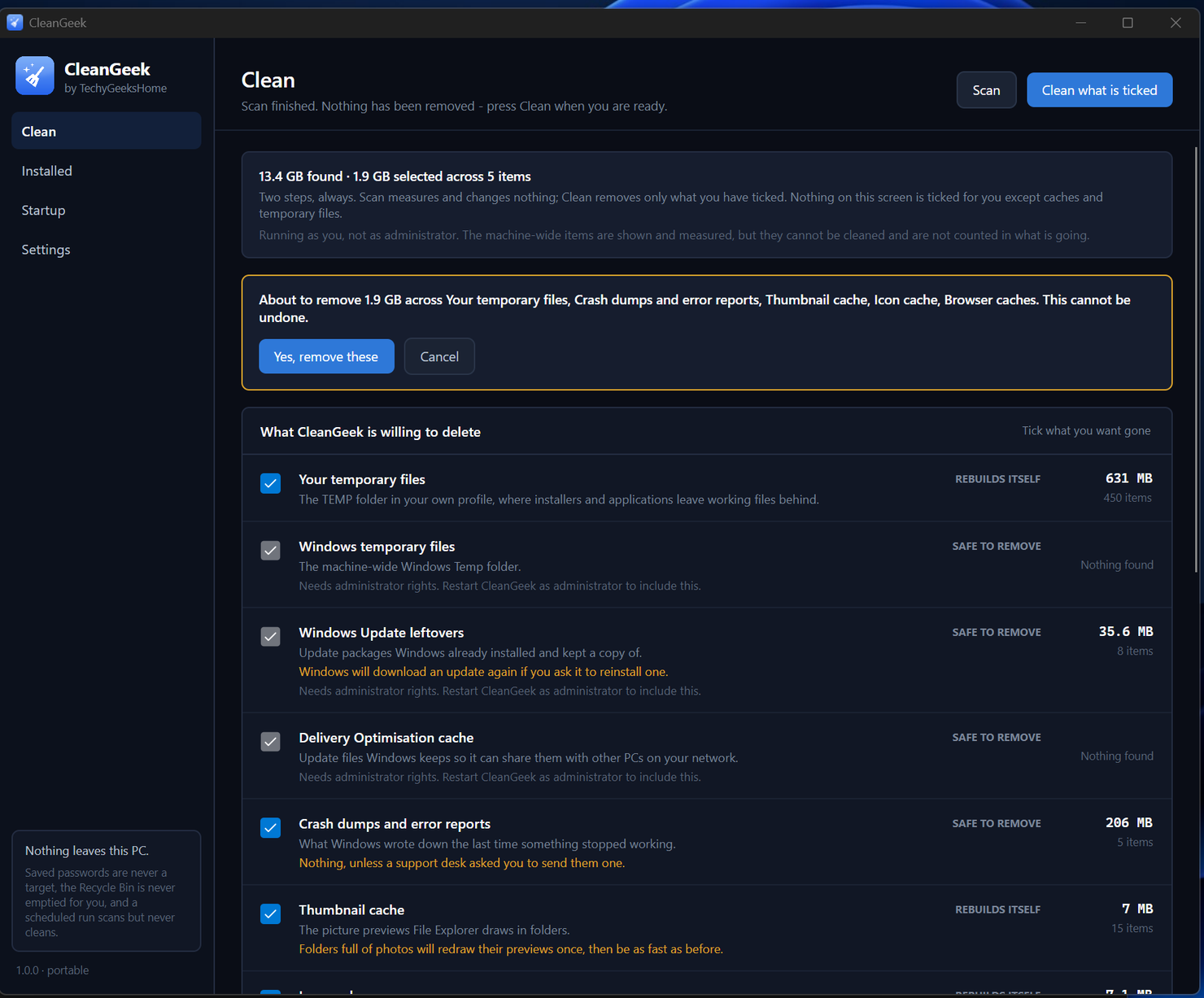
Scan measures and changes nothing. Clean removes only what you ticked. You see the number before anything goes, and the recovered total afterwards.
Nothing risky is ticked for you
Only caches and temporary files are on by default. That is not a promise in a README. An automated test fails the build if anything that costs you something is ever ticked by default.
Every item says what it costs
Clearing cookies signs you out of almost every website you use. Saved form data is gone for good. It says so, in plain words, next to the tick box. Before you tick it.
Saved passwords are not a target
Not off by default. Absent. There is no version of this application that deletes a password store.
Everything installed, in one list
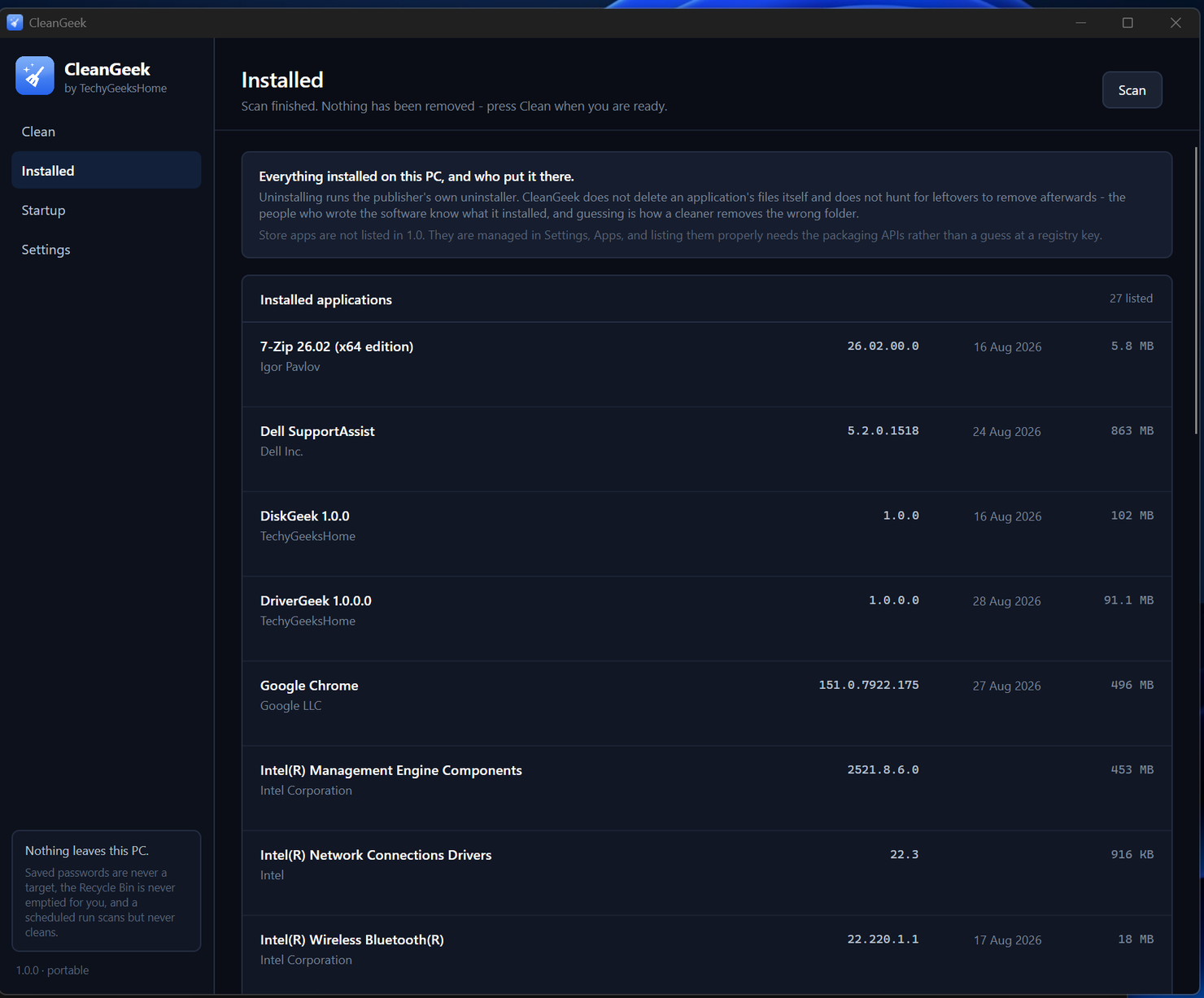
Sorted, searchable, with the publisher and the version. Uninstalling hands the job to the publisher’s own uninstaller. CleanGeek does not delete an application’s files itself and does not guess at its leftovers.
What starts with Windows
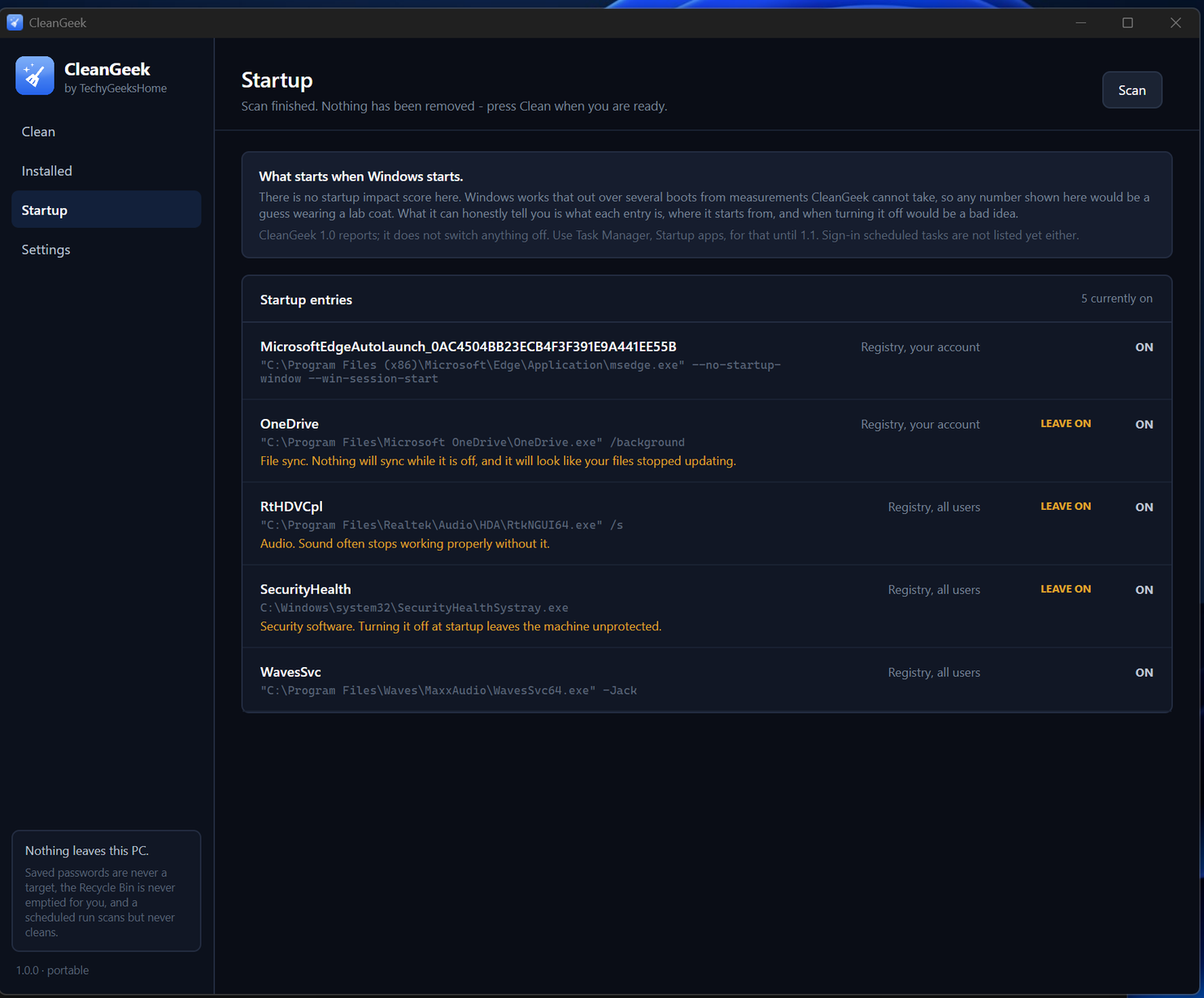
And, more usefully, which entries you should leave alone. Security software, audio, touchpads and file sync, with the reason spelled out.
The Recycle Bin only when you say so
Never as part of a sweep of everything else. It is the one thing on the list you cannot get back, so it is only ever emptied when you choose it on its own.
Scan on a schedule
A scheduled run measures and writes a line to the log. It never deletes: there is no command line that cleans, and the safety gate refuses everything when nobody is at the machine.
See it in action
Five screens, no mock-ups. These are CleanGeek running on a real machine with 13.4 GB of cleanable files on it.
Who it’s for
Built by an IT pro who needed it, not a commercial suite trying to upsell you.
Anyone with a full C: drive
Windows Update leftovers, the delivery-optimisation cache and years of browser caches quietly take gigabytes. See the number before you decide anything.
People handed an older laptop
A machine that has never been cleaned has the most to give back, and the most to lose to a cleaner that is careless with cookies and saved form data.
IT pros and technicians
Free at work, with no per-seat licence. A clean you can explain, line by line, to the person whose machine it is.
Requirements
Operating system
Windows 10 or later, or Windows 11. 64-bit.
Rights
Standard user for your own caches and temporary files. Administrator only for the machine-wide items, which are shown and measured either way and refused rather than failed quietly.
Download
A single self-contained installer. The exact size is listed on the releases page.
Prerequisites
None. The .NET 8 runtime is bundled inside the installer.
Version
1.0.5.
Licence
GPL-3.0. Free for everyone, including commercial use.
Frequently Asked Questions
Is it really free? No Pro version, no catch?
Yes. CleanGeek is GPL-3.0 open source with no paid tier, no ads, no bundled offers and no account. Free for everyone, including commercial use.
Is there a registry cleaner?
No, and there will not be one. It is the headline feature of nearly every product in this category and it does not work: nothing measurable gets faster, nothing gets more stable, and the failure mode is a machine that will not start. The upside is zero, so we are not shipping it for the sake of a bullet point.
Will it delete something I actually need?
Nothing is ticked for you except caches and temporary files. Things that rebuild themselves. Everything with a cost is off until you turn it on, and each one tells you what it will cost before you do. Saved passwords are not a target at all, and the Recycle Bin is only emptied when you choose it on its own. Nothing outside a fixed, named list of folders is ever touched.
Does CleanGeek collect data or phone home?
No. It reads and deletes files on your PC and makes no network calls at all. No telemetry, no analytics, no account, and no update check that phones home without being asked.
Why does Windows show a warning when I install it?
The builds are not code-signed, and Windows shows a SmartScreen warning for any unsigned installer it has not seen before. The full source is on GitHub, and every release publishes a SHA-256 hash you can check the download against.
Version History
- 1.0.5. The installer now asks which language to use (English or Italian, the Italian by bovirus) and shows the GPL-3.0 licence, and reports the version as 1.0.5 rather than 1.0.5.0. The About window’s family list now covers all twelve TechyGeeksHome apps.
- 1.0.4. The About window moved onto the same colours as the rest of the app.
- v1.0.3: 29 August 2026. Tidied up the sidebar. The note that sat at the bottom has gone.
- v1.0.2. Fixes 1.0.1 not opening at all. The window wired the new buttons before the XAML had assigned them, so it threw before anything appeared.
- v1.0.1. About window and a Check for updates button, both in the sidebar. The update check runs only when you press it.
- v1.0.0. Initial public release. Clean, Installed and Startup.
Download CleanGeek today
Free, open source, and it will not remove a thing you did not tick.
Windows 10 or 11, 64-bit · self-contained installer · nothing else to install
Windows may show a “Windows protected your PC” warning the first time you install it. That means SmartScreen has not seen the file before, not that anything is wrong with it. Here is why our builds are unsigned, and how to verify your download against its SHA-256 hash: we will never ask you to switch SmartScreen off.
Support
CleanGeek is free and always will be, at home and at work.