 By Andrew Armstrong
In September 2026, a Chrome extension called Password Protect PDF was one of 19 pulled from the store for secretly stealing data. A few years earlier, PDF Toolbox, with close to 2 million users, was caught loading hidden code onto every page its users visited. Free PDF tools have a habit of wanting more than your PDF.
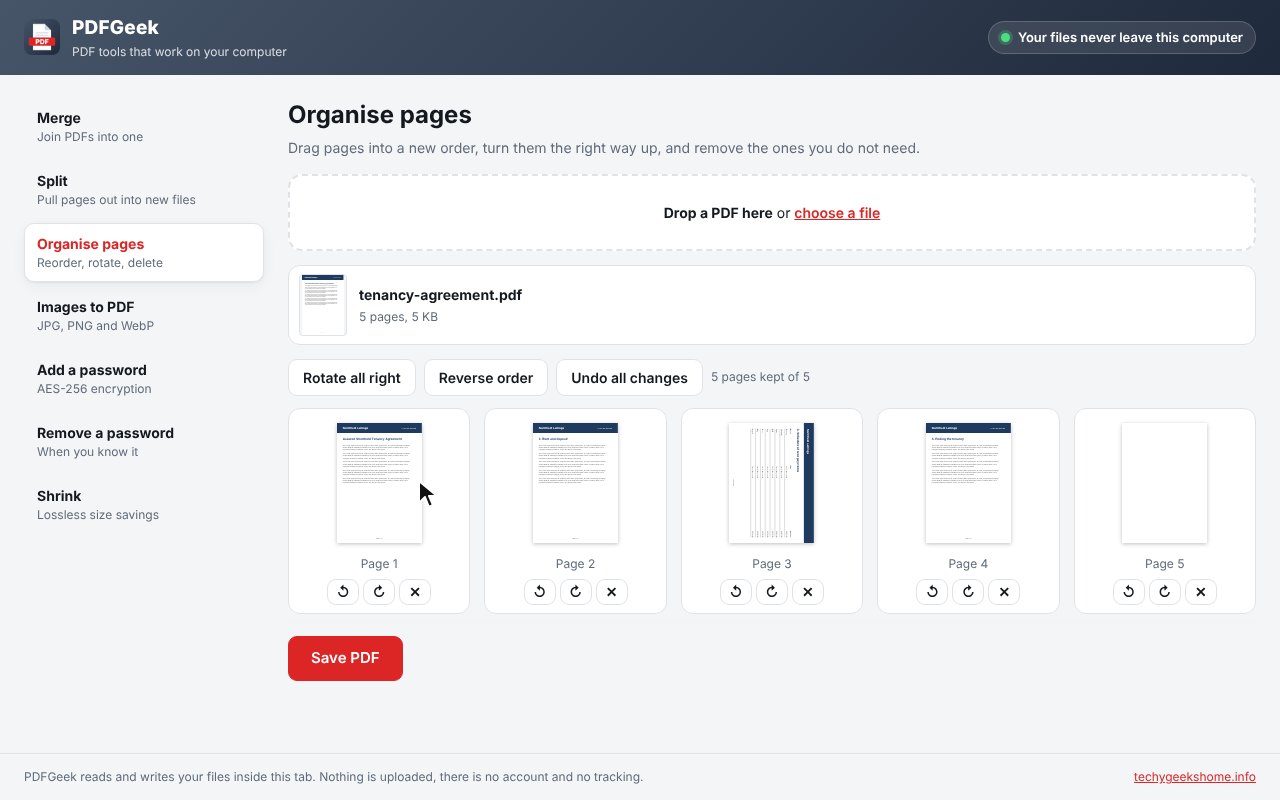
So we built PDFGeek. It merges, splits, rotates and password protects PDFs, and turns pictures into PDFs, all inside a tab of your browser. Your files never leave your computer. It’s free, open source and has no tracking at all.
Quick Facts
- Free. No Pro tier, no ads and no limit.
- Open source under the GPL-3.0, with the full source on GitHub.
- Works in Chrome, Edge, Brave, Opera, Vivaldi and Firefox.
- No account and nothing sent anywhere.
What it does
- Merge: drag several PDFs into order and merge them into one file.
- Split: every page as its own file, page ranges, or a new file every few pages.
- Organise pages: reorder, rotate and remove pages with a preview of each one.
- Pictures to PDF: JPG, PNG and WebP onto A4, Letter or a page that fits.
- Passwords: add AES-256 protection, or remove a password you know.
- Shrink: make a PDF smaller without losing any quality.
How it works
PDFGeek bundles well-known open-source PDF libraries (pdf-lib, Mozilla’s PDF.js and qpdf) and runs them inside your browser. There is no server to send your files to, and in our tests the only request PDFGeek ever made was to download a PDF link you chose to open in it. If you prefer a desktop app, there is also PDFGeek for Windows.
How to install it
Store listings for Edge and Firefox are on the way. Until then, adding it yourself takes about a minute:
- Download the ZIP and unzip it somewhere you’ll keep it.
- Go to
chrome://extensions(oredge://extensions) and switch on Developer mode. - Click Load unpacked and pick the
pdfgeekfolder.
On Firefox, grab the Firefox version instead and load it from about:debugging. The PDFGeek page walks through every step with screenshots.
Download it
Found a bug or want a feature? Open an issue on GitHub. PDFGeek joins Screenshot Saver, SpeedGeek, PiPGeek, VolumeGeek, TextGeek, ColorGeek, TabGeek, Markdown Saver, RefreshGeek, FocusGeek, Bluesky Saver, ErrorGeek, Image Format Saver, Reddit Saver, Page Saver, Board Saver for Pinterest, Grid Saver for Instagram and Clip Saver for TikTok in our browser extensions.
Discover more from TechyGeeksHome
Subscribe to get the latest posts sent to your email.
