100% Free and Open Source · Version 1.0.0
FocusGeek: block distracting websites
Block the websites that eat your day, all the time, on a schedule or during a focus timer. One click to block a site, a calm page when you try to visit it, and nothing tracked. A free browser extension with nothing to sign up for.
Chrome, Edge, Brave, Opera, Vivaldi and Firefox · no account · nothing to pay · how to install it
0 downloads so far
Video Demo
From an hour lost to a feed to one click and back to work.
Block it, and stay blocked
Simple enough to set up in seconds, strict enough to actually work.
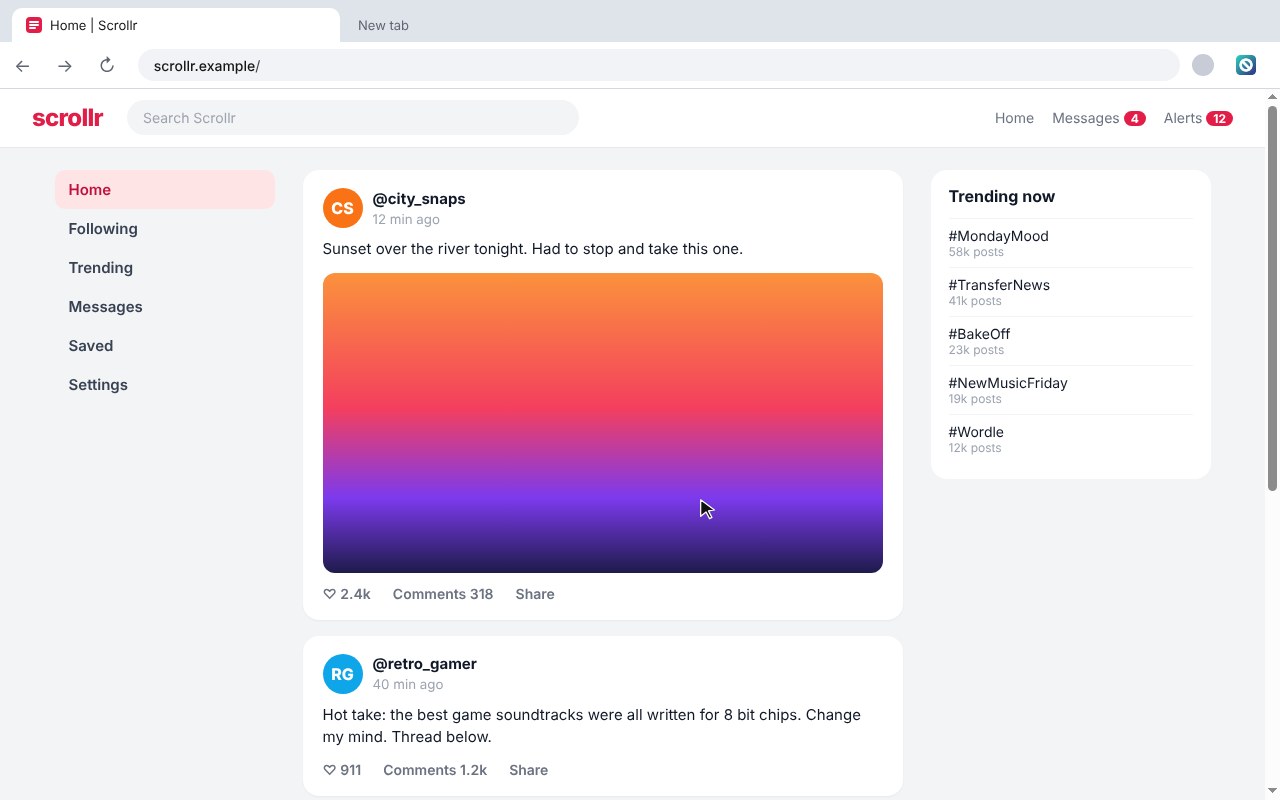
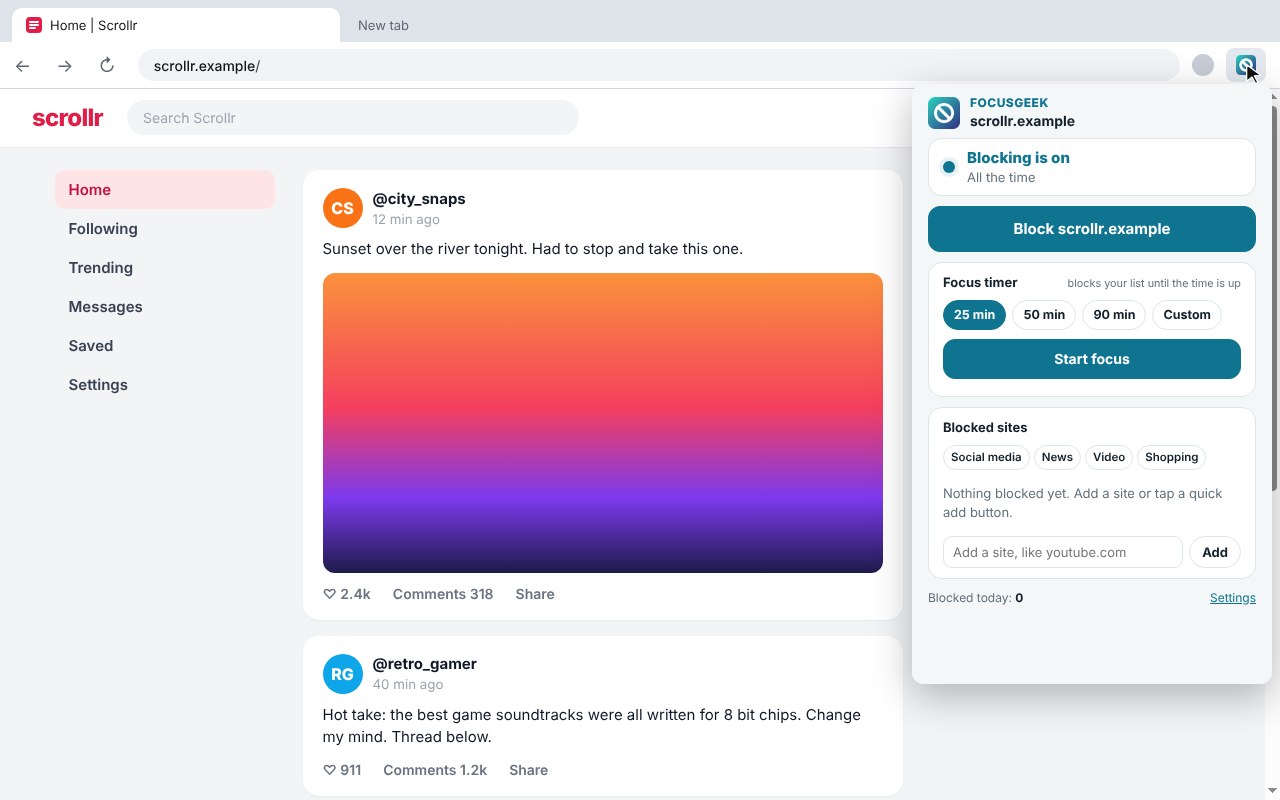
Block this site
Click the FocusGeek button on any site and choose Block. Every subdomain is blocked too.
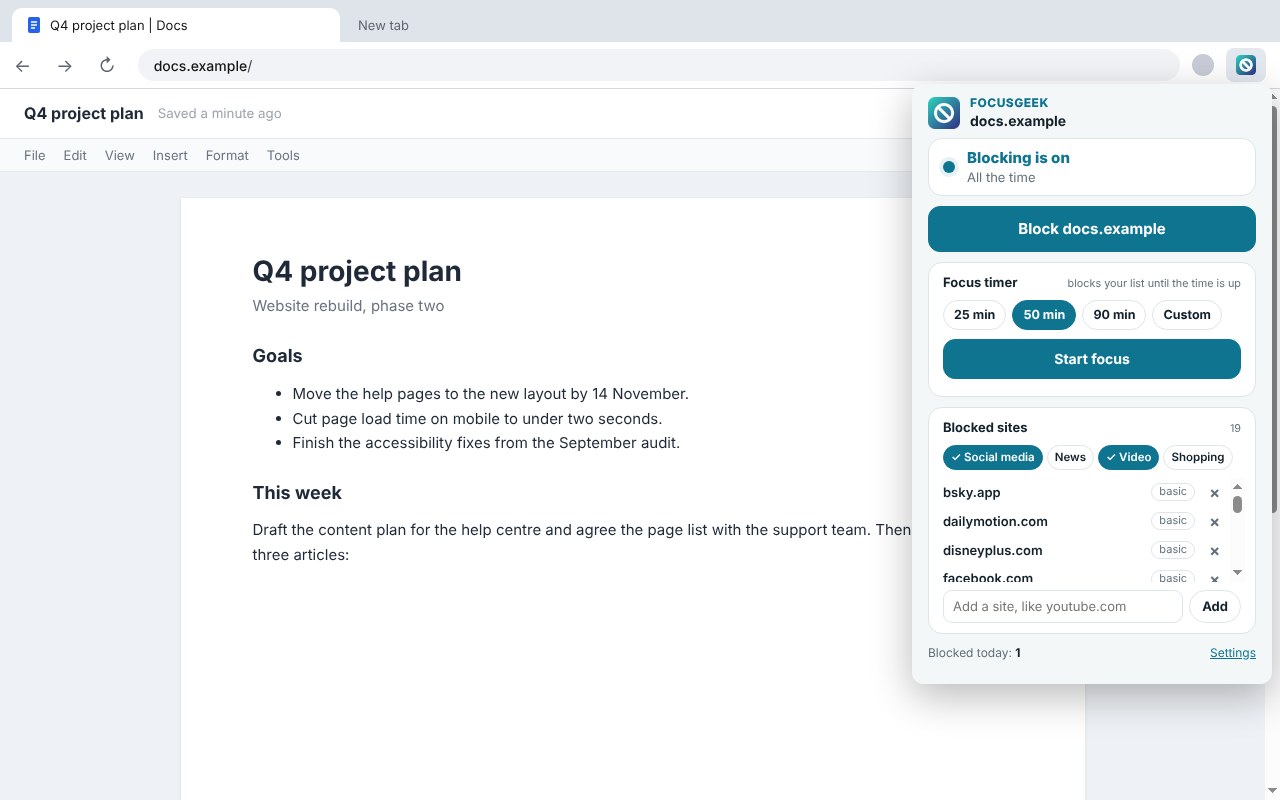
Quick add groups
Block social media, news, video or shopping in one tap. The lists are yours to edit.
Focus timer
Start a 25, 50 or 90 minute session, or your own length. The time left shows on the toolbar.
Schedules
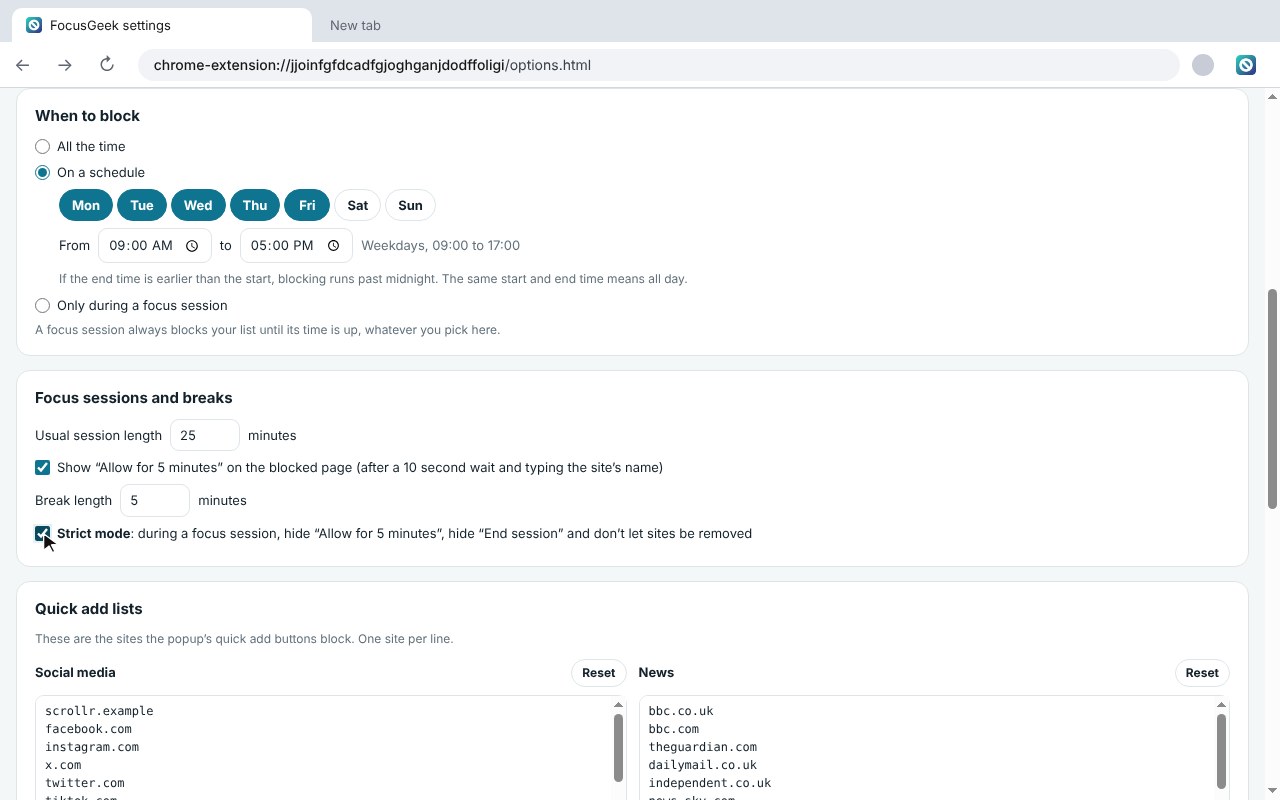
Block on set days and times, like weekdays 9 to 5. Overnight times work too.
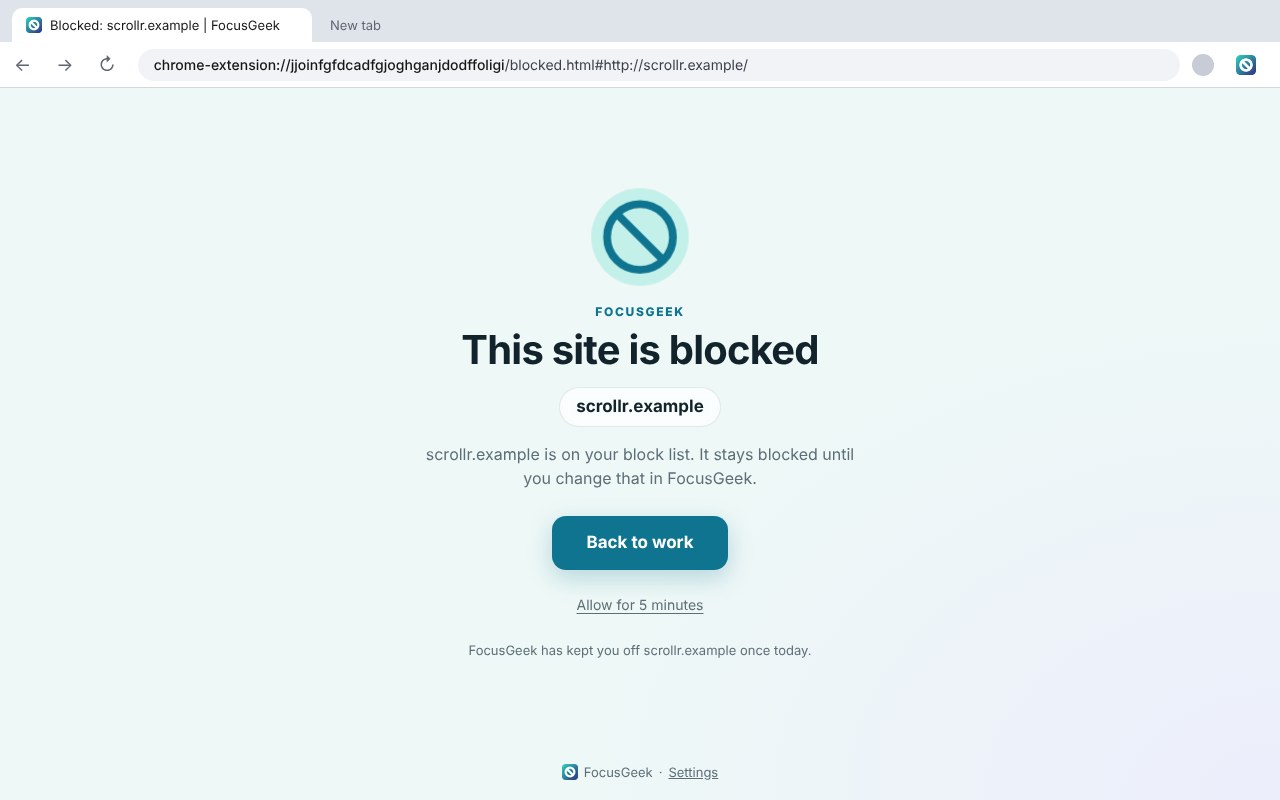
A calm blocked page
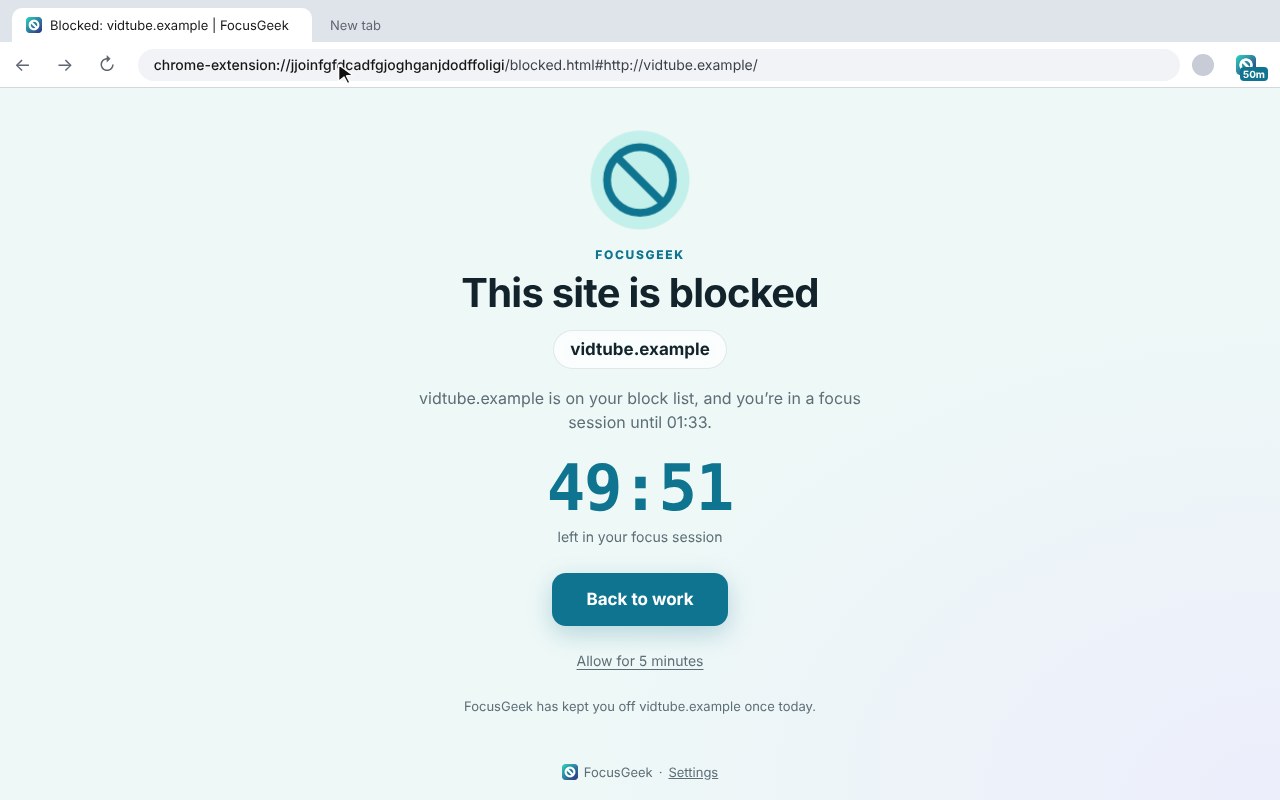
Blocked sites show a quiet page with the time left and a Back to work button, not an error.
Short breaks
Need a site for real? Allow it for 5 minutes after a 10 second pause and typing its name.
Strict mode
During a focus session, no breaks, no ending early and no removing sites until the time is up.
Allow list mode
Flip it round: block everything except the sites you need for work.
Your browsing stays private
The browser does the blocking from FocusGeek’s rules, so FocusGeek never reads or sends your browsing.
How to install it
On Microsoft Edge, the easiest way is the Edge Add-ons store: click Get and it installs and updates itself. For Chrome, Brave, Opera and Vivaldi it takes about a minute, and you only do it once.
Download and unzip
Download the ZIP and unzip it somewhere you will keep it, such as Documents. The browser runs the extension from that folder, so leave it there.
Open your extensions page
Type chrome://extensions in the address bar. In Edge use edge://extensions, in Brave brave://extensions.
Switch on Developer mode
The switch is top right in Chrome and Brave, and bottom left in Edge. It just lets you add an extension from a folder.
Load unpacked
Click Load unpacked and pick the focusgeek folder. Then pin the FocusGeek icon from the puzzle piece menu.
On Firefox it is one click: install it from Firefox Add-ons and it keeps itself up to date.
See it in action
Every step, exactly as it looks in your browser.
Who it is for
Anyone who has opened a site for one quick look and lost an hour.
Working from home
Keep social media and news away during work hours with a schedule.
Students
Block the distractions for a study session with the focus timer.
Anyone building better habits
Make the sites that pull you in a little harder to reach, with breaks when you really need them.
Requirements
Browser
Chrome, Microsoft Edge, Brave, Opera or Vivaldi on Windows, macOS or Linux, or Firefox 142 or newer.
Account
None.
Permissions
Blocking rules the browser checks itself, storage for your list, and access to a site only when you block it.
Download
About 50 KB. No installer.
Version
1.0.0, released 17 October 2026.
Licence
GPL-3.0. Free for everyone, including commercial use.
Frequently Asked Questions
Is FocusGeek really free?
Yes. There is no Pro version, no ads and no limit on how many sites you block. It is open source under the GPL-3.0, so you can read every line of it on GitHub.
Does FocusGeek see the sites I visit?
No. The browser does the blocking itself from the short list of rules FocusGeek gives it, so FocusGeek never reads your browsing. It makes no network requests at all, and nothing is sent anywhere.
Why does it ask for access to a site when I block it?
Browsers only let an extension show its own page on a site it has access to. If you say no, the site is still blocked, but you see the browser’s plain error page instead of FocusGeek’s calm one.
Can I still get to a blocked site if I really need it?
Yes, unless strict mode is on during a focus session. On the blocked page, choose Allow for 5 minutes, wait 10 seconds and type the site’s name. You can change the break length or switch breaks off.
Can I block sites only during work hours?
Yes. Pick On a schedule in Settings, choose the days and the times, and FocusGeek switches blocking on and off by itself.
Can I block single pages instead of a whole site?
Not yet. FocusGeek blocks whole sites, including every subdomain under them.
Does it work in private windows?
Only if you allow the extension in private or incognito windows in your browser’s extension settings. Then it blocks there too.
Is FocusGeek on the Edge Add-ons store?
Yes. On Microsoft Edge, install it from the Edge Add-ons store and it updates itself. On Chrome, Brave, Opera and Vivaldi, download the ZIP from this page and add it with Load unpacked.
Does it work on Firefox?
Yes. Install it from Firefox Add-ons, where it keeps itself up to date.
Version History
- v1.0.0: 17 October 2026. Initial public release.
Download FocusGeek today
Completely free. Version 1.0.0, no strings attached, and open source under the GPL-3.0 licence.
0 downloads so far
Also on
Support
FocusGeek is free and always will be.