100% Free and Open Source · Version 1.0.0
TextGeek: copy text from any picture or video
Drag a box over a screenshot, a photo or a playing video and the words are read and copied, ready to paste. The OCR runs on your own computer, so nothing is uploaded. A free browser extension with nothing to sign up for.
Chrome, Edge, Brave, Opera, Vivaldi and Firefox · no account · nothing to pay · how to install it
0 downloads so far
Video Demo
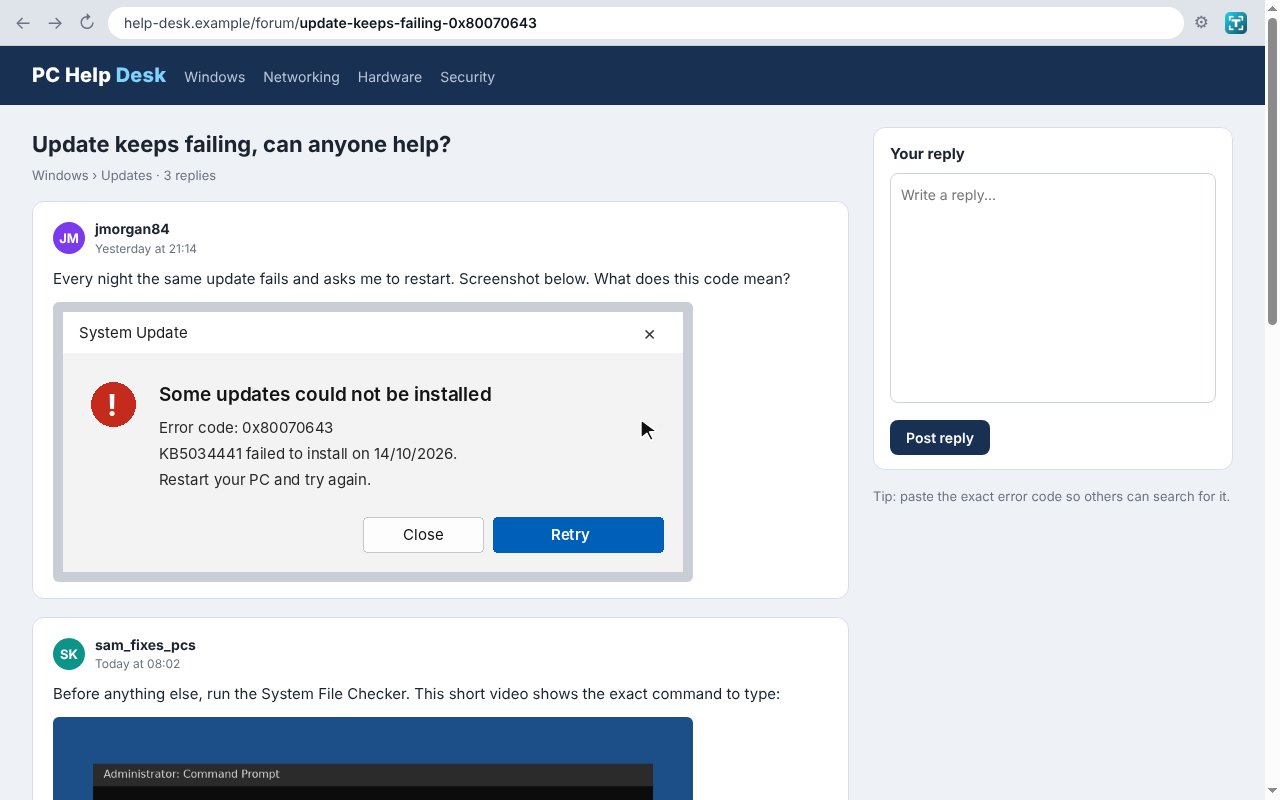
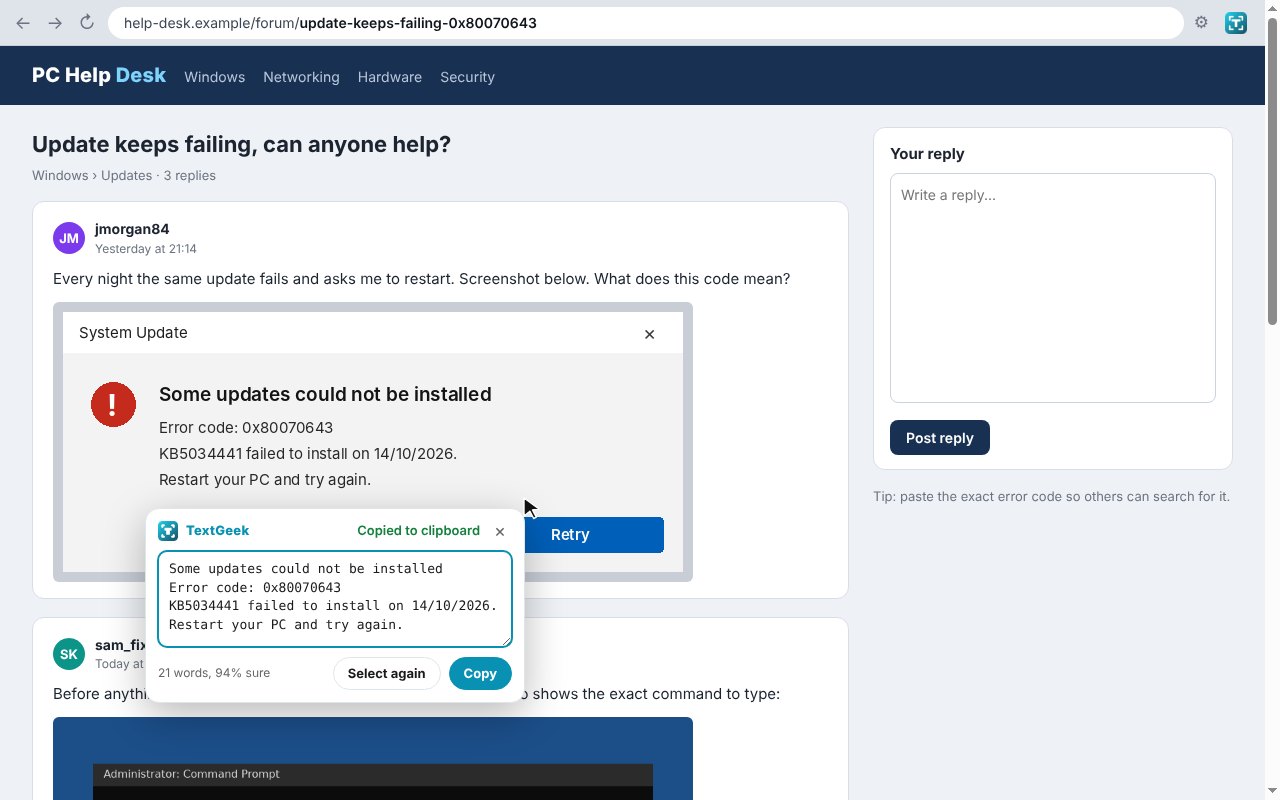
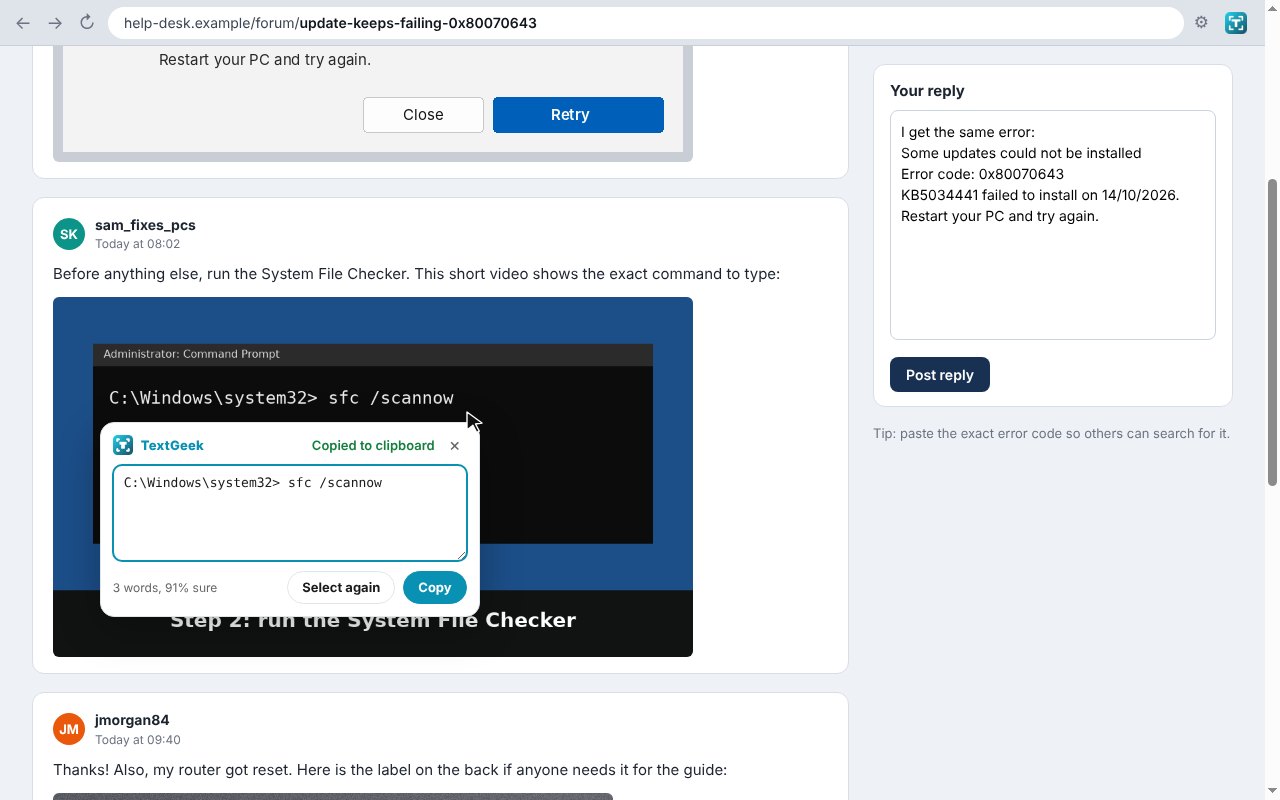
From an error message stuck in a screenshot to the text pasted in a reply, in a couple of seconds.
Text you can see but cannot select
Screenshots, video frames, photos and scanned PDFs are just pictures. TextGeek reads the words in them for you.
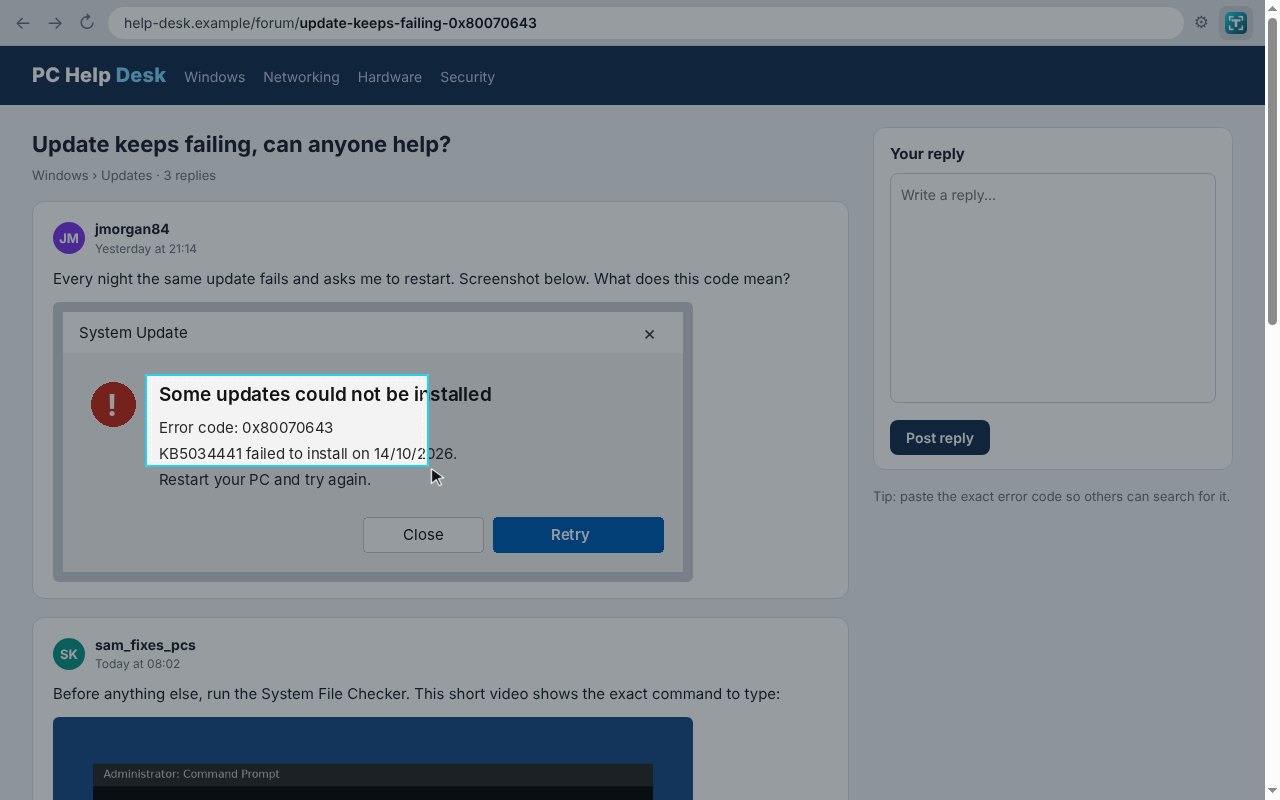
Drag a box
Click the button, drag a box around the text, and it is read and copied.
Works on video
Press Alt+Shift+O and a playing video holds still while you pick the words.
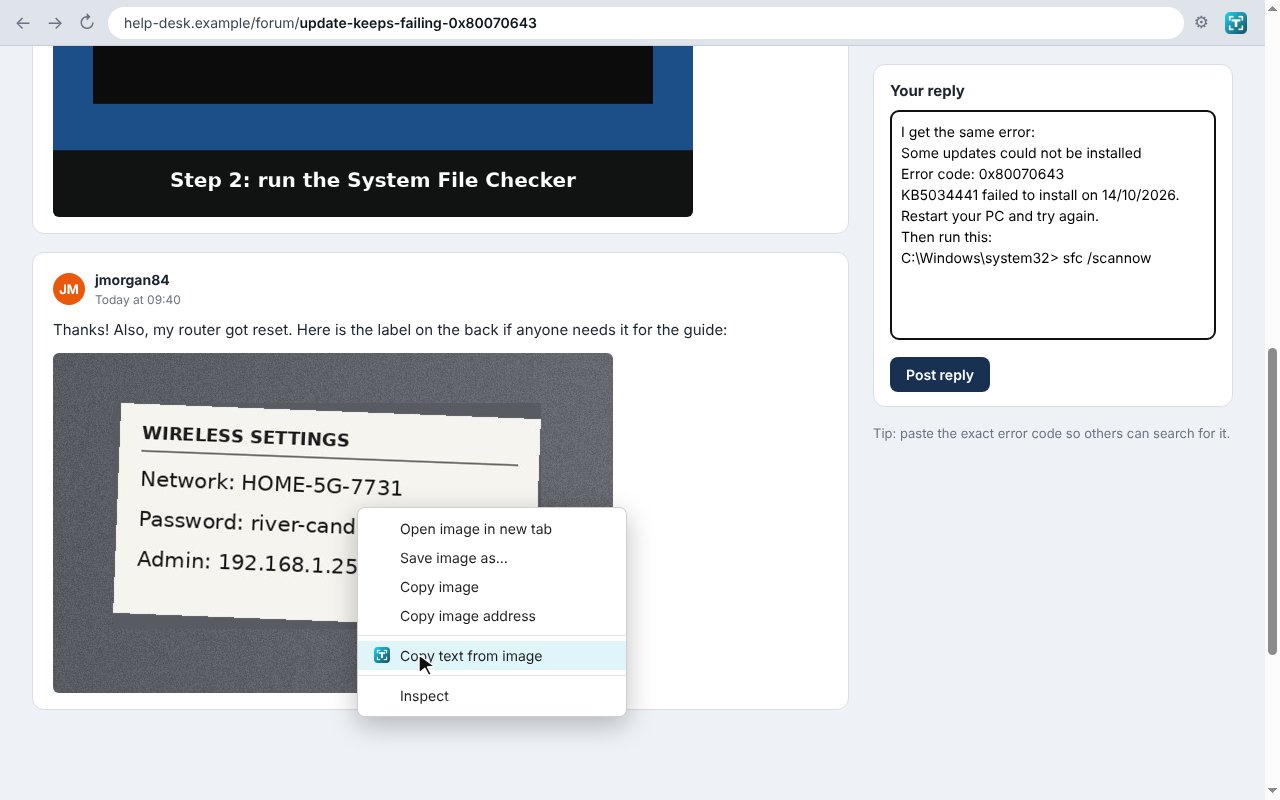
Right-click a picture
Choose Copy text from image to read a whole picture at once.
Private OCR
The Tesseract OCR engine and English data are built in, so nothing is uploaded and no requests are made.
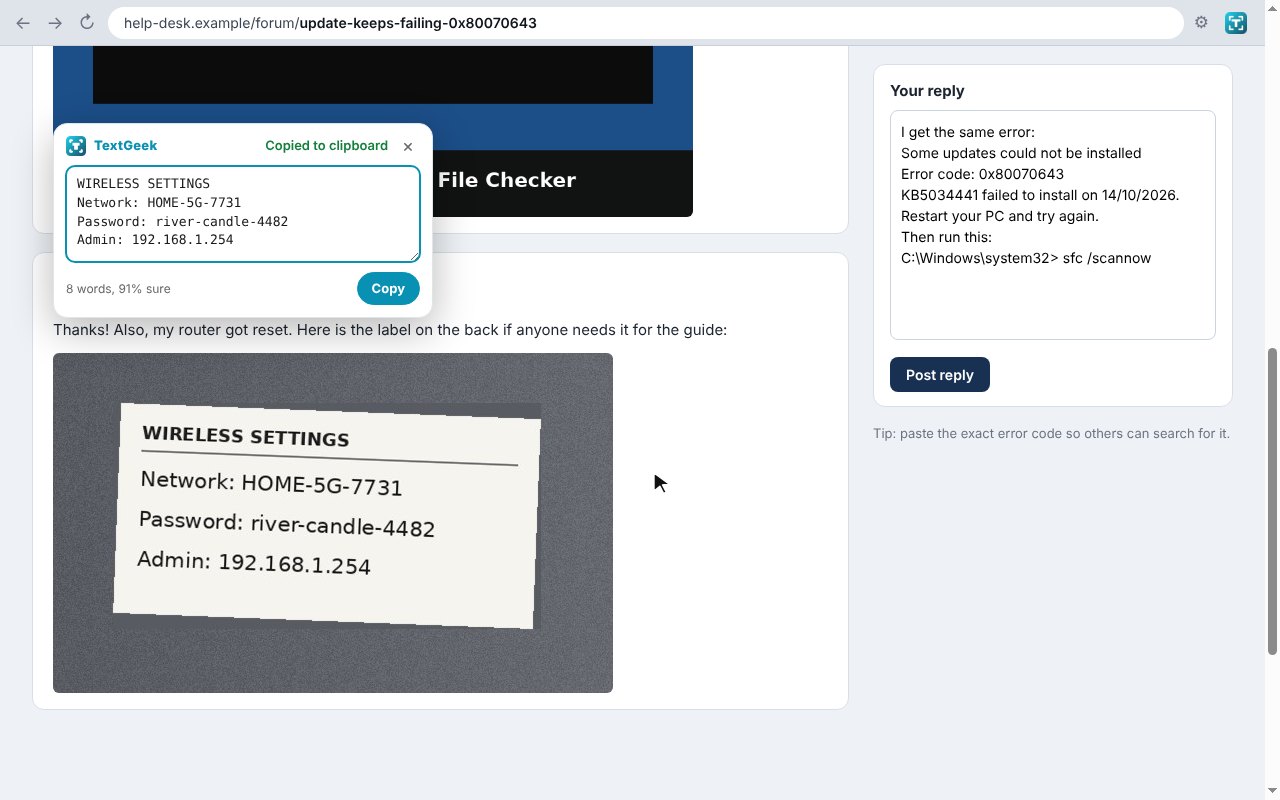
Fix and copy again
A small panel shows what was found so you can tidy a word and copy it again.
Scanned PDFs
Box a scanned page in the browser’s PDF viewer and copy its text.
Light or dark
Reads dark text on light and light text on dark, from 13 px up.
Keep line breaks
Keep the lines as they are, or join them into one paragraph.
Shortcut
Alt+Shift+O starts a selection on any page.
How to install it
About a minute, and you only do it once. Store listings for Edge and Firefox are on the way.
Download and unzip
Download the ZIP and unzip it somewhere you will keep it, such as Documents. The browser runs the extension from that folder, so leave it there.
Open your extensions page
Type chrome://extensions in the address bar. In Edge use edge://extensions, in Brave brave://extensions.
Switch on Developer mode
The switch is top right in Chrome and Brave, and bottom left in Edge. It just lets you add an extension from a folder.
Load unpacked
Click Load unpacked and pick the textgeek folder. Then pin the TextGeek icon from the puzzle piece menu.
On Firefox, download the Firefox version, open about:debugging, choose This Firefox, then Load Temporary Add-on and pick the ZIP. Firefox removes temporary add-ons when it closes, so the Firefox Add-ons listing will be the easier option once it is approved.
See it in action
Every step, exactly as it looks in your browser.
Who it is for
Anyone who has ever retyped words from a screenshot by hand.
IT and support
Copy error codes, commands and settings out of screenshots and video tutorials.
Students
Grab quotes and notes from lecture videos, slides and scanned pages.
Office work
Pull text out of photos, scans and image-only PDFs without retyping.
Requirements
Browser
Chrome, Microsoft Edge, Brave, Opera or Vivaldi 116 or newer on Windows, macOS or Linux, or Firefox 142 or newer.
Account
None.
Permissions
It sees a tab only when you click its button, press its shortcut or use its right-click menu. No access to any site in the background.
Download
About 4 MB, most of it the built-in OCR engine and English data. No installer.
Version
1.0.0, released 20 October 2026.
Licence
GPL-3.0. Free for everyone, including commercial use. The OCR engine is Tesseract.js (Apache-2.0).
Frequently Asked Questions
Is TextGeek really free?
Yes. There is no Pro version, no ads and no limit on how much text you copy. It is open source under the GPL-3.0, so you can read every line of it on GitHub.
Are my pictures uploaded anywhere?
No. The OCR engine and the English language data are built into TextGeek, so the text is read on your own computer and the extension makes no network requests of its own.
What can it read?
Screenshots, photos, video frames, scanned PDFs and normal web text, light on dark or dark on light. Very small text, handwriting and very fancy fonts are hit and miss.
Which languages does it read?
English. Other languages are not bundled, to keep the download small and the extension offline.
Can it read Netflix or other protected video?
No. Protected video shows as black in screenshots, so there is nothing to read.
Why does it not work on some pages?
Browser pages such as settings and the add-on stores are off limits to every extension, so TextGeek shows a ! on its icon there.
Does it work on Firefox?
Yes. Download the Firefox version from this page. A Firefox Add-ons listing is in review and will make installing it permanent.
Can I keep the line breaks?
Yes. Keep line breaks is on by default; turn it off in the settings to join the lines into one paragraph.
Version History
- v1.0.0: 20 October 2026. Initial public release.
Download TextGeek today
Completely free. Version 1.0.0, no strings attached, and open source under the GPL-3.0 licence.
0 downloads so far