 By Andrew Armstrong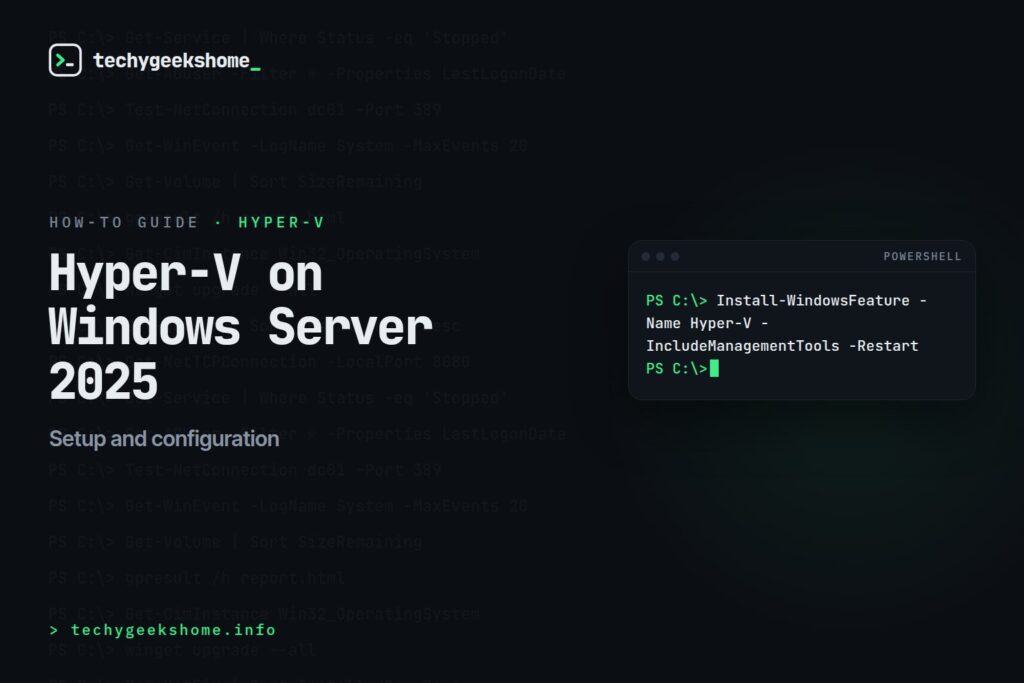
This guide explains how to install and configure Hyper-V on Windows Server 2025. It includes step-by-step setup instructions, networking configuration, and best practices for virtual machine management.
Hyper-V on Windows Server 2025 is your ticket to powerful virtualization: whether you’re running a homelab, hosting VMs for a small business, or prepping for enterprise workloads. This guide walks you through installation, configuration, optimization, and troubleshooting with step-by-step details, PowerShell tricks, and insider tips. From nested VMs to GPU partitioning, we’ve got every angle covered for IT pros and enthusiasts alike.
Step 1: Install Hyper-V
Prerequisites: Windows Server 2025 Standard/Datacenter, 4GB+ RAM, CPU with SLAT (check with systeminfo). Enable virtualization in BIOS (VT-x/AMD-V).
GUI Method: Open Server Manager > “Manage” > “Add Roles and Features.” Check “Hyper-V” (includes management tools), click Next, and install. Reboot required: takes 5-10 mins.
PowerShell Method:Install-WindowsFeature -Name Hyper-V -IncludeManagementTools -Restart
Run as admin; same reboot applies.
Step 2: Configure Hyper-V
Launch: Open Hyper-V Manager from Server Manager > Tools.
Create a Virtual Switch: Right-click your server > “Virtual Switch Manager.” Choose “External” for internet access, link to your NIC (e.g., Ethernet0), and apply. Avoid using Wi-Fi adapters: stability sucks.
New VM: Click “New” > “Virtual Machine.” Name it (e.g., “TestVM”), assign RAM (2GB min), connect to your switch, and create a VHDX (50GB default). Point to an ISO (e.g., Server 2025 ISO) and finish. Start it up!
Step 3: Optimize Performance
Dynamic Memory: In VM settings, enable Dynamic Memory: set min 1GB, max 8GB for flexibility.
CPU: Assign 2-4 vCPUs; enable “Nested Virtualization” for VM-in-VM (e.g., Set-VMProcessor -VMName "TestVM" -ExposeVirtualizationExtensions $true).
GPU Partitioning: Windows Server 2025 supports GPU-P, letting multiple VMs share a single physical GPU (needs a GPU that supports GPU-P/SR-IOV). Assign it with Add-VMGpuPartitionAdapter -VMName "TestVM".
Storage: Use VHDX over VHD: faster, supports 64TB. Place on SSDs for speed.
PowerShell Automation
Create a VM in one shot:New-VM -Name "AutoVM" -MemoryStartupBytes 2GB -SwitchName "ExternalSwitch" -NewVHDPath "D:\VMs\AutoVM.vhdx" -NewVHDSizeBytes 50GB -Path "D:\VMs"
Add an ISO and start: Set-VMDvdDrive -VMName "AutoVM" -Path "C:\ISOs\Server2025.iso"; Start-VM -Name "AutoVM"
Troubleshooting
VM Won’t Start: Check BIOS virtualization, Hyper-V service (Get-Service vmms), or Event Viewer (Hyper-V-VMMS logs).
Network Issues: Verify switch type; recreate if borked (New-VMSwitch). GPU errors? Update drivers, reassign device.
Best Practices
- Snapshots: Take before big changes: right-click VM > “Checkpoint.” Roll back if needed.
- Backups: Use Windows Server Backup or Veeam for VM exports.
- Monitoring: Task Manager > Performance tab shows Hyper-V load: keep CPU under 80%.
FAQ
Q: Can Hyper-V run on Windows 11 Home?
A: No, needs Pro/Enterprise: or Server 2025 for full features.
Q: What’s nested virtualization?
A: VMs inside VMs: great for testing Hyper-V itself.
Q: GPU partitioning worth it?
A: Yes for gaming/dev VMs, and Server 2025’s GPU-P lets several VMs share one GPU instead of dedicating a whole card to a single VM, but you still need GPU-P/SR-IOV-capable hardware.
Glossary
- Hyper-V: Microsoft’s virtualization platform: VMs, containers, more.
- VHDX: Virtual Hard Disk format: fast, big, resilient.
- SLAT: Second Level Address Translation: CPU feature for virtualization.
- Virtual Switch: Network bridge for VM connectivity.
Gear We Recommend
Running Hyper-V at home or in a lab? Here’s the networking and storage gear that keeps our test rigs stable.
Browse our Home Lab Essentials picks on AmazonAs an Amazon Associate, TechyGeeksHome earns from qualifying purchases.
More Guides You Might Have Missed
- Introduction to Microsoft Azure
- Microsoft Virtual Machine Converter
- How to create correct partitions to deploy a Windows image to a UEFI based device
- EMC RecoverPoint BIOS Password
For what changed in Hyper-V on Windows Server 2025, scalability, GPU partitioning, and workgroup clusters, see our Hyper-V 2026 new features guide. Migrating from VMware? See our VMware to Hyper-V migration guide.
Discover more from TechyGeeksHome
Subscribe to get the latest posts sent to your email.
