 By Andrew Armstrong
Finding the Right Driver for a Dell Wireless 360 Bluetooth Module
The Dell Wireless 360 Bluetooth Module is notorious for showing up as an “Unknown Device” in Device Manager on older Dell laptops and workstations, especially after a clean OS reinstall where Dell’s bundled driver package wasn’t used.
The most reliable way to get the correct driver is to identify the module by its Hardware ID rather than guessing from the “Bluetooth” name alone, since several different Bluetooth modules were fitted across Dell’s range and the wrong driver simply won’t install cleanly:
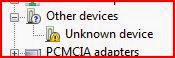
- Open Device Manager and find the unknown device (it may show under “Other devices” with a yellow warning icon, as shown below).
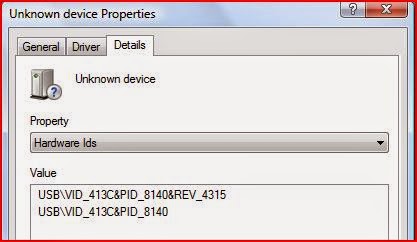
- Right-click it, choose Properties, go to the Details tab, and change the dropdown to Hardware Ids.
- Copy the top-most ID and search for it directly on Dell’s support site or via a general hardware ID lookup — this tells you exactly which Bluetooth module is fitted, rather than relying on the system model alone.
- Once you know the exact module, download its driver from Dell’s support site using your system’s Service Tag, so you only see drivers relevant to your exact model and configuration, rather than a generic Bluetooth driver.
If Dell’s support site no longer lists a driver for your specific model, a generic Broadcom or Qualcomm Bluetooth driver matching the chipset behind that Hardware ID will often work, but always prefer the Dell-provided one first since it’s been validated against that specific laptop’s firmware.
Screenshots: Locating the Hardware ID
The Bluetooth module usually appears under “Other devices” with a warning icon, and its Hardware Ids are found on the Details tab of its Properties dialog:

FAQ
Why does the Dell Wireless 360 Bluetooth Module show up as “Unknown Device”?
It’s usually because the OS was installed without Dell’s OEM driver package, so Windows has no matching driver in its default set for that specific chipset.
Can I just install any Bluetooth driver?
Not reliably — Dell fitted several different Bluetooth modules across its range under the same “Wireless 360” branding, so a driver for the wrong chipset either won’t install or won’t work correctly. Matching the Hardware ID first avoids that.
What if Dell no longer lists a driver for my model?
Identify the underlying chipset (Broadcom or Qualcomm/Atheros) from the Hardware ID and use the chipset vendor’s generic driver as a fallback, though the Dell-validated driver is always the safer first choice.
Gear We Recommend
A few general tech accessories worth having alongside this.
Browse our General Tech Accessories picks on AmazonAs an Amazon Associate, TechyGeeksHome earns from qualifying purchases.
Discover more from TechyGeeksHome
Subscribe to get the latest posts sent to your email.
