 By Andrew Armstrong
The free document translators all run out in the same place. DeepL gives you one document a month on its free tier, up to five megabytes. Google will do more, but the file goes to Google. And most of the free offline alternatives people recommend only take pasted text, which is no use at all when the thing you need translated is a forty page contract.
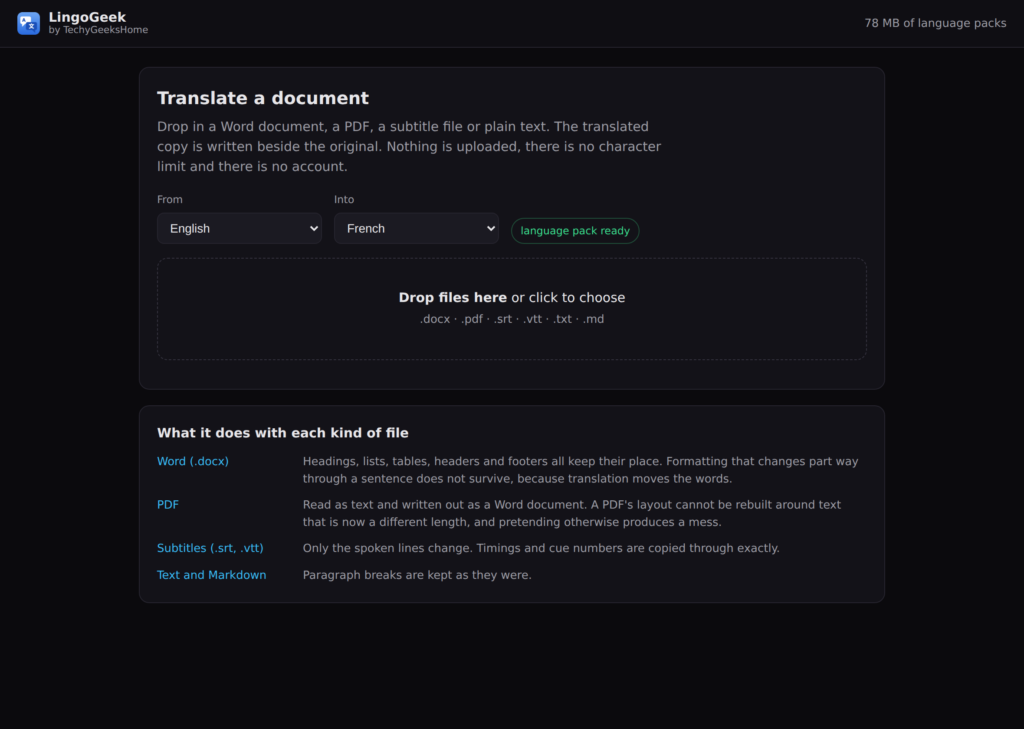
LingoGeek takes the file itself. Drop in a Word document, a PDF, a subtitle file or a plain text file, pick a language pair, and it writes a translated copy next to the original. It runs on your own processor. Nothing is uploaded, there is no account, and there is no cap on how much you put through it.
The formatting survives
A translated Word document that comes back as one long wall of text is not much use. LingoGeek walks the document properly: headings stay headings, bullet lists stay lists, tables keep their cells, and headers and footers get translated too. Formatting that changes part way through a sentence, a bolded word in the middle of a paragraph, does not survive, because translation moves the words around. The app tells you how many paragraphs that affected rather than quietly losing it.
Markdown gets the same treatment. Heading marks, bullets, code blocks and link targets are held back while the words go through, then put on again, so a heading cannot come back as a paragraph.
PDFs come out as Word, on purpose
LingoGeek reads the text out of a PDF and writes a .docx. It does not try to rebuild the original layout, and that is deliberate. Translated text is a different length to the text it replaced, so anything that pours it back into the same boxes produces overlapping lines and lost paragraphs. A clean editable document is more useful. Scanned PDFs with no text layer need OCR first, and it says so rather than handing you an empty file.
Subtitles keep their timings
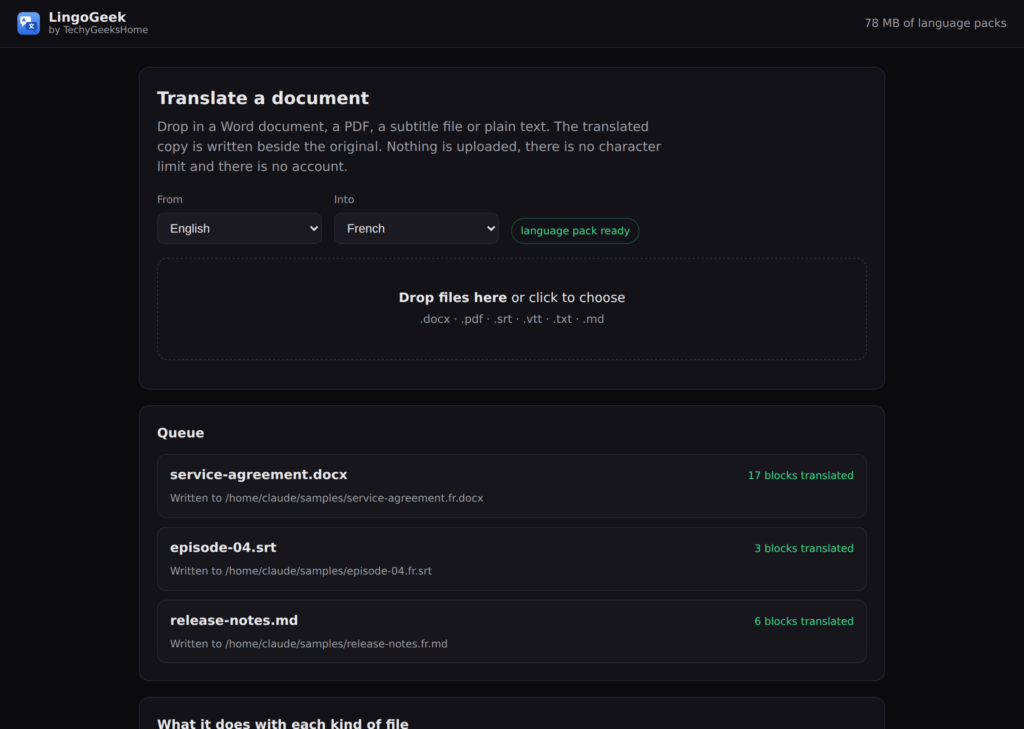
SRT and VTT go in and come back with every cue number and every timestamp copied through exactly. Only the spoken lines change, so the file drops straight back into the edit.
A queue, not one file at a time
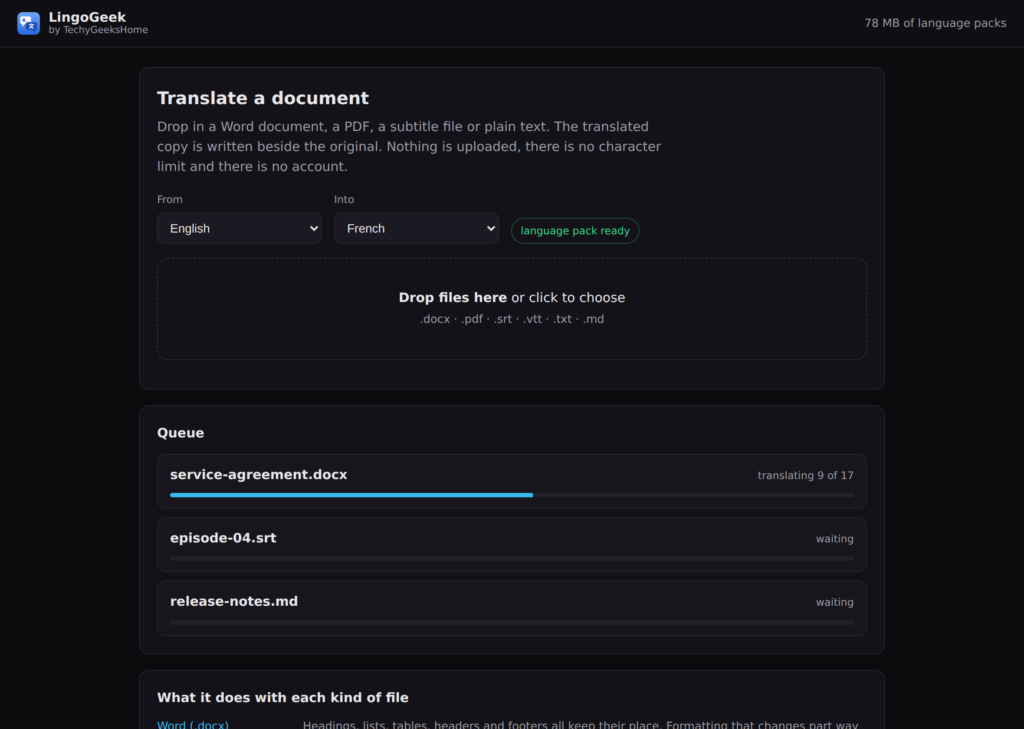
Drop in a folder full and they go through one after another, block by block, while you get on with something else.
Language packs you keep
Around a hundred pairs, from the openly licensed Argos and OPUS-MT collections. A pack downloads the first time you use it, somewhere between forty and eighty megabytes, and after that it works with the network unplugged. You can see everything you have installed, how much space it is taking, and delete anything you are finished with.
What it will not do
- It will not beat a human translator, and it does not pretend to. Good enough to understand a document or get a usable first draft, not the last word on anything with legal weight.
- It will not touch text inside images. There is no OCR.
- It will not overwrite your original. The translation is always written as a new file.
- It will not ask you for an account, an email address or a card.
Get it
Free for Windows 10 and 11, 64 bit. It installs for the current user, so there is no administrator password to find.
What is next
A folder batch mode and drag and drop straight onto the app icon are the two obvious next things. If there is a language pair you want that is not in the list, say so on GitHub and it can be added.
Discover more from TechyGeeksHome
Subscribe to get the latest posts sent to your email.
