 By Andrew Armstrong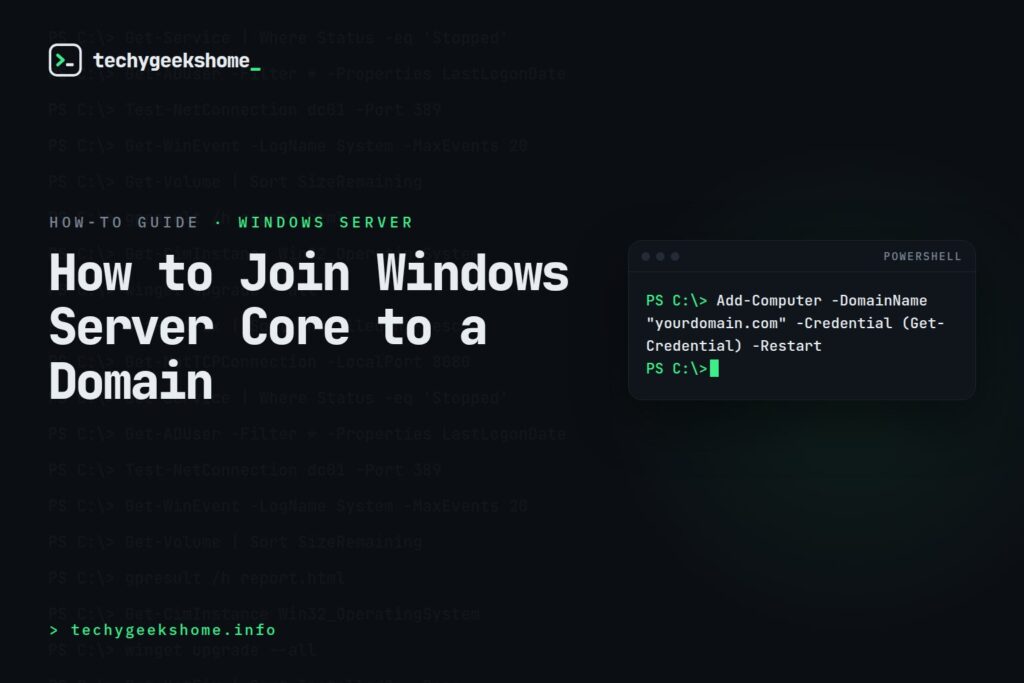
Server Core has no desktop, so there’s no System Properties dialog to click through. Joining a domain is just as fast as the GUI method once you know the two commands: this works the same on Server 2022 and 2025.
Method 1: PowerShell (fastest, scriptable)
From an elevated PowerShell session on the Core server:
Add-Computer -DomainName "yourdomain.com" -Credential (Get-Credential) -Restart
Get-Credential pops a prompt for domain admin (or delegated join-rights) credentials: enter them in DOMAIN\username format. The -Restart flag reboots the server automatically once the join completes, which is required before the domain membership takes effect.
If you want to rename the computer at the same time (worth doing before joining, so the AD computer object gets the right name from the start):
Rename-Computer -NewName "SRV-NEWNAME" -Restart
Run the rename first, let it reboot, then run the domain join separately: combining both in one command can work but troubleshooting is easier if you do them as two clean steps.
Method 2: sconfig (the built-in Core menu)
If you’d rather use a menu than remember PowerShell syntax:
- Type
sconfigand press Enter. - Choose option 1) Domain/Workgroup.
- Type
Dfor domain, enter the domain name, then supply credentials when prompted. sconfigwill offer to restart automatically: accept it, since the join doesn’t finish until the reboot.
Verifying it worked
After the reboot, confirm domain membership:
(Get-CimInstance -ClassName Win32_ComputerSystem).Domain
This should return your domain name rather than WORKGROUP. You can also check from any domain-joined admin workstation with:
Get-ADComputer -Identity "SRV-NEWNAME"
which confirms the computer object actually landed in Active Directory.
Common failure: DNS
The single most common reason a Core server fails to join is that it isn’t pointed at a DNS server that can resolve the domain: Server Core doesn’t have a friendly error dialog to hint at this the way the GUI does, so if the join command times out or fails immediately, check Get-DnsClientServerAddress first before assuming it’s a credentials problem.
Discover more from TechyGeeksHome
Subscribe to get the latest posts sent to your email.
