 By Andrew Armstrong
Every IT pro has the same drawer of half-finished disk-space tools: a duplicate finder here, a folder-size scanner there, none of them quite doing the whole job. We got tired of juggling them, so we built DiskGeek: one free, self-contained Windows tool that scans, finds duplicates, searches, renames, compares and reports on disk usage, with nothing held back for a paid tier. As of today, it’s available for anyone to download.
No trial period, no feature lock, no bundled offers in the installer: just a single self-contained .exe that bundles .NET 8, so there’s nothing to install first.
What DiskGeek does
DiskGeek is a complete toolkit for understanding and reclaiming disk space: not a stripped-down trial:
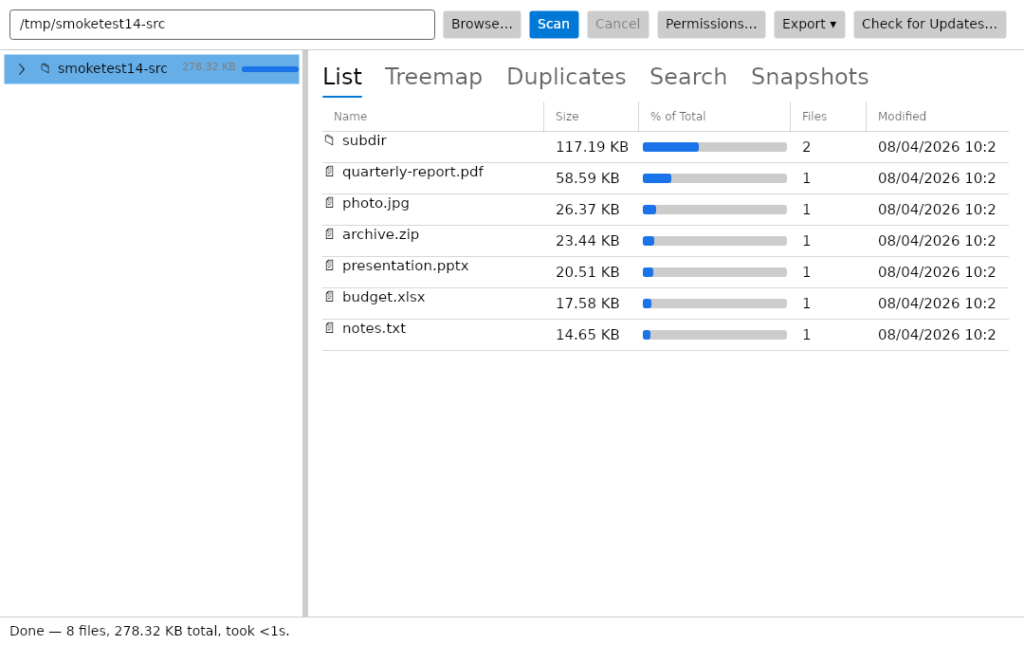
- Real-time, non-blocking scanning: runs on a background thread with a live file/folder/byte counter and a Cancel button, so the interface never locks up, even on huge volumes.
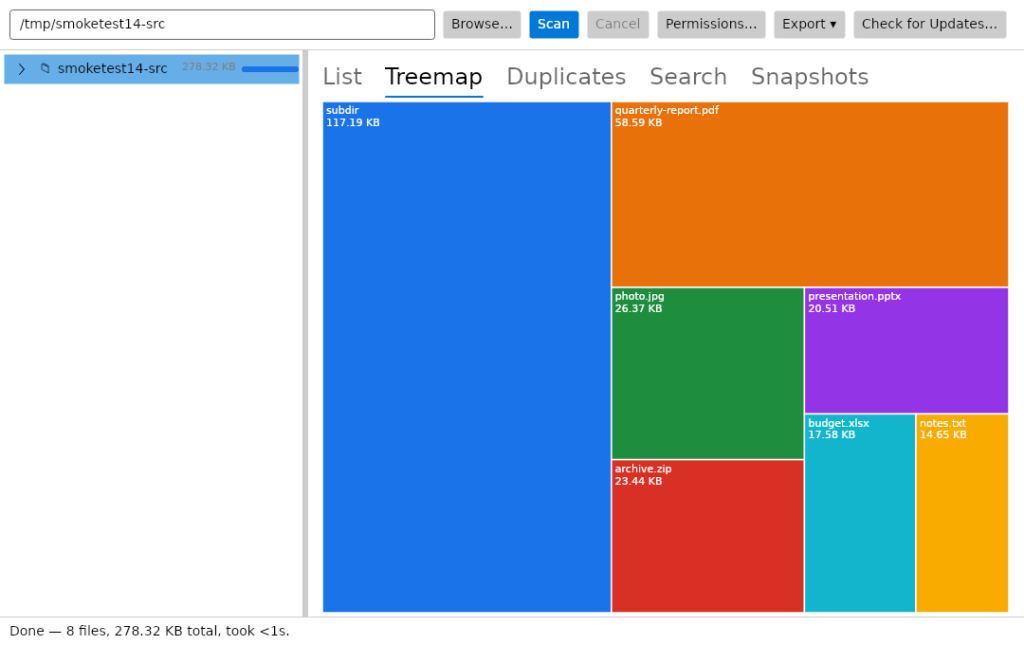
- List and Treemap views: a sortable list for the fastest scan of what’s biggest, plus a squarified treemap that makes the largest space consumers obvious at a glance.
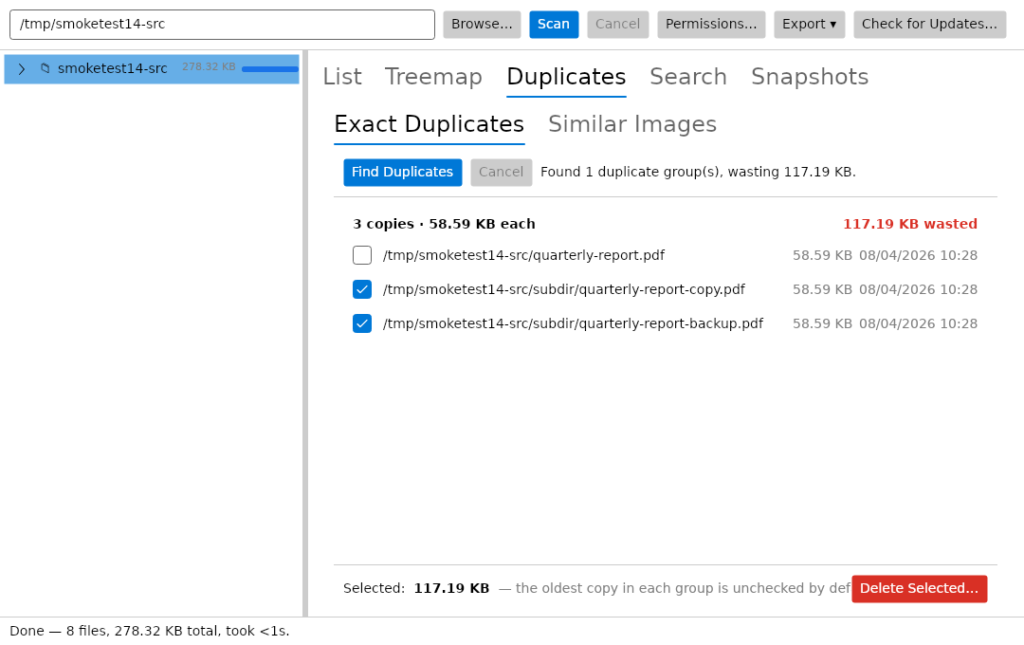
- Exact duplicate detection: size → quick-hash → full SHA-256 finds byte-for-byte duplicates without wasting time hashing files that can’t match.
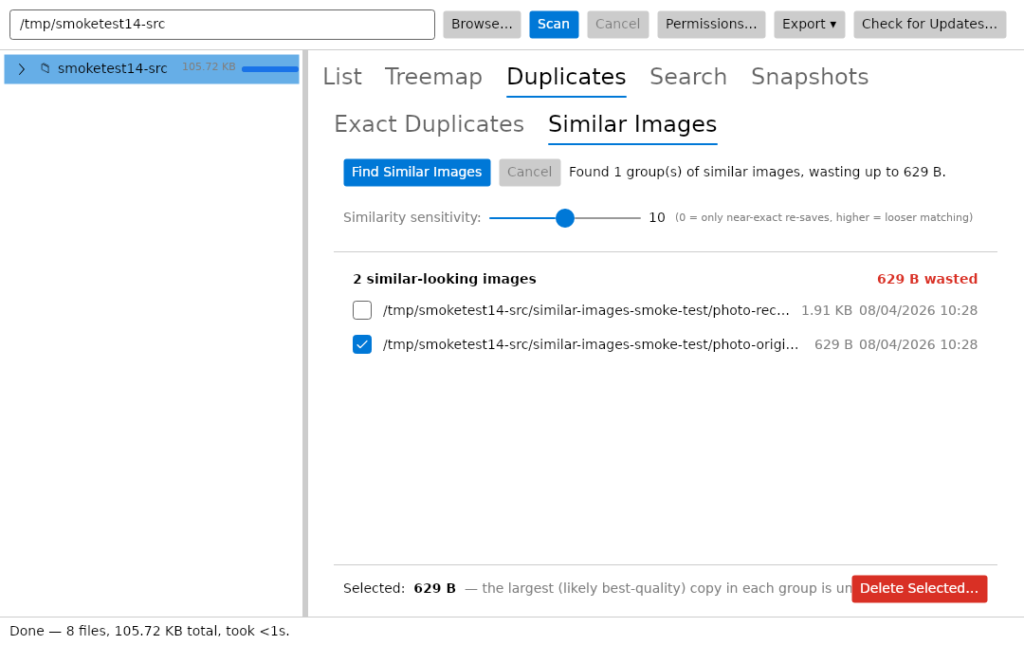
- Similar image detection: finds photos that look alike even when the bytes differ, using perceptual hashing with an adjustable sensitivity slider.
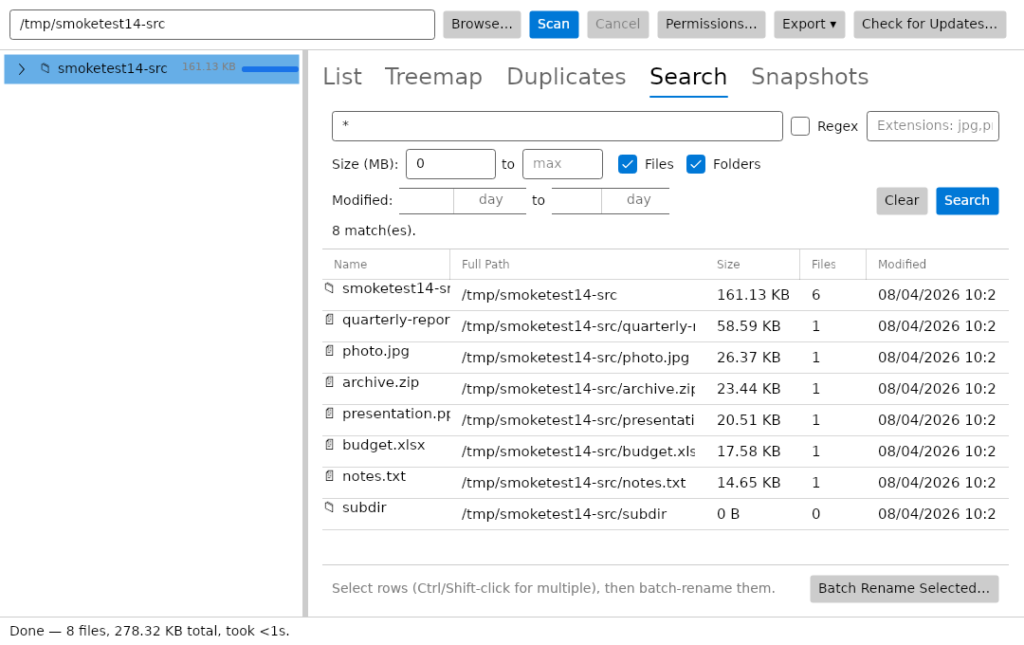
- Search and batch rename: instant in-memory filtering, plus a batch rename tool with find/replace, prefix/suffix and an auto-counter, with a live preview.
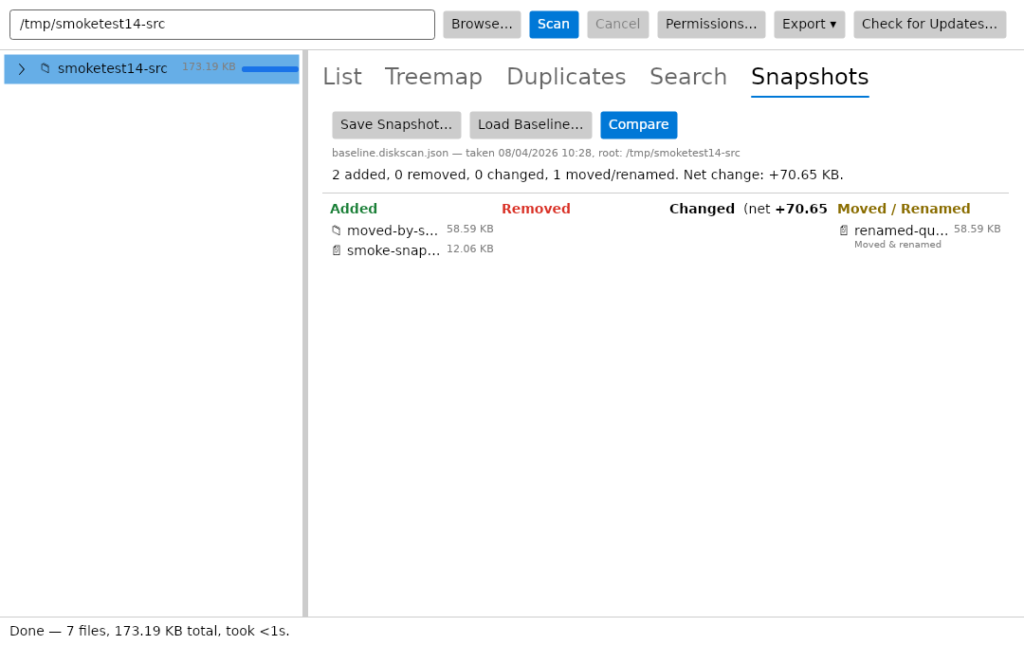
- Snapshot comparison: see exactly what was added, removed, changed or moved since your last scan, move-aware so relocated folders aren’t reported as deleted.
- CSV and HTML export: export any scan as a CSV that opens straight in Excel, or a self-contained HTML report with a proportional size bar per row.
- NTFS permission auditing: see the owner and full access control list for any file or folder, with inherited permissions shown separately.
- Scheduled, unattended scans: a headless command-line mode built for Windows Task Scheduler, with an exit code so a failed run doesn’t go unnoticed.
- Built-in update checker: checks on startup and never installs silently.
See it in action
The full set of screenshots, including the delete confirmation flow, batch rename dialog, HTML report and the permissions auditor, is on the DiskGeek product page.
Who it’s for
Built by an IT pro who needed it: not a bloated commercial suite trying to upsell you. If your C: drive is mysteriously full, your photo library has quiet duplicates, or you want a scheduled report of what changed on a shared drive overnight, this is built for exactly that.
Requirements
- Operating system: Windows 10 or 11 (64-bit)
- Installer: self-contained: bundles .NET 8, nothing else to install
- Download size: ~32 MB
- Current version: 1.1.1-4 August 2026
Video Demo
Get DiskGeek
DiskGeek is free to download and use: 100% free, no Pro tier, no ads, no bundled offers. All rights reserved; it’s free to use but not open source, so redistribution or modification of the compiled application isn’t permitted without permission.
Download DiskGeek Free
Self-contained installer (~32 MB) bundling .NET 8: nothing else to install. 100% free, no Pro tier, no ads, no bundled offers.
Download DiskGeek FreeFrequently Asked Questions
Is it really free? No Pro version, no catch?
Yes, DiskGeek is free to download and use, with no Pro tier, no ads, and no bundled offers in the installer.
Does DiskGeek collect data or phone home?
The only network activity is the update checker, which compares your version against a small hosted manifest: it never downloads or installs anything automatically. If it can’t reach the manifest, it fails silently rather than interrupting you.
Is deleting duplicate files safe?
Every delete goes through a confirmation dialog showing exactly how much space will be freed, with an explicit warning if an entire group is selected. Deletes go to the Recycle Bin, so they are recoverable if you change your mind.
Why does Windows show a warning when I install it?
DiskGeek is not yet signed with a paid code-signing certificate, so Windows SmartScreen may show an “unrecognised app” warning the first time you run the installer. This is normal for independently-distributed free software: click “More info” then “Run anyway” to continue.
Is DiskGeek available for macOS or Linux?
No. DiskGeek is Windows-only (10 or 11, 64-bit): it relies on NTFS permission APIs and Windows Task Scheduler integration that do not exist on other platforms.
Discover more from TechyGeeksHome
Subscribe to get the latest posts sent to your email.
