 By Andrew Armstrong
You open a site for one quick look, and an hour later you are still scrolling. Most of us have been there, and the usual fix is a website blocker extension. The trouble is that a blocker needs to know where you go, which makes it a very attractive thing to hijack. Last December, a report on the ShadyPanda campaign (The Hacker News) named an extension called BlockSite in its list of browser extensions turned into spyware across about 4.3 million installs.
So we built FocusGeek. Click its button on a distracting site and choose Block, start a focus timer, or block on a schedule. The browser does the blocking itself from FocusGeek’s rules, so FocusGeek never reads your browsing and makes no network requests at all. It’s free and open source.
Quick Facts
- Free. No Pro tier, no ads and no limit on how many sites you block.
- Open source under the GPL-3.0, with the full source on GitHub.
- Works in Chrome, Edge, Brave, Opera, Vivaldi and Firefox.
- No account, no tracking and no network access at all.
What it does
- Block this site: one click on the FocusGeek button, and every subdomain is blocked too.
- Quick add groups: block social media, news, video or shopping in one tap.
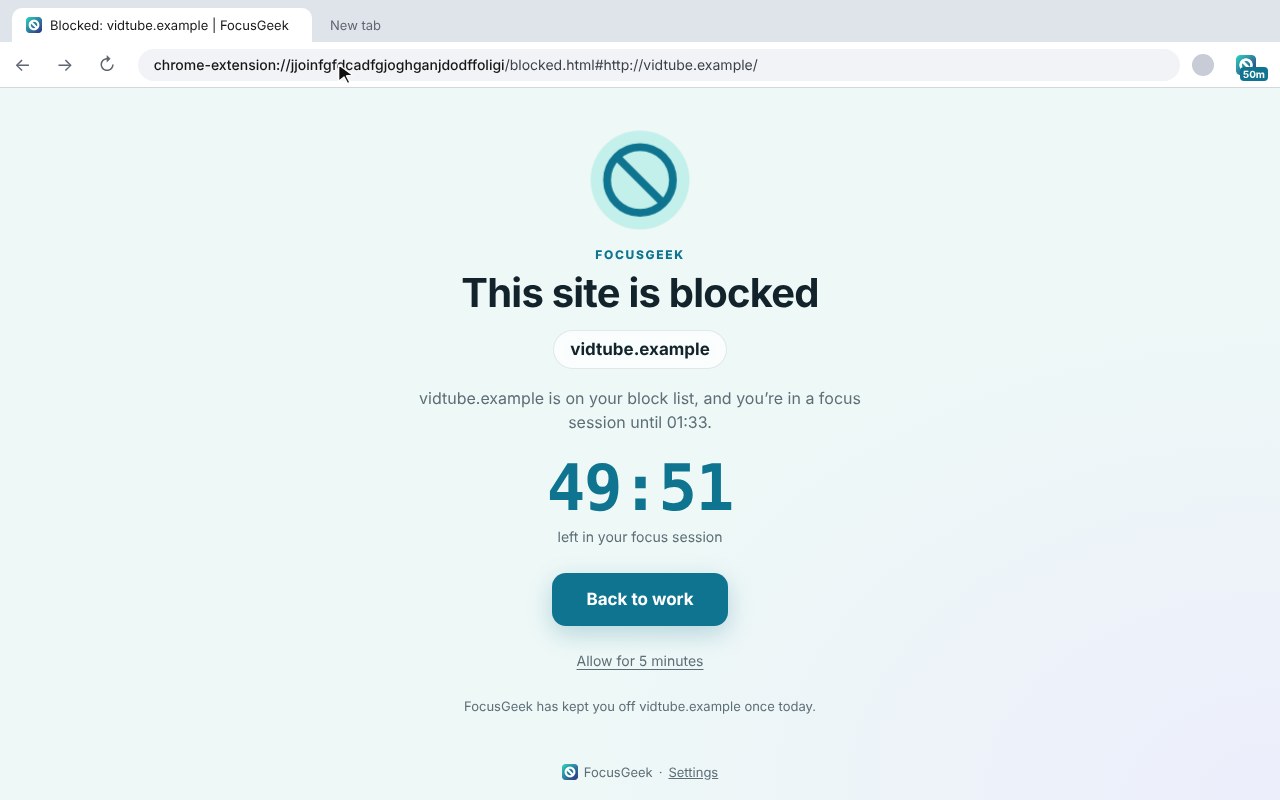
- Focus timer: 25, 50 or 90 minutes, or your own length, with the time left on the toolbar.
- Schedules: block on set days and times, like weekdays 9 to 5.
- A calm blocked page: the time left and a Back to work button, not an error.
- Short breaks or strict mode: allow a site for 5 minutes after a short pause, or lock yourself in until the timer ends.
How it works
Most blockers watch every page you open and decide whether to block it. FocusGeek hands the browser a short list of rules instead, and the browser does the blocking itself. That means FocusGeek never sees where you go. It only asks for access to a site when you block it, so it can show its own calm page there instead of the browser’s plain error.
How to install it
Store listings for Edge and Firefox are on the way. Until then, adding it yourself takes about a minute:
- Download the ZIP and unzip it somewhere you’ll keep it.
- Go to
chrome://extensions(oredge://extensions) and switch on Developer mode. - Click Load unpacked and pick the
focusgeekfolder.
On Firefox, grab the Firefox version instead and load it from about:debugging. The FocusGeek page walks through every step with screenshots.
Download it
Found a bug or want a feature? Open an issue on GitHub. FocusGeek joins Bluesky Saver, ErrorGeek, Image Format Saver, Reddit Saver, Page Saver, Board Saver for Pinterest, Grid Saver for Instagram and Clip Saver for TikTok in our browser extensions.
Discover more from TechyGeeksHome
Subscribe to get the latest posts sent to your email.
