 By Andrew Armstrong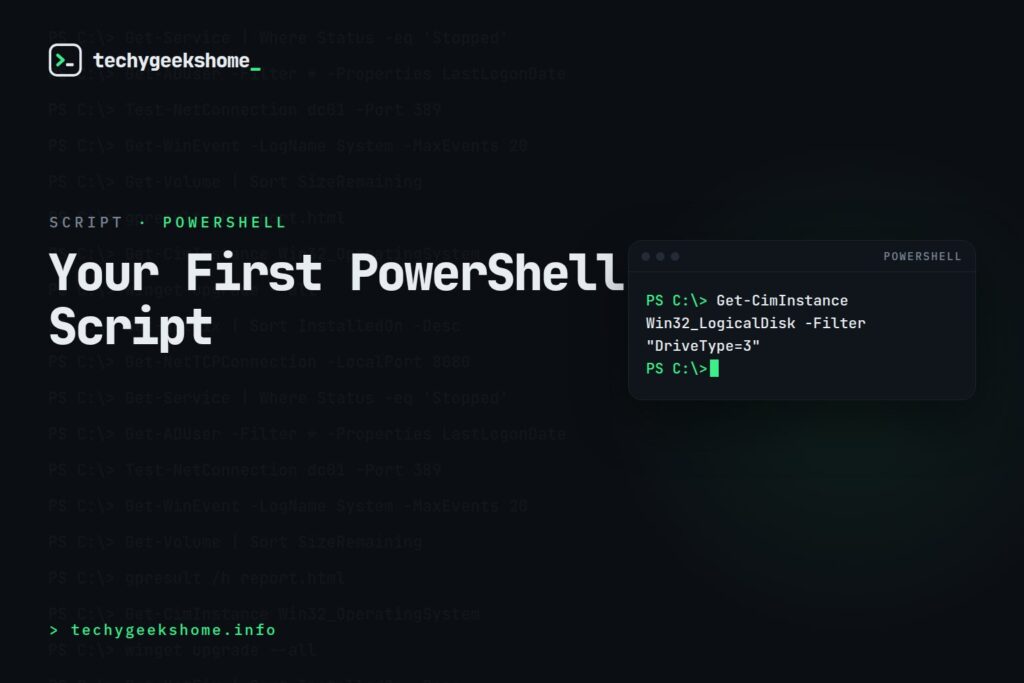
Part of our PowerShell guides: every related guide in one place.
Most people learn PowerShell by reading about PowerShell. That produces someone who knows what a cmdlet is and still can’t automate anything. The alternative is to write one script that solves a real annoyance, and learn the concepts as you hit them.
This walks through building exactly that: a disk space report across several machines, from three lines to something you’d genuinely schedule. Every concept appears because the script needs it, not because a syllabus said so.
Quick Facts
- Start with something annoying but not critical. You’ll iterate on it, so it shouldn’t matter if it breaks.
- Write it as a working one-liner first, then wrap it in a script. Never start with the file.
param()turns a script into something reusable rather than something you edit every time.- Add
-WhatIfsupport before anything that changes state. See the parameter validation guide. - A script that runs on your machine only is half-finished. Test as another account before you trust it.
Start in the console, not in a file
The mistake is opening an editor first. Build the logic interactively, one line at a time, checking output as you go. Only when it works does it become a script.
Here’s the whole thing in one line:
Get-CimInstance Win32_LogicalDisk -Filter "DriveType=3"Run it. You get every property of every fixed disk, which is too much. Narrow it:
Get-CimInstance Win32_LogicalDisk -Filter "DriveType=3" |
    Select-Object DeviceID, @{N='FreeGB';E={[math]::Round($_.FreeSpace/1GB,1)}}, @{N='TotalGB';E={[math]::Round($_.Size/1GB,1)}}
That’s already useful. The calculated properties convert bytes into gigabytes and round them. Nobody wants to read 53687091200.
Add the bit that makes it worth running
A list of disks isn’t interesting. A list of disks that are nearly full is. Add a percentage and a filter:
Get-CimInstance Win32_LogicalDisk -Filter "DriveType=3" |
    Select-Object DeviceID,
        @{N='FreeGB';E={[math]::Round($_.FreeSpace/1GB,1)}},
        @{N='PercentFree';E={[math]::Round(($_.FreeSpace/$_.Size)*100,1)}} |
    Where-Object PercentFree -lt 15 |
    Sort-Object PercentFree
Now it only tells you about problems, sorted worst first. That’s the difference between a script people run and a script people ignore.
Turn it into a script
Save it as Get-LowDiskSpace.ps1, and add a param() block at the very top so the threshold and the machine list aren’t hard-coded:
[CmdletBinding()]
param(
    [string[]]$ComputerName = $env:COMPUTERNAME,
    [int]$ThresholdPercent = 15
)

foreach ($computer in $ComputerName) {
    try {
        Get-CimInstance Win32_LogicalDisk -Filter "DriveType=3" -ComputerName $computer -ErrorAction Stop |
            Select-Object @{N='Computer';E={$computer}}, DeviceID,
                @{N='FreeGB';E={[math]::Round($_.FreeSpace/1GB,1)}},
                @{N='PercentFree';E={[math]::Round(($_.FreeSpace/$_.Size)*100,1)}} |
            Where-Object PercentFree -lt $ThresholdPercent
    }
    catch {
        Write-Warning "$computer : $($_.Exception.Message)"
    }
}
Four things happened there worth understanding.
param()must be the first executable line. Anything above it except comments is a syntax error.[string[]]accepts an array, so you can pass one machine or fifty.try/catchwith-ErrorAction Stop, without that parameter, non-terminating errors sail straight pastcatch. This catches out almost everyone once.- It outputs objects, not text. That means you can pipe the whole script into
Export-CsvorConvertTo-Htmlwithout changing it.
Run it
.\Get-LowDiskSpace.ps1 -ComputerName SERVER01, SERVER02 -ThresholdPercent 20 |
    Export-Csv C:\Reports\lowdisk.csv -NoTypeInformation
Because it emits objects, everything downstream is free. That’s the payoff for the extra ten minutes.
The habits worth forming now
Quick Steps
- Comment why, not what.
$_.FreeSpace/1GBdoesn’t need explaining; “finance insists on 20% headroom” does. - Use
Write-Verbose, notWrite-Hostfor progress messages.[CmdletBinding()]gives you-Verbosefor free. - Never hard-code paths or names. That’s what parameters are for.
- Test as the account that will run it, not just as yourself.
- Put it in source control, even if that’s a folder with dated copies.
Glossary
| Term | What it means |
param() | Declares a script’s inputs. Must be the first executable line. |
[CmdletBinding()] | Turns a script into an advanced function, adding -Verbose, -WhatIf and friends. |
| Calculated property | A hashtable with N (name) and E (expression) keys used to rename or transform a column. |
-ErrorAction Stop | Promotes a non-terminating error so try/catch can catch it. |
| Non-terminating error | An error that prints but doesn’t halt execution. The default for most cmdlets. |
Frequently asked questions
Why does my try/catch never catch anything?
Because most cmdlet errors are non-terminating and pass straight through. Add -ErrorAction Stop to the command inside the try block and it will behave as you expect.
Should I use Write-Host?
Not for output. It writes to the console only, so nothing downstream can capture it. Use Write-Verbose for progress and let real results go to the pipeline as objects.
Where should param() go?
The first executable line of the script, before everything except comments and [CmdletBinding()]. PowerShell will throw a syntax error otherwise.
How do I run this against many machines quickly?
For a handful, the loop is fine. For dozens, look at Invoke-Command with a computer list, which runs in parallel rather than sequentially.
Gear We Recommend
Testing scripts is easier with a dedicated admin machine set up right. Here’s the kit we use.
Browse our Admin Machine picks on AmazonAs an Amazon Associate, TechyGeeksHome earns from qualifying purchases
Disclosure: this post may contain affiliate links. If you buy through one of them, we may earn a small commission at no extra cost to you. We only recommend products we’ve tested or genuinely rate.
Discover more from TechyGeeksHome
Subscribe to get the latest posts sent to your email.
