 By Andrew Armstrong
Most MBOX to PST reviews cover only one product. Stellar now offers two: the Windows desktop software, Stellar Converter for MBOX, and a browser-based Online MBOX to PST service. They solve the same problem, but they suit very different jobs. So I ran real mailboxes through both and noted where each one earns its place.
My test files came from three common migration paths:
- A multi-gigabyte Google Takeout export of a Gmail account
- A Thunderbird profile with several levels of nested subfolders
- An older Apple Mail mailbox exported from a Mac
I also kept one small Thunderbird file under 100 MB to try the online service’s free tier. The desktop tests ran on a Windows 11 PC with Outlook installed.
Hands-on: the desktop software
I installed version 6.3.0.0 from Stellar’s site. The installer needs only about 250 MB, and the setup wizard is the usual next-next-finish routine. It runs on 64-bit Windows 11, 10, 8.1 and 8. Stellar recommends 8 GB of RAM, though 4 GB is the minimum.
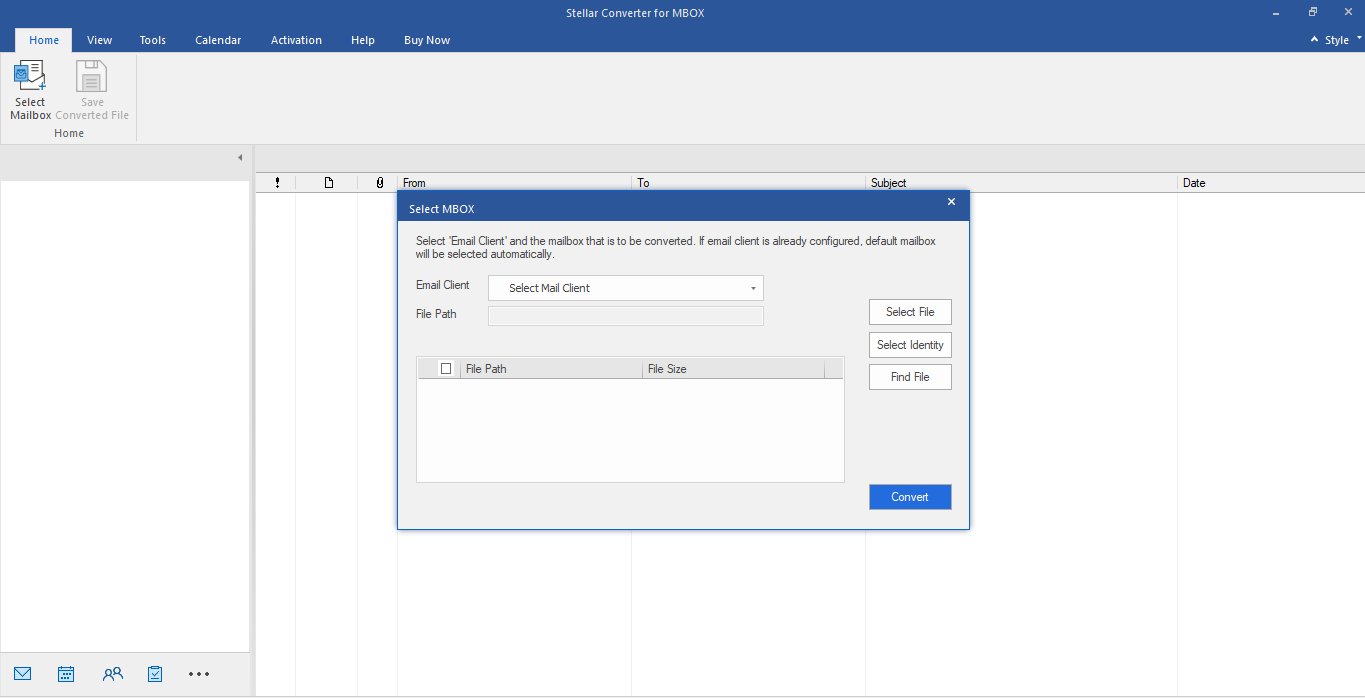
Picking the source. The first screen asks which email client the MBOX came from. This matters more than it looks. When I chose Thunderbird, the software filled in the default profile path on its own, so I didn’t have to dig through AppData. For the Takeout and Apple Mail files, I used Find File to scan a folder instead. It also picks up MBX, MBS and RGE files, which covers older clients like Eudora, Opera Mail and Entourage.
Scanning and preview. Scan time grows with the mailbox, so the multi-gigabyte Takeout file took noticeably longer than the Thunderbird folder. That’s normal, and worth planning around for big archives. The preview window looks like Outlook’s three panes: folder tree on the left, message list in the middle, the open email on the right. My nested Thunderbird subfolders came through exactly as they were. This is where I spent the most time, spot-checking attachments and dates before saving anything.
One detail I liked: contacts, calendars and tasks also converted for the Thunderbird and Takeout files, not just email. Many converters stop at messages.
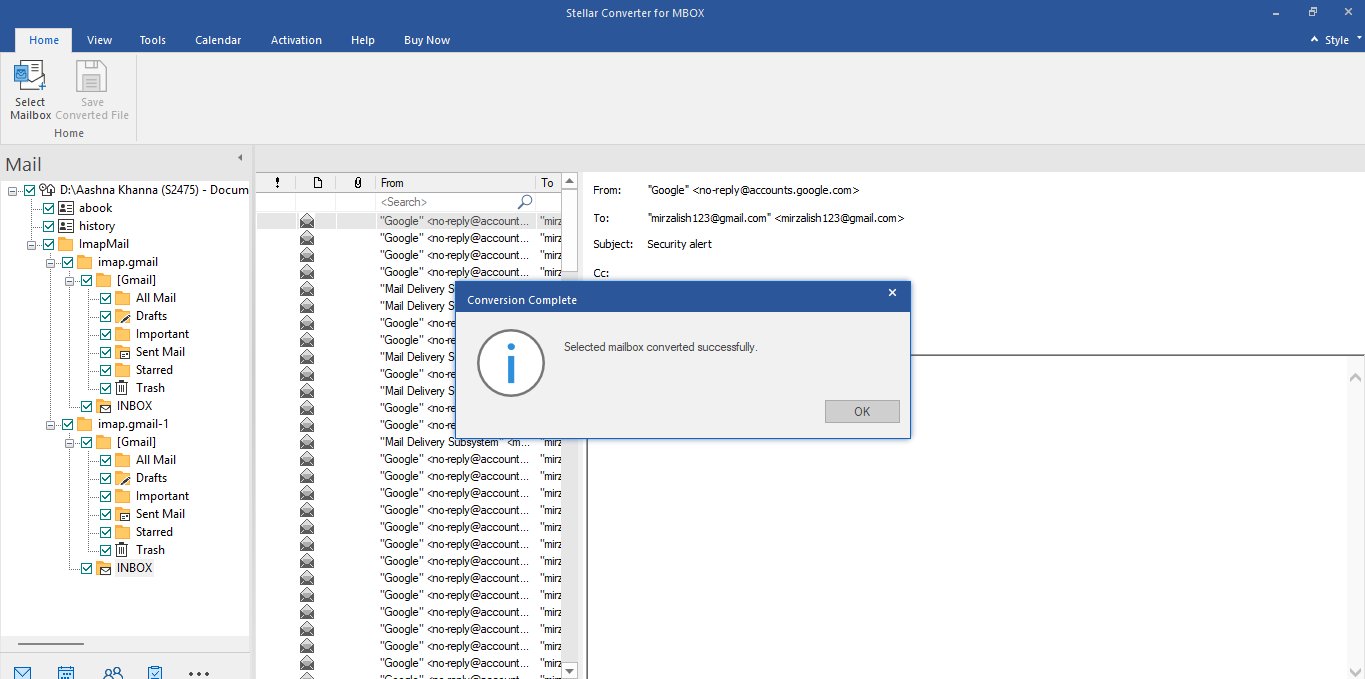
Saving. The Corporate edition saves to a new or existing PST, or to EML and MSG. The Technician edition adds direct export to an Outlook profile or Office 365, plus RTF, PDF and HTML. Before saving I tried two extras:
- Apply Filter to keep only a date range and exclude a couple of noisy sender addresses
- Auto Split, which broke the large Takeout PST into smaller files for easier import
The save completed without errors, and the PST opened in Outlook with the same folder tree I’d seen in the preview.
One requirement to know upfront: Outlook must be installed on the machine where you save the PST.
Hands-on: the online service
What I liked most about the browser-based MBOX to PST converter is that it needs no installation at all; it runs right in the browser. I opened it on a MacBook on purpose, since the desktop app is Windows-only. You sign in first, then upload. Outlook isn’t needed at any point, because the conversion runs on Stellar’s servers.
Upload and convert. I picked my small Thunderbird file, under the 100 MB free limit, and watched a live progress bar through upload and conversion. For a file that size it was quick. Stellar says most files finish within 15 minutes.
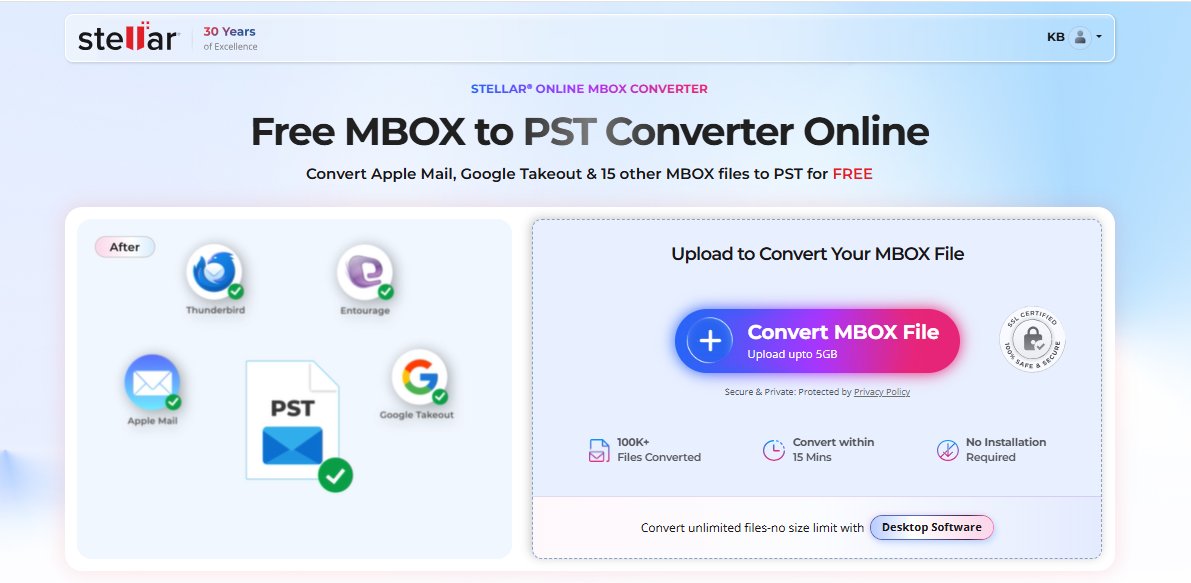
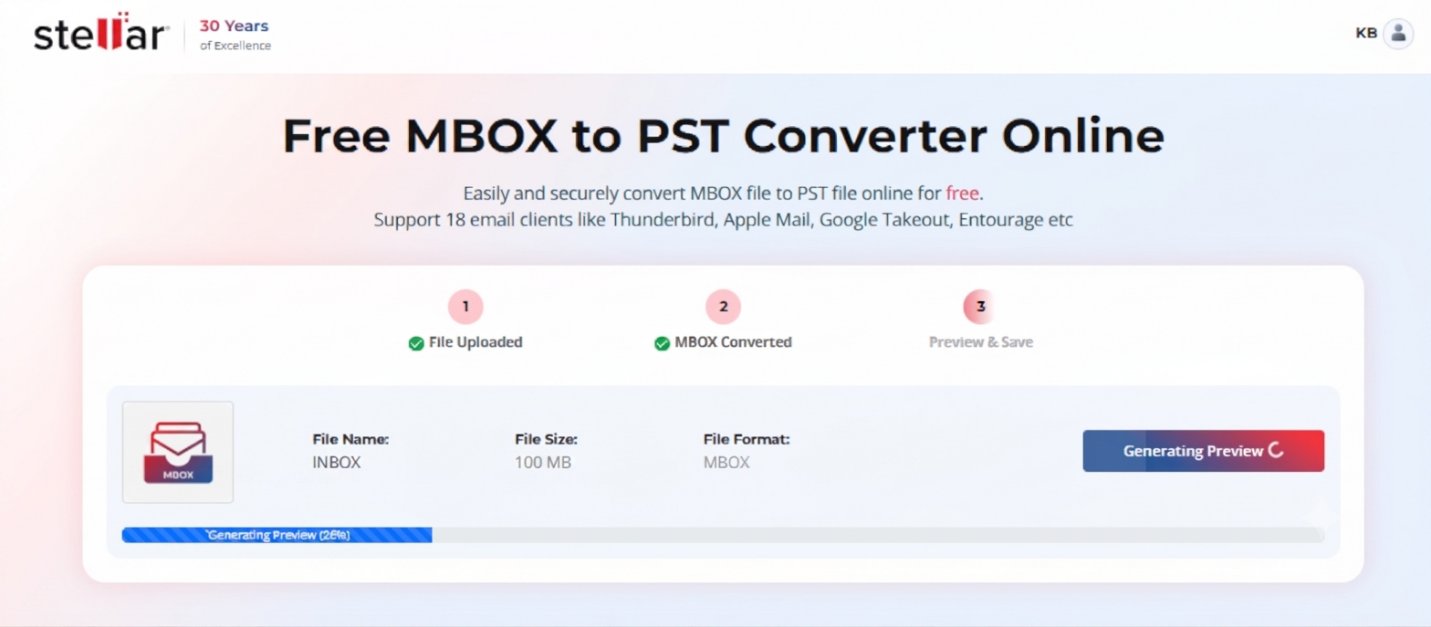
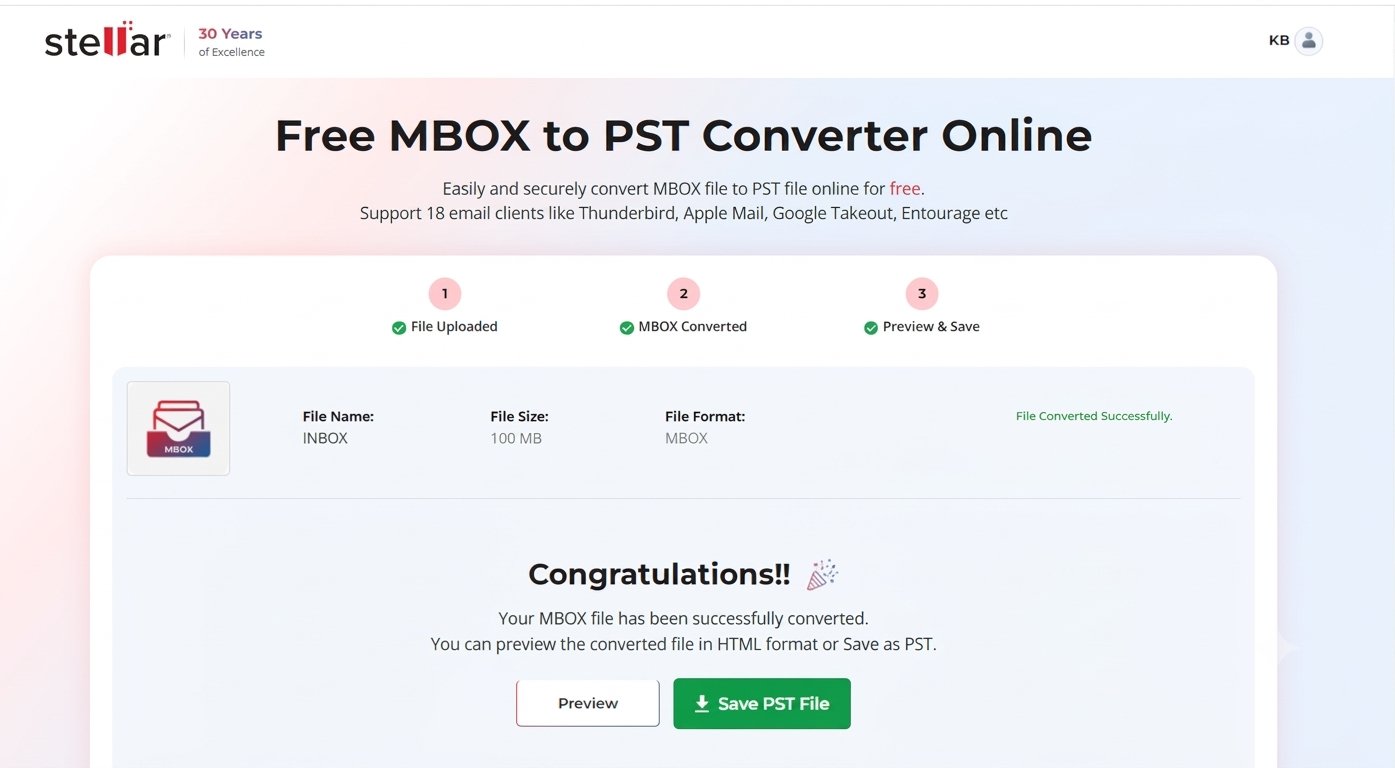
Preview before download. Once done, the service shows an HTML preview of the mailbox. It’s simpler than the desktop preview, but it was enough to confirm folders, senders and attachments made it across. I’d call this the most useful part of the online flow: you don’t download blind.
Download. The result is a PST file only. On the free plan, the download link lasts 24 hours, after which Stellar deletes the file from its servers. That’s good for privacy, but set a reminder if you convert late in the day.
The multi-gigabyte Takeout file was too big for the free tier, so it needed the Premium plan. Premium accepts files up to 5 GB, up to five files, with a 48-hour download window.
Desktop vs online at a glance
| Desktop software | Online service | |
|---|---|---|
| Installation | Required, Windows 64-bit | None, any browser |
| Works on Mac / Linux | No (separate Mac product) | Yes |
| Outlook needed | Yes, to save PST | No |
| File size | No limit | 100 MB free, 5 GB Premium |
| Files per job | Multiple via identity folder | 1 free, up to 5 Premium |
| Output formats | PST, EML, MSG; Technician adds Office 365, Outlook profile, RTF, PDF, HTML | PST only |
| Preview | Three-pane, Outlook-style | HTML preview |
| Filters and PST split | Date range, sender exclusion, auto split | Not available |
| Where the result lives | Your own drive, no expiry | Download within 24 h (free) or 48 h (Premium) |
What stood out, and what to keep in mind
What impressed me
- Folder structure survived in both versions, including multi-level Thunderbird subfolders.
- Auto-detecting the Thunderbird path saved real time on the desktop side.
- Contacts, calendars and tasks converted along with email for Thunderbird and Takeout files.
- Preview exists in both versions, so I could check results before committing.
- The online service handled a Mac-exported file without any Windows machine involved.
Worth knowing before you start
- The desktop software needs Outlook installed to save PST files.
- The online service needs a sign-in, and its free tier stops at 100 MB.
- Online output is PST only. For PDF, HTML or a direct Office 365 push, you need the desktop Technician edition.
- The free desktop trial lets you scan and preview, but saving needs a licence.
- The online download window is short, so download as soon as conversion finishes.
Pricing and who should pick which
| Option | Price | Best for |
|---|---|---|
| Online service, Free | $0 | One file under 100 MB, any OS |
| Online service, Premium | $19.99 | Up to 5 files of 5 GB each, no install |
| Desktop, Corporate | $39 | Regular MBOX to PST jobs, any file size |
| Desktop, Technician | $99 | Office 365 export, extra formats, IT admins |
If you are a home user moving one Gmail or Thunderbird mailbox, start with the online service. It costs nothing to try, and you’ll know within minutes whether the output looks right.
If you are an IT admin handling several users, large archives or Office 365 moves, the desktop software is the better buy. The filters, PST splitting and unlimited file size are the features that matter at that scale. Stellar also offers a 30-day money-back guarantee on the desktop licence.
Verdict
After running the same files through both, I found that each version is built for a different job. The Stellar Online MBOX to PST Converter is the quickest route for a single, small file, especially on a Mac, since there’s nothing to install. Stellar Converter for MBOX, the desktop software, is the one I’d keep installed for large archives, repeat migrations and any output beyond a plain PST.
Both kept my folder structure intact and let me preview the data before saving, which is what matters most in any email migration. If you’re unsure where to start, try the free online tier on a small file first. Then move to the desktop version once the job outgrows it.
My rating: 4.5/5
Discover more from TechyGeeksHome
Subscribe to get the latest posts sent to your email.
