 By Andrew Armstrong
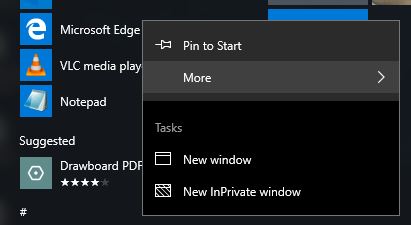 However with any 3rd party apps the uninstall option is there:
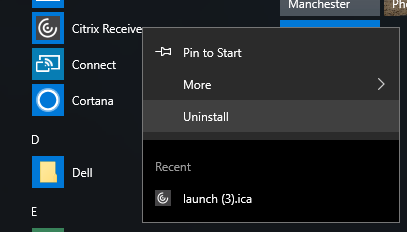 So what do you do if you don’t want all the Microsoft junk apps and you want to make the decision on whether you can uninstall them?
Well, you can use CCleaner to carry this out quickly and easily and below we will show you how to do this.
First of all, you need to download CCleaner which you can get from the link below:
Download CCleaner
You can go ahead and use their free version to carry out this process.
Once you have downloaded CCleaner, you should then go ahead and install it on your computer and open the program.
You will now be taken into the CCleaner program and it will default to the Cleaner tab and then also give you a list of cleanups it can carry out in Windows. However, we want to move to the Tools tab and then the Uninstall tab:
So what do you do if you don’t want all the Microsoft junk apps and you want to make the decision on whether you can uninstall them?
Well, you can use CCleaner to carry this out quickly and easily and below we will show you how to do this.
First of all, you need to download CCleaner which you can get from the link below:
Download CCleaner
You can go ahead and use their free version to carry out this process.
Once you have downloaded CCleaner, you should then go ahead and install it on your computer and open the program.
You will now be taken into the CCleaner program and it will default to the Cleaner tab and then also give you a list of cleanups it can carry out in Windows. However, we want to move to the Tools tab and then the Uninstall tab:
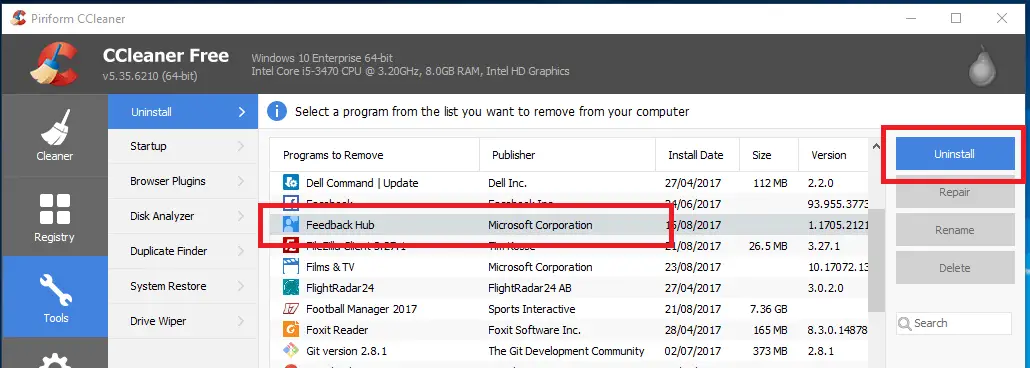
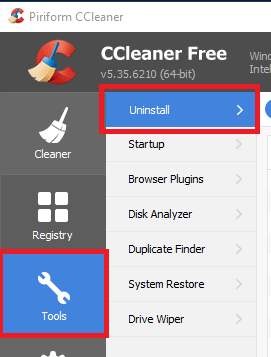 On the middle panel, you will now see a long list of all applications on your computer, including all the built in Windows 10 apps. For the purposes of this guide, we are going to select the Feedback Hub app to uninstall as I have no interest with providing feedback to Microsoft.
So, we scroll down to the Feedback Hub app, highlight it and on the right side panel, click the Uninstall button:
On the middle panel, you will now see a long list of all applications on your computer, including all the built in Windows 10 apps. For the purposes of this guide, we are going to select the Feedback Hub app to uninstall as I have no interest with providing feedback to Microsoft.
So, we scroll down to the Feedback Hub app, highlight it and on the right side panel, click the Uninstall button:
 You will then get a popup asking if you are sure you want to carry this out:
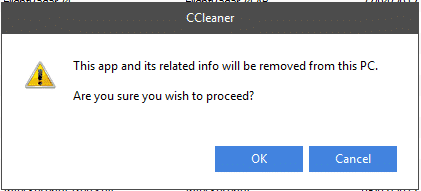 Click the OK button and then app will be uninstalled almost immediately.
2026 Update: Native Methods (No Third Party Tool Required)
CCleaner still works, but you don’t actually need a third party tool for this anymore. Windows 10 has native options built right in.Settings > Apps
Go to Settings > Apps > Installed apps, find the app in the list, click the three dot menu (or just click the app) and select Uninstall. Most built in apps, including Feedback Hub, can be removed this way directly, no third party software needed.PowerShell: Remove-AppxPackage
For apps that don’t show an uninstall option in Settings, PowerShell will remove them. Open PowerShell and run:Get-AppxPackage *feedbackhub* | Remove-AppxPackagefeedbackhub with a keyword matching the app’s package name (use Get-AppxPackage | Select Name to list them all first). This removes the app for your current user account. To remove it for all user accounts on the machine, run PowerShell as administrator and use Remove-AppxPackage -AllUsers instead.
Comments
If you have any questions or feedback on this guide, please feel free to leave us a message below in the comments section.🛠️
Gear We Recommend
A few general tech accessories worth having alongside this.
Browse our General Tech Accessories picks on AmazonAs an Amazon Associate, TechyGeeksHome earns from qualifying purchases.
Discover more from TechyGeeksHome
Subscribe to get the latest posts sent to your email.
