 By Andrew Armstrong
Quick Facts
- Free, and on WordPress.org. Install it straight from your dashboard like any other plugin: no downloads, no zip files, automatic updates.
- Nothing is ever deleted. Archived posts keep their permalink and load normally. They just stop appearing in listings of your newest content.
- Nothing breaks in Google. An archived post keeps its URL, so existing search rankings and inbound links carry on working exactly as before.
- Dry Run first. Preview precisely which posts would be archived, with dates and links, before anything changes.
- Off until you turn it on. The plugin does nothing on install. You set the age threshold and scope, then enable it.
- GPLv2 or later, and it does not phone home. No account, no tracking, no upsell, and nothing sent anywhere.
BackBurner Post Archiver has been approved by the WordPress Plugins Team and is now live on the official plugin directory. You can install it straight from your own dashboard, Plugins, Add New, search for BackBurner, and it will update itself from there like any other plugin.
It is the same plugin we introduced back in August, with a couple of rounds of review behind it. Being in the directory means no more downloading a zip, and no more remembering to check whether there is a newer version.
The problem it solves
If you have been writing for any length of time, your homepage and category archives fill up with content that has stopped being useful. Deals that expired in 2020. A fix for a version of Teams nobody runs any more. Event write-ups from three years ago. None of it is wrong, exactly: it is just not what someone landing on your site should see first.
The usual answer is to delete it, and that is the wrong answer. Those posts still have inbound links, still hold search rankings, and are still the right page for whoever went looking for that exact problem. Deleting them throws all of that away to tidy up a listing.
What BackBurner does instead
It moves old content out of the places where “latest” matters, the homepage, category and tag archives, internal search, and your RSS feed, once it passes an age threshold you choose. Nothing is deleted, and no URL breaks. Anyone with a direct link, a bookmark or an existing Google result opens the post exactly as before.
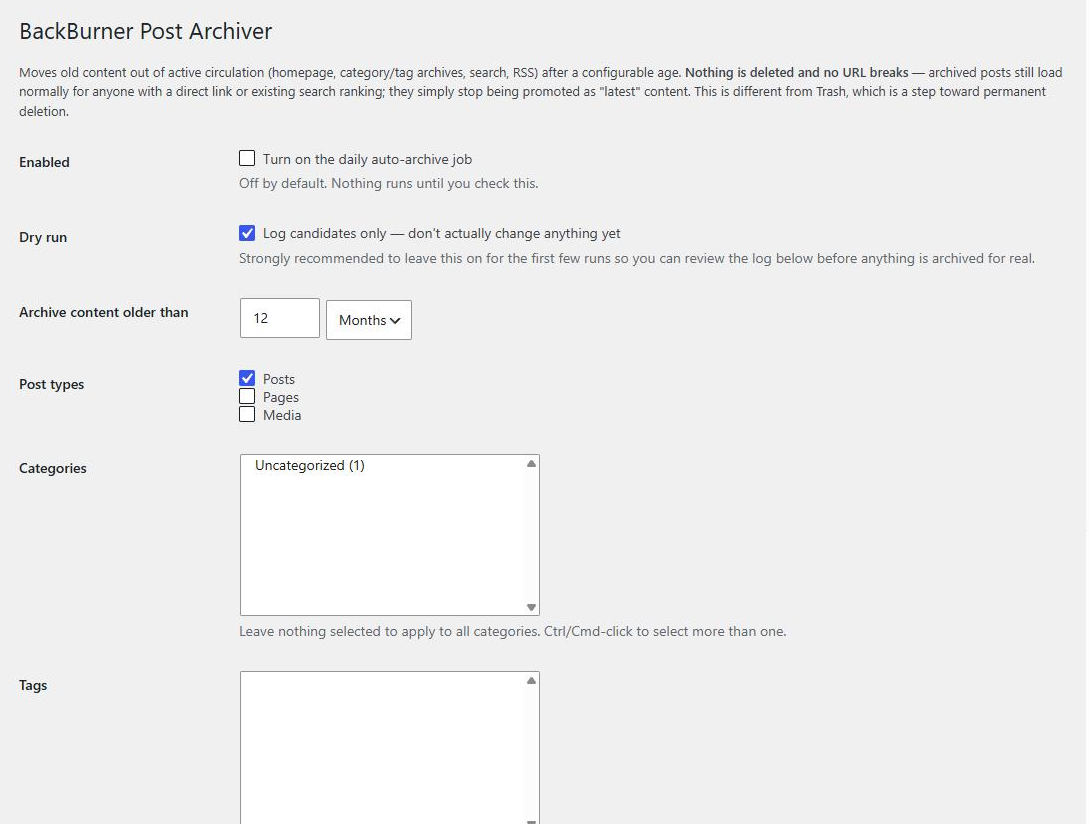
You pick the age, which post types are in scope, and optionally which categories or tags. Any individual post can be marked “never auto-archive” and it is exempt for good.
Dry Run first, always
Before it changes a thing, BackBurner will show you exactly what it would do. Leave Dry Run switched on, hit Run Now, and you get a list of every post that matched with its publish date and a link to check it.

Only when that list looks right do you turn Dry Run off. We would suggest scoping the first real run to one small category rather than the whole site.
Archived is a status, not a deletion
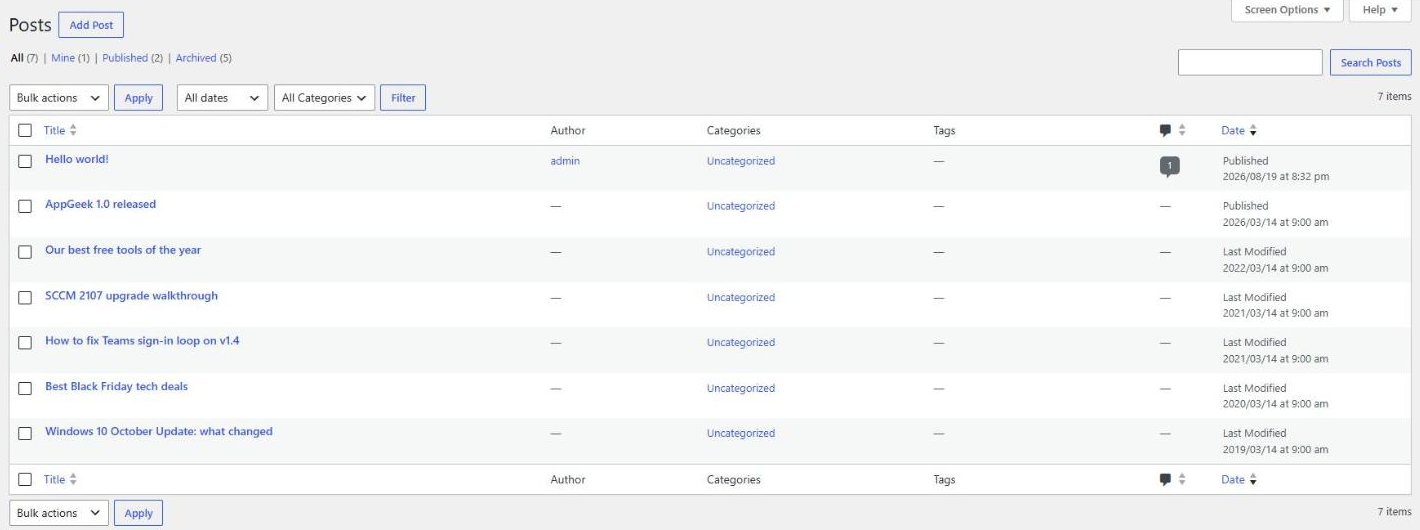
Archived posts move to their own status, alongside Published and Draft. They are not in the Trash, which is a step toward permanent deletion: they are simply out of circulation. You can see them, filter to them, and un-archive any of them from the normal status dropdown in the editor.
Getting it
Install it from inside WordPress: Plugins, then Add New, then search for BackBurner Post Archiver. Or go to the directory listing directly:
It does nothing at all until you turn it on, so installing it is safe on a live site. The Enabled switch is off by default and Dry Run is on.
What it needs
WordPress 5.8 or later and PHP 7.4 or later. It has been tested up to WordPress 7.1 and against PHP 7.4 through 8.4. Licensed GPLv2 or later, free, with no Pro tier and no upsell.
Gear We Recommend
Keeping a fleet of machines current is easier with the right kit on the bench. Here is what we actually use.
Browse our Admin Machine picks on AmazonAs an Amazon Associate, TechyGeeksHome earns from qualifying purchases
Disclosure: this post may contain affiliate links. If you buy through one of them, we may earn a small commission at no extra cost to you. We only recommend products we’ve tested or genuinely rate.
Discover more from TechyGeeksHome
Subscribe to get the latest posts sent to your email.
