100% Free · Version 1.0.2
MetaRestoreGeek: put the dates back into your Google Takeout photos
Google Takeout saves every photo’s date and location in a separate .json file, not in the photo. Copy the export anywhere else and every picture says it was taken today. MetaRestoreGeek matches each photo to its file and writes the real date and GPS location back in, on a copy, never the original.
Windows 10 or 11, 64-bit · no admin rights needed · 0 downloads from this site
Video Demo
Under a minute: a Takeout folder of 33 photos with no dates, fixed in one go.
Everything you need to fix a Takeout export
MetaRestoreGeek does one job: get the dates and places from Google’s .json files back into the photos, where every other app can see them.
Checks before it starts
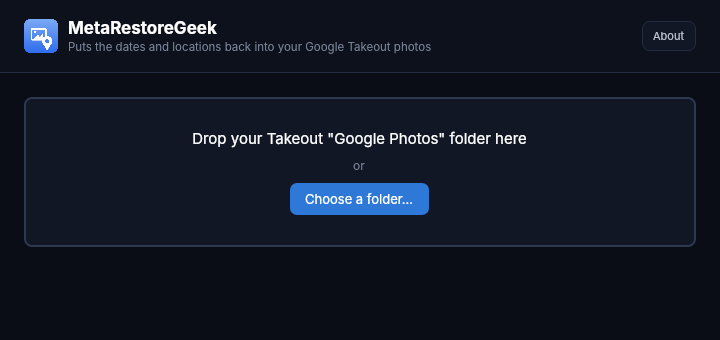
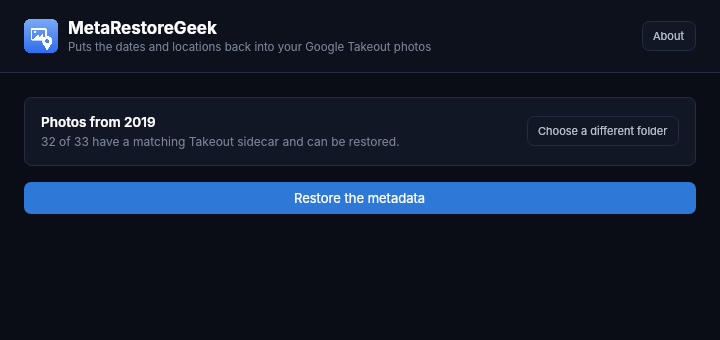
Drop in a Takeout Google Photos folder and it counts how many photos have a matching .json file before you commit to anything.
Handles Google’s odd names
The newer .supplemental-metadata.json files, edited copies that share the original’s file, numbered duplicates where the (1) moves after the extension, and cut-off long names from older exports.
Date, place and caption
Writes the date taken and GPS location, and the caption if there is one. It prefers the camera’s own original location over Google’s guess when the export has both.
Never touches the original
Every fixed photo is a new file in a (restored) folder next to the source. Nothing in the source folder is opened for writing.
Tells you what happened
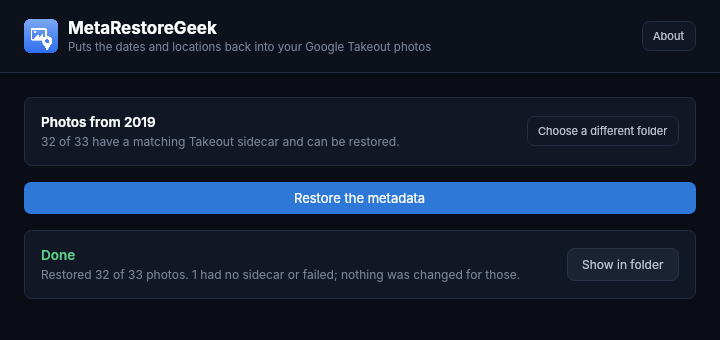
Every photo is accounted for, including the ones with no matching file, rather than being quietly skipped.
exiftool in one click
The first time it can’t find exiftool it offers a one-click download of a pinned, checksum-verified build. Already have it? It’s used automatically.
See it in action
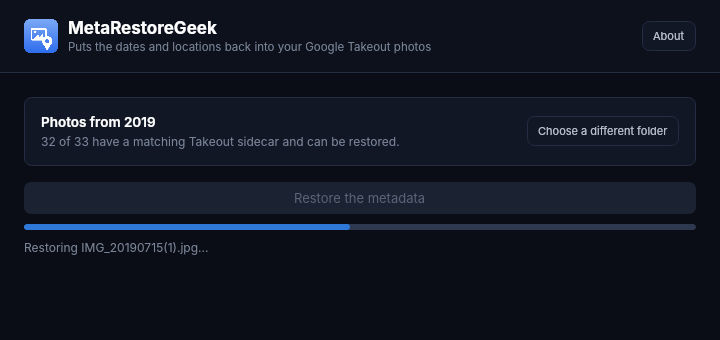
Four screens: drop a folder in, see what it can fix, restoring, and the summary.
Who it’s for
Built by an IT pro who needed it, not a commercial suite trying to upsell you.
Anyone leaving Google Photos
Moving to OneDrive, iCloud, a NAS or a plain folder, with the dates still right.
Anyone with a messed-up timeline
Photos that all show the day you downloaded them, sorted back into the right year.
Anyone who’d rather not upload
Fixing family photos shouldn’t mean handing them to another website.
Requirements
Operating system
Windows 10 or 11, 64-bit.
Rights
Installs for your account only. No administrator rights needed.
exiftool
Offered as a one-click download the first time it’s needed, or picked up from your PATH.
Version
1.0.2. Released 26 October 2026.
Licence
GPL-3.0. Free to use, including at work.
Source
On GitHub, built by GitHub Actions from the tagged source.
Frequently Asked Questions
Why do my Google Takeout photos have the wrong date?
Takeout puts each photo's date taken and location in a separate .json file next to it instead of inside the photo. Other apps don't read those files, so they fall back to the date the file was created, which is the day you downloaded it.
Does MetaRestoreGeek change my original photos?
No. It writes fixed copies into a new (restored) folder next to the original folder. The originals are only ever read.
What if a photo has no matching .json file?
It is left alone and listed in the summary, so you know exactly which ones were not fixed. Screenshots and photos added from other apps often have no .json file.
Is it free?
Yes. No Pro version, no ads and no limit on how many photos you restore.
Are my photos uploaded anywhere?
No. Everything runs on your own PC. The only download the app makes is exiftool itself, once, if you ask it to.
Version History
- 1.0.2: 26 October 2026. The finished screen now shows the real summary, like Restored 32 of 33 photos, instead of getting stuck on Finishing up.
- 1.0.1: 21 September 2026. exiftool no longer has to be installed separately: one-click, checksum-verified download inside the app.
- 1.0.0: 20 September 2026. First release.
Download MetaRestoreGeek today
Free, no uploads, and your originals are never touched.
Not code-signed, so Windows may warn on first run. Click More info, then Run anyway. SHA256 checksums · Source code on GitHub
Windows may show a “Windows protected your PC” warning the first time you install it. That means SmartScreen has not seen the file before, not that anything is wrong with it. Here is why our builds are unsigned, and how to verify your download against its SHA-256 hash. We will never ask you to switch SmartScreen off.
Support
Found a bug, or want something added? Open an issue on GitHub and it will be read.
Featured on