 By Andrew Armstrong
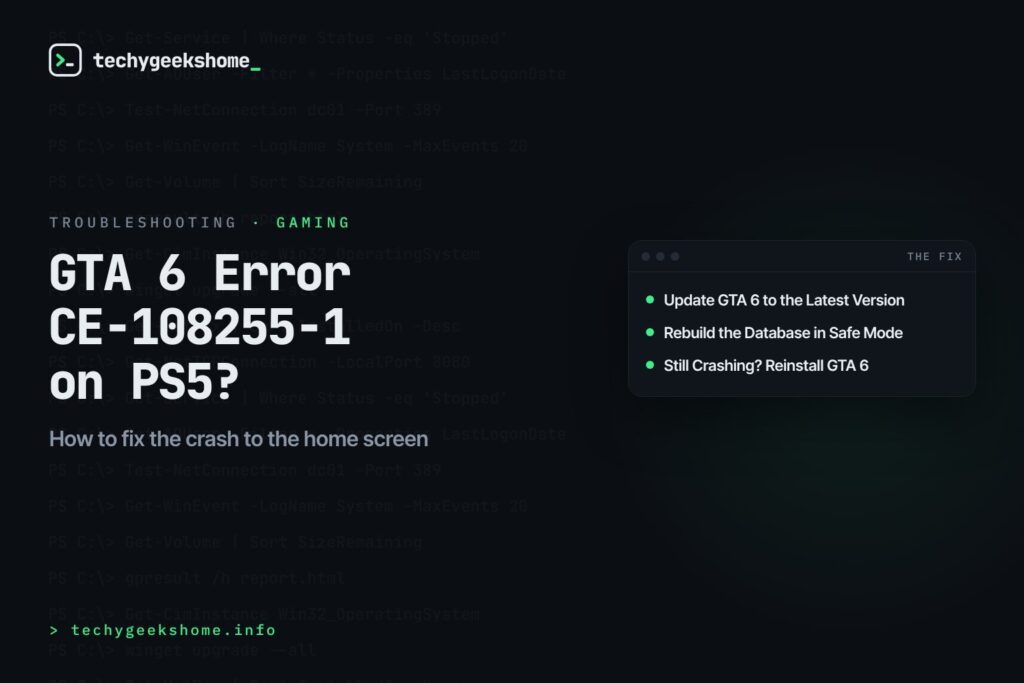
Some PS5 players are being thrown back to the home screen in GTA 6 with error code CE-108255-1, often during the prologue or a story mission. The error has been picked up by several gaming outlets since launch day, and Rockstar’s support page currently points console players to PlayStation’s own help pages rather than giving a single cause. The good news is that the official fix is simple, and a few standard steps clear it up for most people.
What Error CE-108255-1 Means
PlayStation Support describes CE-108255-1 as “An error occurred with the game/application.” It is a general crash code, so it doesn’t tell you exactly what went wrong. It only appears on PS5. If you play on Xbox and the game drops back to the Home screen, see our guide to GTA 6 crashing or losing progress instead.
Update GTA 6 to the Latest Version
This is the step PlayStation Support recommends for this error, and Rockstar has already released updates for the game, so do this first.
- Close GTA 6 completely.
- Highlight GTA 6 on the PS5 home screen and press the Options button.
- Select Check for Update and let any update download and install.
- Open the game again and check the version number on the title screen if you want to be sure.
Update Your PS5 System Software
Sony released a PS5 system update that is required to play GTA 6. If your console missed it, install it now.
- Go to Settings > System > System Software.
- Choose System Software Update and Settings > Update System Software.
- Select Update Using Internet and let the console restart when it’s done.
Restart Your PS5 Properly
Rest Mode keeps the game suspended in memory, so a crash can repeat when you go back in. A full restart gives it a clean start.
- Press the PS button and select the Power icon.
- Choose Turn Off PS5 (not Rest Mode) and wait for the light to go out.
- Unplug the power cable for about a minute, plug it back in and turn the console on.
Rebuild the Database in Safe Mode
Rebuilding the database tidies up the console’s index of your games and data. It doesn’t delete games or saves, but it can take a while on a full drive.
- Turn the PS5 off fully.
- Press and hold the power button until you hear a second beep, about seven seconds after the first.
- Connect your controller with a USB cable and press the PS button.
- Select Clear Cache and Rebuild Database > Rebuild Database and wait for the console to restart.
Still Crashing? Reinstall GTA 6
If the error keeps coming back, a damaged install could be the cause. Deleting the game doesn’t remove the saved data stored on your console, but if you have PlayStation Plus it’s worth backing up to cloud storage first.
- Go to Settings > Saved Data and Game/App Settings > Saved Data (PS5) and upload your GTA 6 saves to cloud storage.
- Highlight GTA 6 on the home screen, press Options and choose Delete.
- Reinstall it from your Game Library or the disc, then let any updates finish before you play.
GTA 6 is a very large download, so check you have enough room first. Our GTA 6 file size guide explains how to free up space. If the game won’t open at all, or you see PSN sign-in errors rather than a crash, see GTA 6 won’t start. If none of this helps, contact Rockstar Support or PlayStation Support with the error code.
Quick Summary
- CE-108255-1 is a general PS5 crash code that means an error occurred with the game.
- PlayStation’s official fix is to update the game, so check for a GTA 6 update first.
- Make sure your PS5 system software is up to date.
- Turn the console fully off rather than using Rest Mode.
- Rebuild the database in Safe Mode, then reinstall the game as a last resort.
Discover more from TechyGeeksHome
Subscribe to get the latest posts sent to your email.
