 By Andrew Armstrong
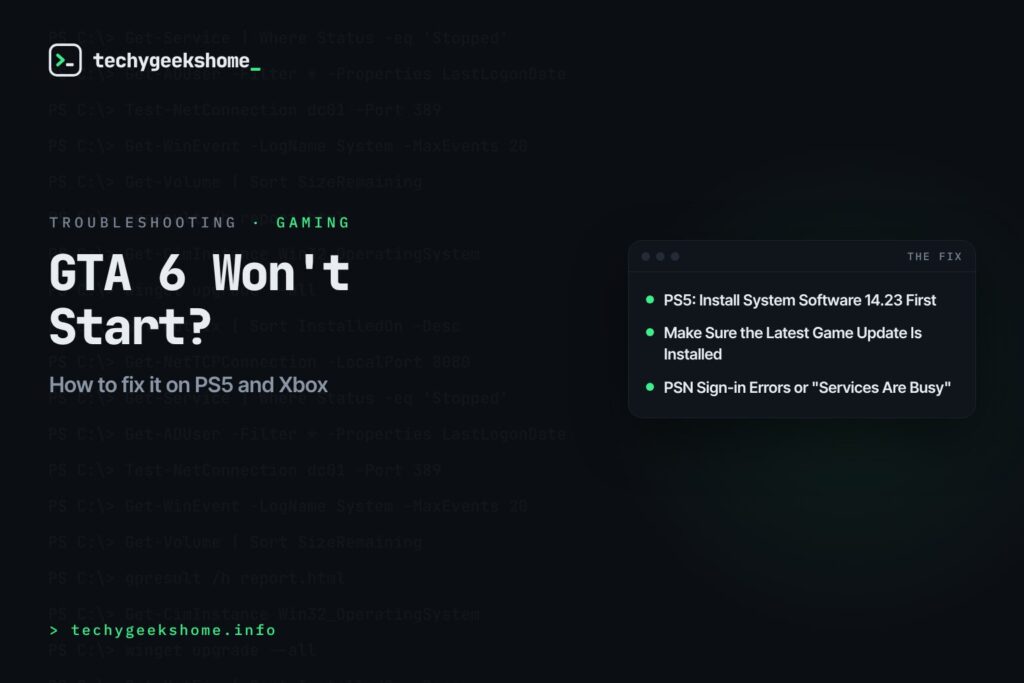
GTA 6 is finally out on PS5 and Xbox Series X|S, but plenty of players are finding that it simply will not start. On PS5 the most common cause is a missing system update that Sony made mandatory just before launch. Others are getting stuck at PlayStation Network sign-in, or have a licence or update problem on either console. Here is what to check, in the order most likely to get you playing.
PS5: Install System Software 14.23 First
Sony released PS5 system software version 14.23 on 17 November and has confirmed it is required before you can play Grand Theft Auto VI. If you pre-loaded the game and then left the console alone, you may be on an older version. The full version string is 26.07-14.23.00 and the download is around 1.27GB.
- Go to Settings > System > System Software > Console Information and check that the System Software number starts with 14.23.
- If it does not, go to Settings > System > System Software > System Software Update and Settings.
- Select Update System Software and then Update Using Internet.
- Let the console restart, then launch GTA 6 again.
- If you launch the game on an older version, the console should prompt you to download the update. Accept it.
Make Sure the Latest Game Update Is Installed
Rockstar has already pushed game updates ahead of launch, and the PS5 version rolled out in stages. If your copy is not on the latest version, it may not start properly.
- PS5: highlight GTA 6 on the home screen, press the Options button and select Check for Update.
- Xbox: press the Xbox button, go to My games & apps > See all > Manage > Updates and install anything listed for GTA 6.
- Wait for the update to finish completely before launching the game.
PS5: Restore Licences and Check Console Sharing
If the game says you cannot play it, or it asks you to buy it again, the licence on your console may not have synced. PlayStation Support lists these steps for GTA 6.
- Go to Settings > Users and Accounts > Other > Restore Licenses and select Restore.
- If the game was bought on another account, that account needs Console Sharing and Offline Play turned on for this PS5. Sign in with the account that bought it and enable it under Settings > Users and Accounts > Other.
- Restart the console and try again.
PSN Sign-in Errors or “Services Are Busy”
On the evening before launch thousands of PS5 owners reported that they could not sign in to PlayStation Network, with messages saying PlayStation services were busy. Sony’s status page briefly warned that players might have difficulty launching games, apps or network features before reporting everything back to normal.
- Check the official PlayStation Network service status page. If there is a reported problem, the only fix is to wait for Sony to resolve it.
- Run Settings > Network > Connection Status > Test Internet Connection to make sure your own connection is working.
- Fully turn off the PS5 (not Rest Mode), wait a minute, then turn it back on.
- Restart your router if other devices are also struggling.
- Try again a little later if the busy message keeps appearing, as heavy launch traffic can cause short spells of sign-in trouble.
Xbox: GTA 6 Won’t Launch
There is no extra system update requirement on Xbox, but the usual checks from Xbox Support still apply.
- Check the Xbox status page for any problems with Xbox network services.
- Make sure your console is up to date under Settings > System > Updates.
- Do a full power cycle: hold the power button on the front of the console for about 10 seconds until it shuts down, unplug it for a minute, then turn it back on.
- If you bought the game digitally, set this console as your home Xbox under Settings > General > Personalisation > My home Xbox.
- Make sure you are signed in with the account that bought the game.
Still Stuck? Reinstall the Game
If nothing above works, a damaged install could be to blame. This is a big download, so only do it as a last resort.
- PS5: start the console in Safe Mode and choose Clear Cache and Rebuild Database first. If that does not help, delete GTA 6 and download it again from your Game Library.
- Xbox: uninstall GTA 6 from My games & apps, do a full power cycle, then reinstall it.
- Check you have enough free space before downloading again.
Quick Summary
- PS5 owners must install system software 14.23 before GTA 6 will run.
- Check for a game update on both PS5 and Xbox.
- On PS5, restore licences and check Console Sharing and Offline Play if the game says you do not own it.
- “Services are busy” messages are usually PSN load. Check the status page and try again later.
- On Xbox, check for updates, power cycle and set your home Xbox.
- Rebuild the database or reinstall only as a last resort.
Discover more from TechyGeeksHome
Subscribe to get the latest posts sent to your email.
