 By Andrew Armstrong
A recording you cannot listen to is a recording you did not make. The hum you never heard in the room, the fan you stopped noticing an hour in, the guest who sat too far from the microphone. Fixing any of it usually means a subscription, an upload to somebody else’s server, or an afternoon in a full audio editor.
SoundGeek is the fourth option: a free Windows app that reads a recording off your disk, cleans it up, and writes the cleaned copy next to it. It is out today, version 1.0.0, free at home and at work, with no per-minute limit and no watermark.
Three cleanups, and it tells you which one costs what
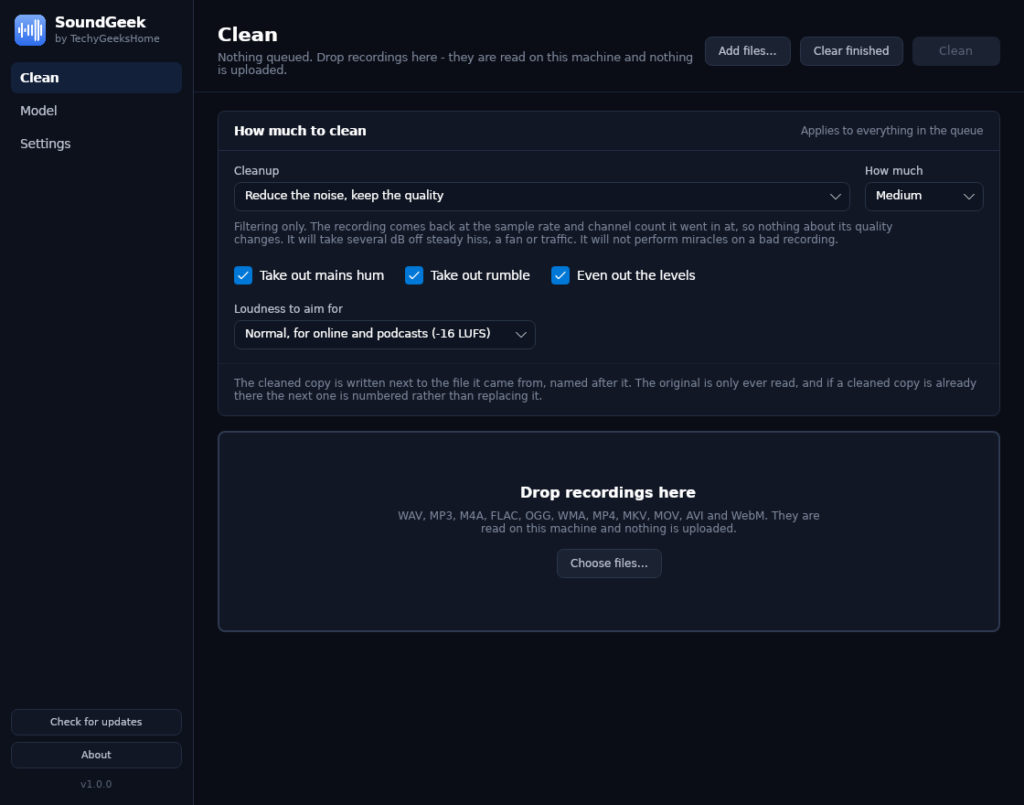
Most tools give you one slider and hope for the best. SoundGeek gives you three cleanups and is honest about the trade in each.
Levels and hum only takes out mains hum and rumble and evens the loudness. Nothing touches the noise, so the recording comes back exactly as it went in. Reduce the noise, keep the quality adds filtering that takes several dB off steady hiss, a fan or traffic, and still returns the file at its original sample rate and channel count.
Remove the noise, speech only is the one that rescues a bad recording. It runs a speech model that separates a voice from the noise around it far better than any filter can, and it has a real cost: the model works at 16 kHz in mono, so that is what comes back. That is right for an interview, a meeting or a voice note, and wrong for music. SoundGeek says so on the screen next to the option rather than in the small print.
The hum is measured, not assumed
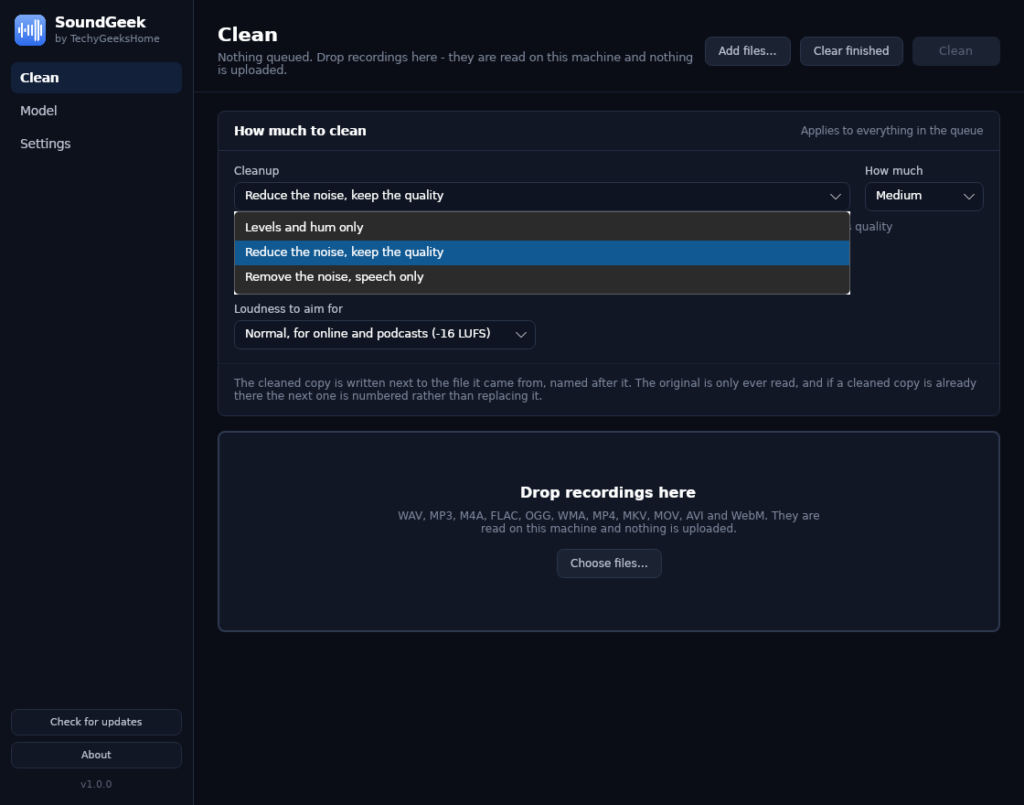
Mains hum is 50 Hz in the UK and 60 Hz in North America, and plenty of tools just pick one. SoundGeek looks at the quiet parts of your recording, works out which one is actually there, and removes the fundamental and its harmonics completely rather than notching a guess.
Rumble goes too: desk thumps, wind and traffic under 60 Hz, the noise you feel more than hear, taken out before anything else is measured so it does not skew the loudness figure.
It reports what it changed, in numbers
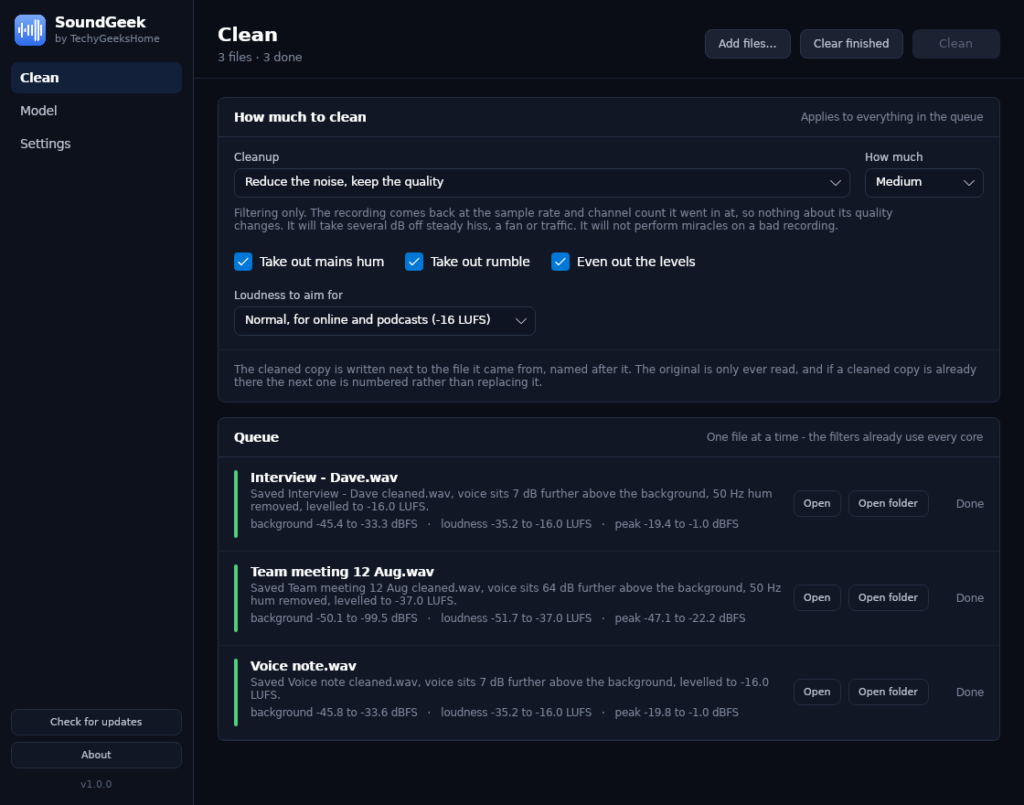
Every finished file comes with three numbers: how far the voice sits above the background before and after, the loudness before and after in LUFS, and the peak level. Loudness is measured to ITU-R BS.1770, the way broadcasters and streaming services measure it.
The gap between the voice and the background is reported rather than the background level on its own, because turning a quiet recording up raises both by the same amount and would make a cleanup look like it had added noise.
What it will not do
The same rules as the rest of the range, and they are stated inside the app as well as here.
- No upload. Every recording is read, processed and written on your own machine. There is no account and no server.
- No touching your original. The cleaned copy is written next to the file it came from and named after it. If one is already there, the next is numbered.
- No bundled ffmpeg. MP3, M4A and the rest need ffmpeg to decode. SoundGeek runs it if it finds one and says so plainly if it does not, rather than quietly fetching a 90 MB binary you did not ask for. WAV works either way.
- No pretending. Noise reduction cannot put back what was never recorded, and the app will tell you what it changed in numbers instead of claiming it fixed everything.
- No paid tier, no watermark, no per-minute limit.
Get it
One installer, about 34 MB, with the .NET runtime bundled. Nothing to install first.
The full feature list, screenshots of every screen and the FAQ are on the SoundGeek product page.
What is next
Batch settings per file rather than per queue, so a music recording and an interview can go through together. A before and after preview inside the app. And more input formats if people ask for them.
If it breaks, or a cleanup comes out wrong, open an issue on GitHub and say what the recording was and which cleanup you used. A person reads them.
Discover more from TechyGeeksHome
Subscribe to get the latest posts sent to your email.
