 By Andrew Armstrong
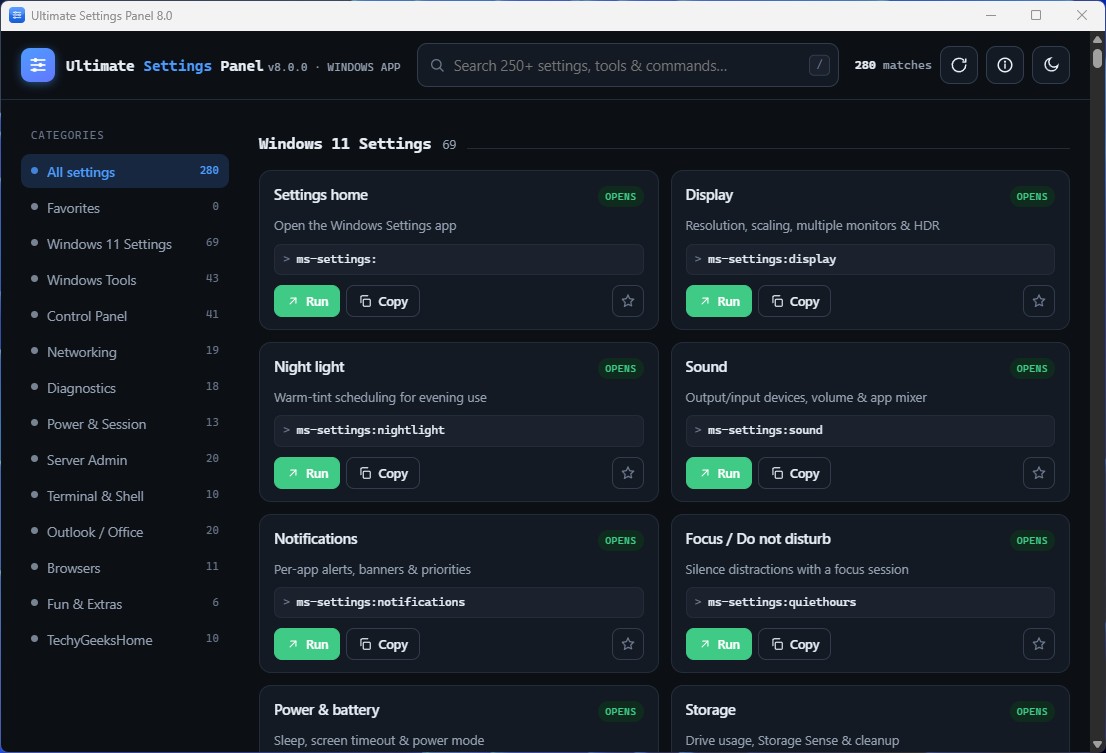
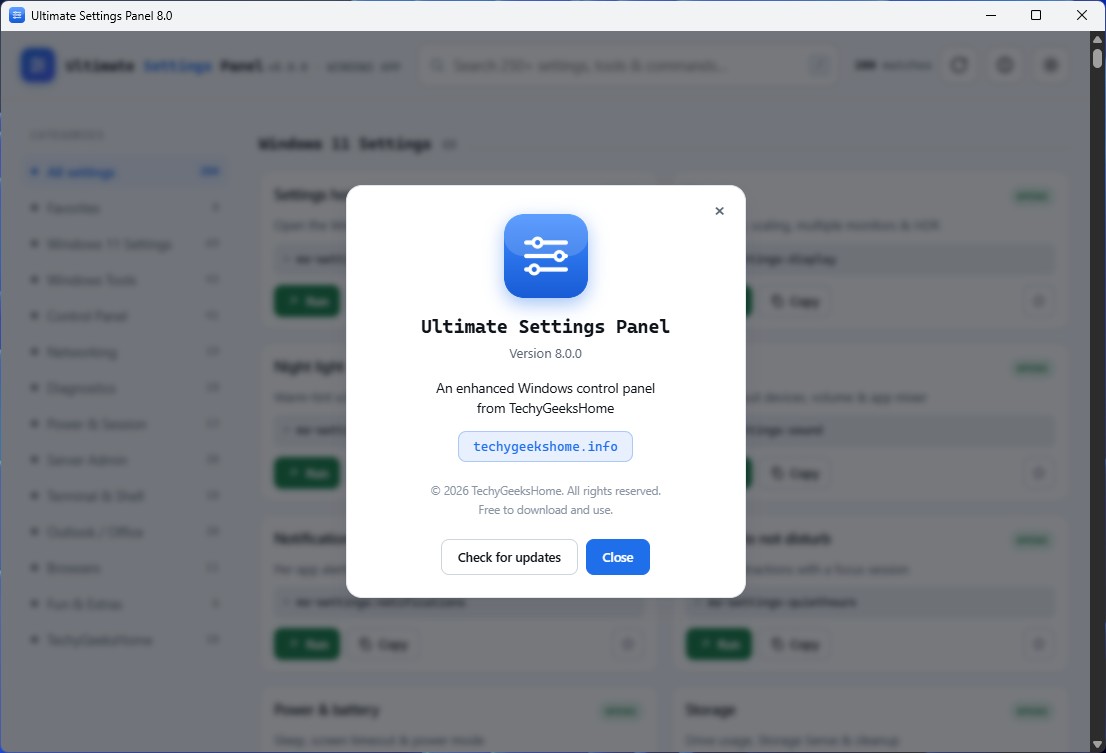
Ultimate Settings Panel has been rebuilt from the ground up. The old C# / WinForms app is gone, in its place is a native Windows app and a web edition, both built around the same idea: 250+ Windows settings, tools, diagnostics and commands behind one fast search box, so you’re never hunting through menus again.
As of today, version 8.0 is live, free to use, right now, in your browser, with a native Windows download available for anyone who wants it as a real app.
What Ultimate Settings Panel does
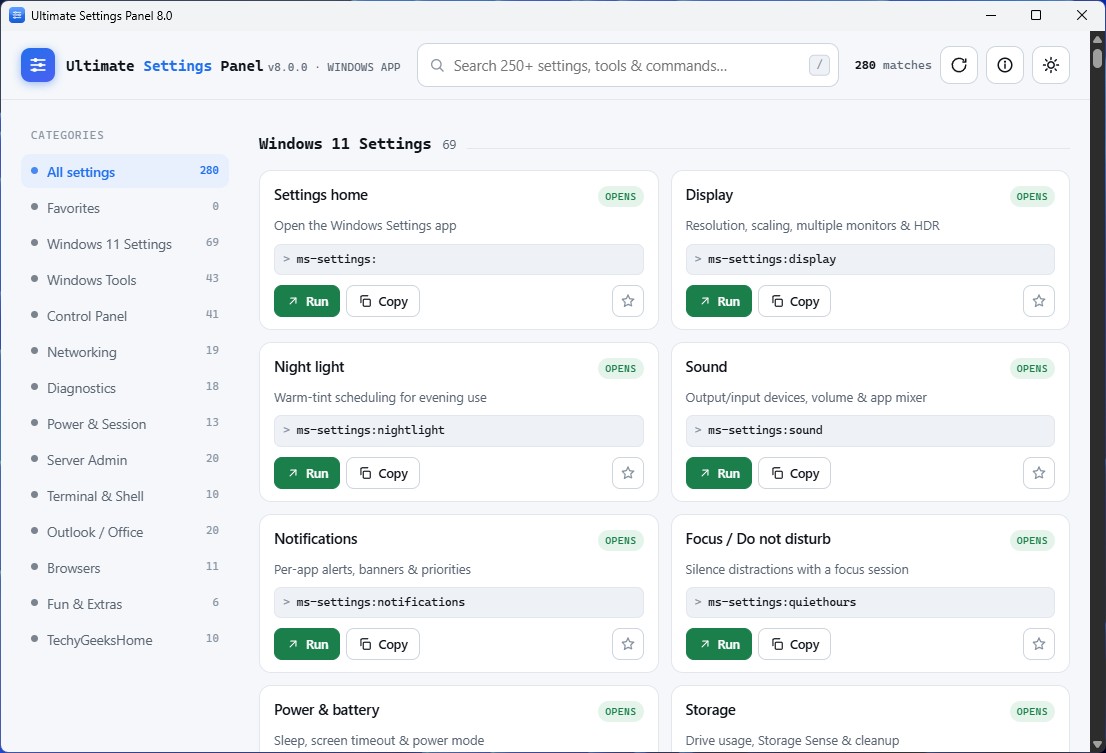
It puts 250+ Windows settings, tools, diagnostics and commands behind one search box, across 13 categories:
- Instant search. Across names, descriptions and the underlying commands, so you can find what you need without knowing what it’s called.
- Windows 11 Settings. Around 70
ms-settings:deep links that open the real Settings pages directly, no digging through nested menus. - Terminal & Shell. Windows Terminal, PowerShell 7 and
wingetapp-management commands, one click away. - Modern diagnostics.
sfc /scannow,DISM …/RestoreHealth, battery and energy reports, Wi-Fi reports, Winsock and TCP/IP resets, and more. - Classic tools and Control Panel. Every everyday tool and Control Panel applet, still exactly where you’d expect it.
- Favourites. Star the settings you use most so they’re always one click away.
- Light and dark theme, with automatic system detection.
- Copy and .bat export. Grab any command as text, or export it as a ready-to-run batch file.
- No analytics, no tracking . Nothing phones home, in either edition.
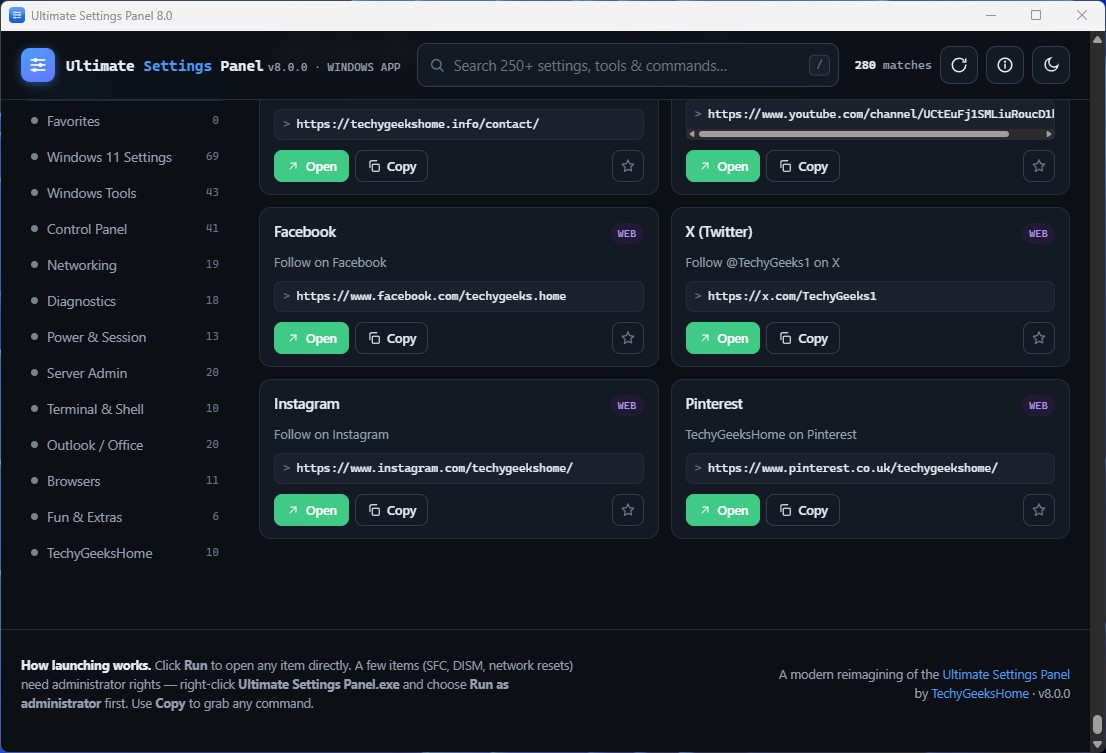
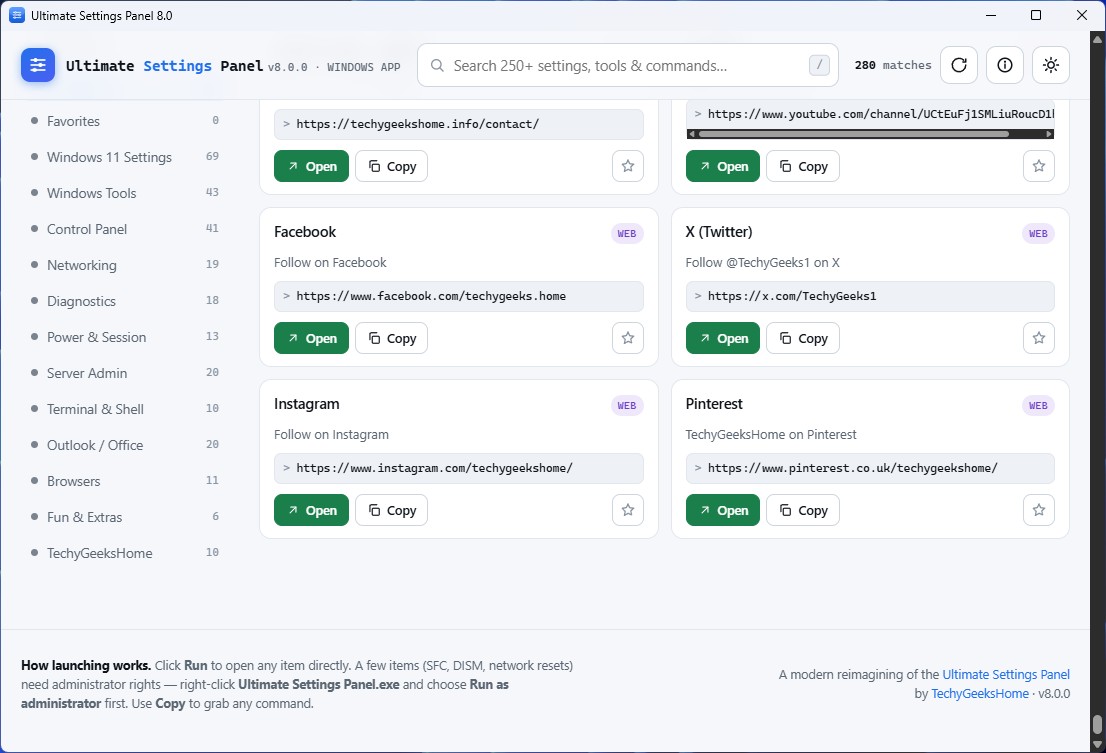
The native Windows app takes it further: every item has a real Run button that launches the tool, setting or command directly, via a small JavaScript↔Go bridge. No mshta, no dropped scripts. It renders in a Microsoft Edge WebView2 window, which ships with Windows 11 and up-to-date Windows 10. The web edition runs the same panel straight in your browser, on any device. Since browsers can’t launch programs for safety, classic commands use Copy and Get .bat instead, while ms-settings: and web links still open directly.
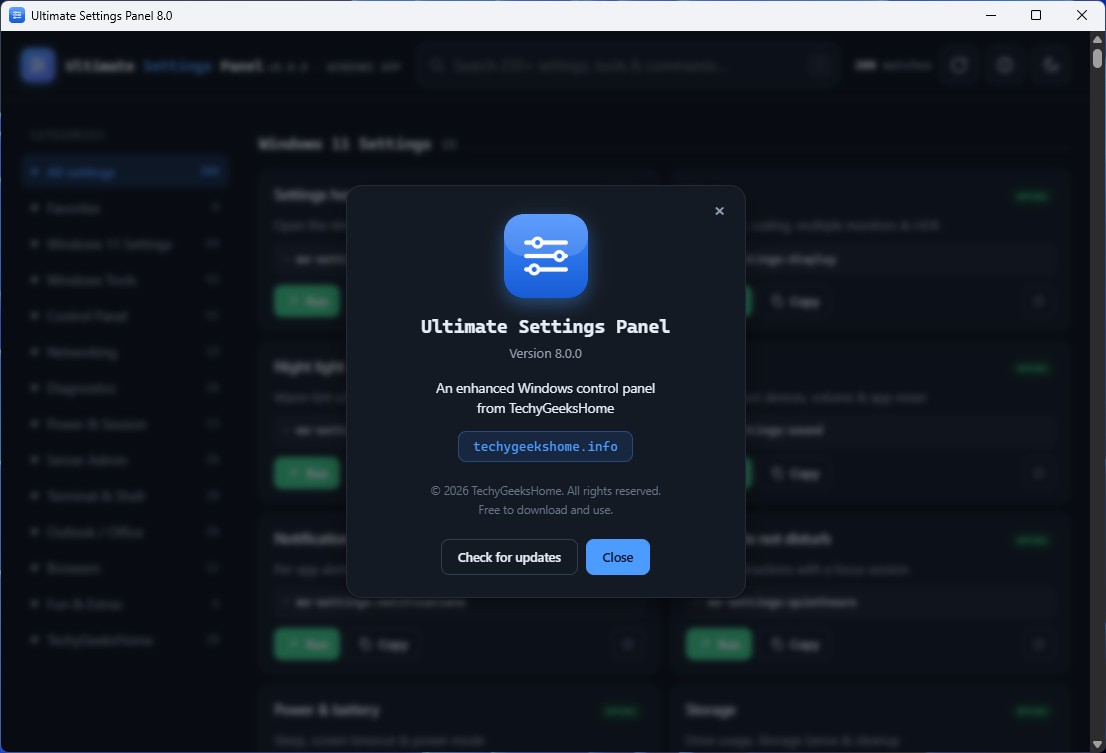
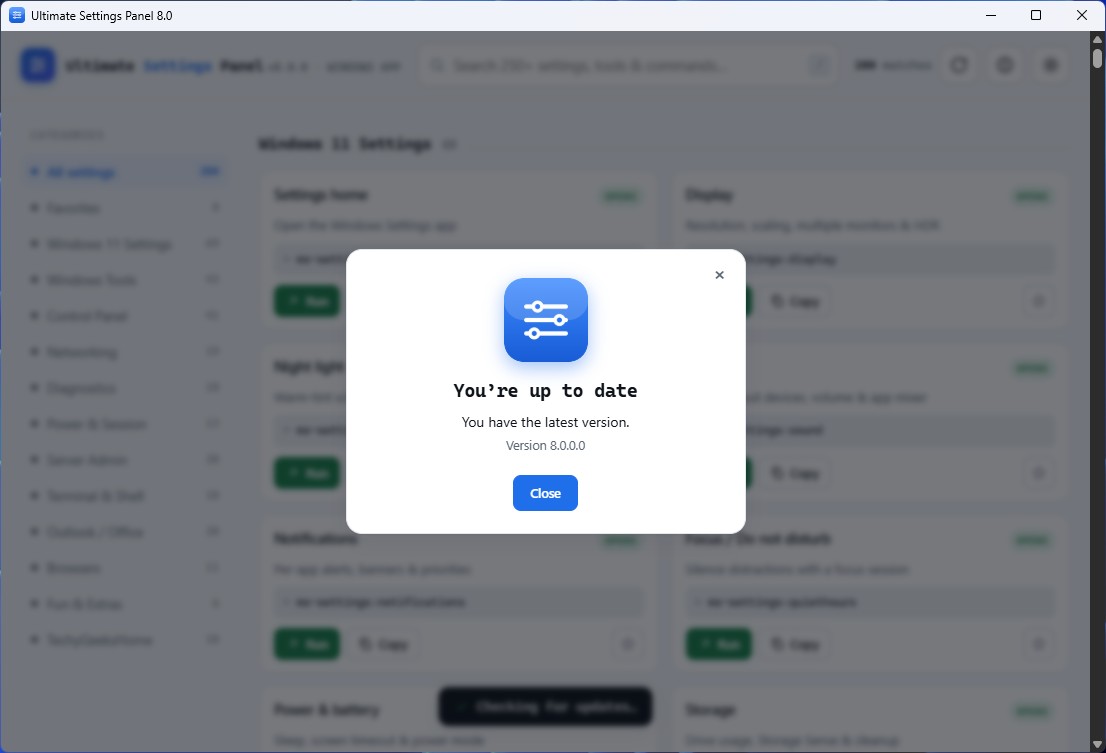
Screenshots
Get Ultimate Settings Panel
Ultimate Settings Panel is free to download and use: 100% free, no Pro tier, no ads, no bundled offers. All rights reserved; it’s free to use but not open source, so redistribution or modification of the compiled application isn’t permitted without permission.
Open Ultimate Settings Panel
Runs free, straight in your browser, on any device. Nothing to install. Prefer a native Windows app instead? There’s a download link right on the page.
Open Ultimate Settings PanelSystem requirements
- Web edition: any modern browser, on Windows, macOS, Linux, or mobile, just needs an internet connection.
- Windows app: Windows 10 or 11 (64-bit), Microsoft Edge WebView2 (already built into Windows 11 and up-to-date Windows 10).
- Admin rights: only needed for a handful of items. SFC scan, DISM, network resets, right-click the app and choose “Run as administrator” for those.
Frequently Asked Questions
Is it really free? No Pro version, no catch?
Yes, Ultimate Settings Panel is free to download and use, with no Pro tier, no ads, and no bundled offers.
What’s the difference between the web edition and the Windows app?
They share the same panel and the same 250+ items. The Windows app can launch tools and settings directly with a real Run button; the web edition runs in any browser on any device, but uses Copy and Get .bat for commands it can’t launch directly, since browsers can’t run programs for safety.
Does Ultimate Settings Panel collect data or phone home?
No. Neither edition tracks anything you do.
I got a “Windows protected your PC” warning on first run. Is that normal?
Yes. That’s only because the Windows app isn’t code-signed yet, not a sign of a problem. Click “More info” then “Run anyway” to continue.
What happened to the old Ultimate Settings Panel?
Version 8.0 is a complete, ground-up rebuild. Replacing the original C# / WinForms app with a native Windows app and a web edition. Everything now lives at the new online page linked above.
Discover more from TechyGeeksHome
Subscribe to get the latest posts sent to your email.
