100% Free and Open Source · Version 1.1.0
PDFGeek: PDF tools that never upload your files
Merge, split, crop, rotate and password protect PDFs, and turn pictures into PDFs, all in a tab of your browser. Your files never leave your computer. A free browser extension with nothing to sign up for.
Chrome, Edge, Brave, Opera, Vivaldi and Firefox · no account · nothing to pay · how to install it
0 downloads so far
Video Demo
From a sideways scan to a merged, password protected PDF, without a single upload.
Everyday PDF jobs, done on your own computer
Most free PDF sites make you upload your files first. PDFGeek does the work inside your browser instead.
Merge
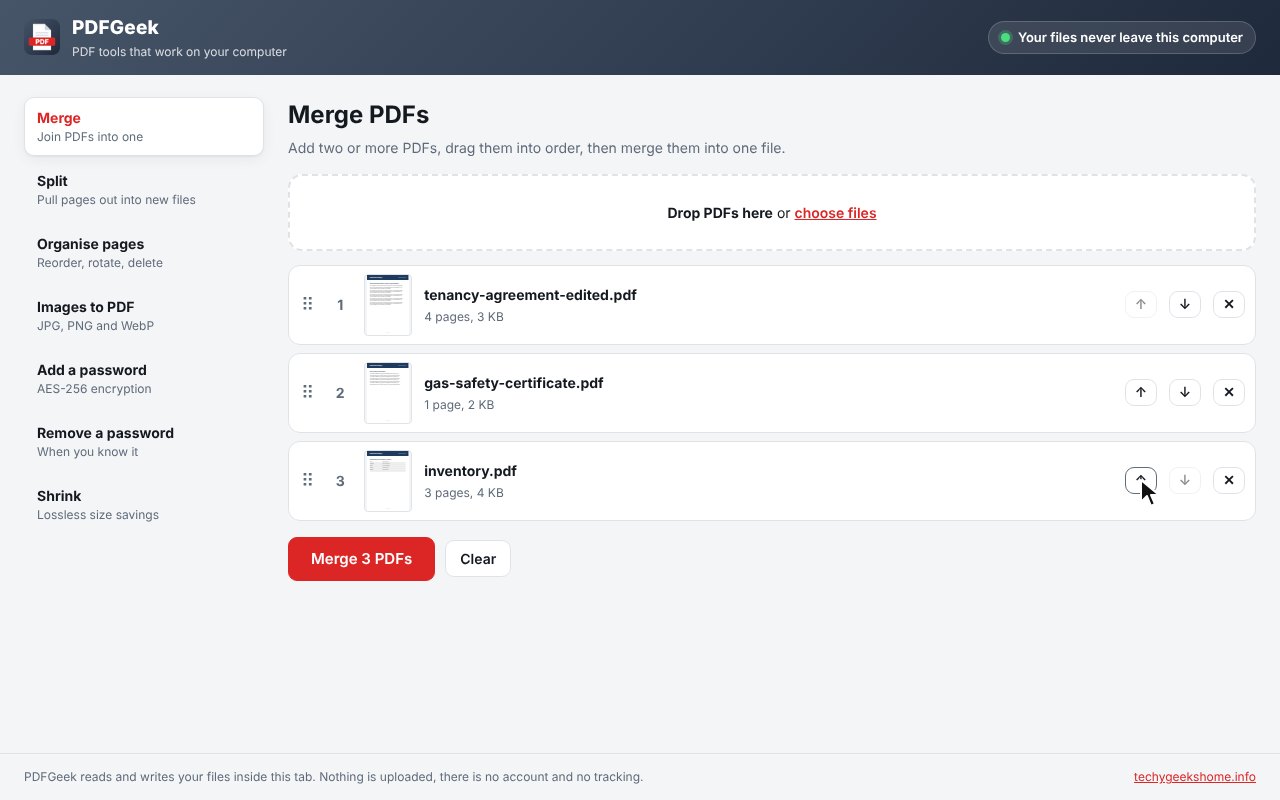
Drop in several PDFs, drag them into order and merge them into one file.
Split
Every page as its own file, ranges like 1-3, 5, 8-, or a new file every few pages.
Organise pages
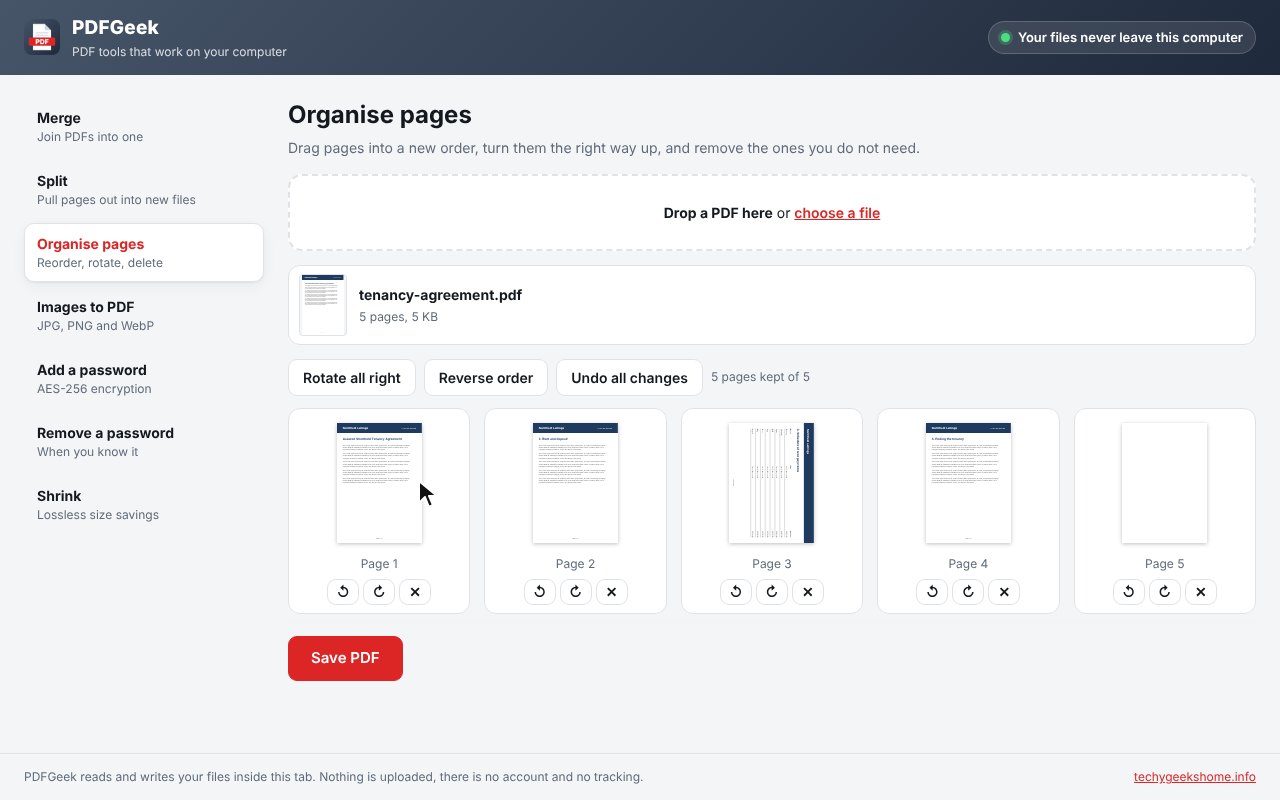
See every page, drag to reorder, turn sideways pages the right way up and remove blank ones.
Pictures to PDF
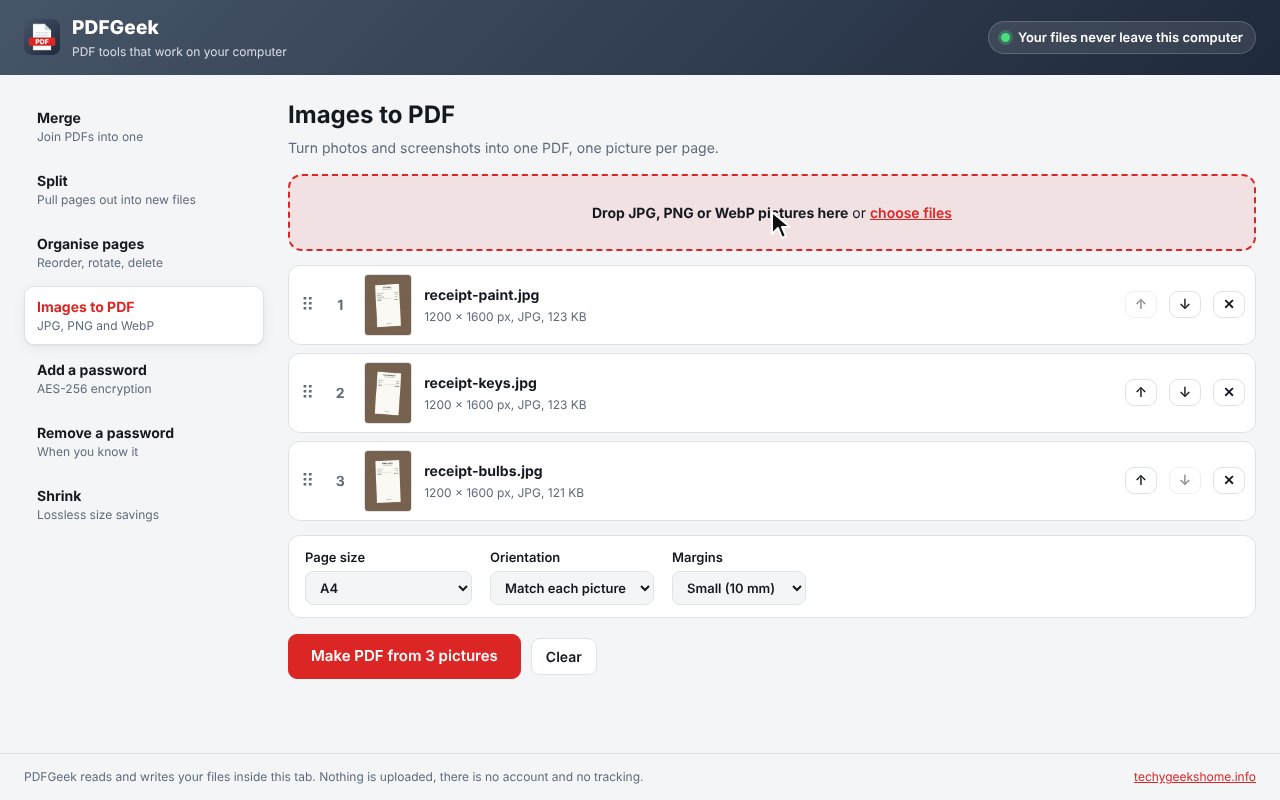
Turn JPG, PNG and WebP pictures into a PDF on A4, Letter or a page that fits the picture.
Add a password
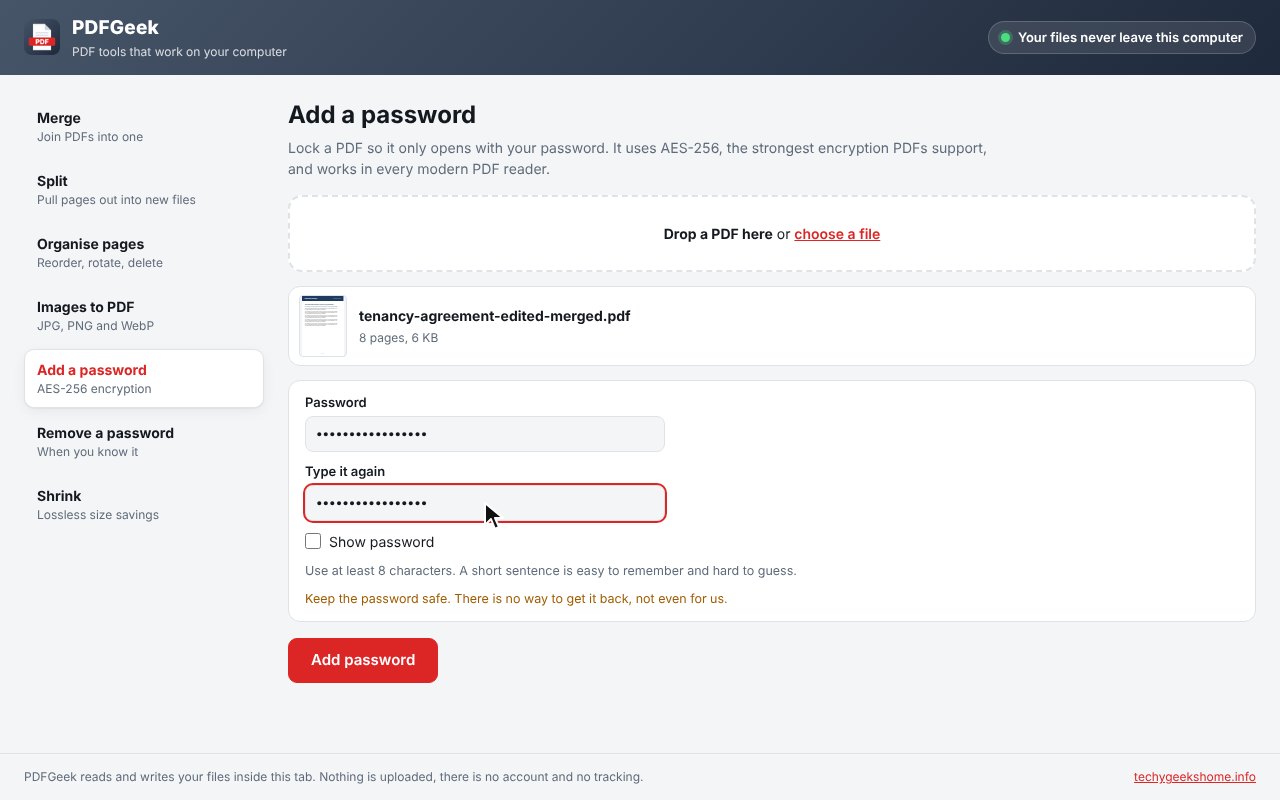
Lock a PDF with AES-256, which works in every modern PDF reader.
Remove a password
Take the password off a PDF when you know it, and clear editing limits.
Shrink
Repack a PDF to make it smaller without losing any quality.
Right-click a link
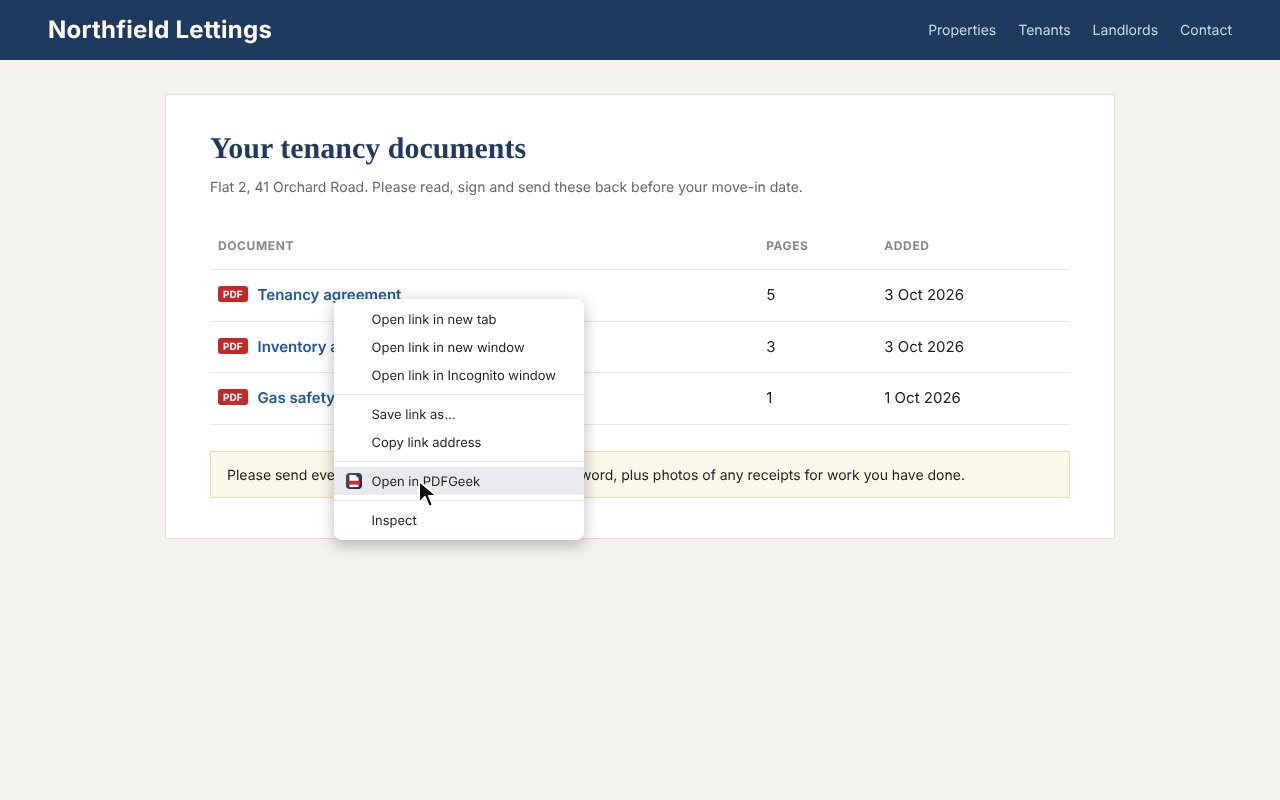
Right-click a PDF link and choose Open in PDFGeek to work on it straight away.
Crop
Cut a page down to a postage label or any area, ready for 4 x 6 inch label printers.
How to install it
About a minute, and you only do it once. Store listings for Edge and Firefox are on the way.
Download and unzip
Download the ZIP and unzip it somewhere you will keep it, such as Documents. The browser runs the extension from that folder, so leave it there.
Open your extensions page
Type chrome://extensions in the address bar. In Edge use edge://extensions, in Brave brave://extensions.
Switch on Developer mode
The switch is top right in Chrome and Brave, and bottom left in Edge. It just lets you add an extension from a folder.
Load unpacked
Click Load unpacked and pick the pdfgeek folder. Then pin the PDFGeek icon from the puzzle piece menu.
On Firefox, download the Firefox version, open about:debugging, choose This Firefox, then Load Temporary Add-on and pick the ZIP. Firefox removes temporary add-ons when it closes, so the Firefox Add-ons listing will be the easier option once it is approved.
See it in action
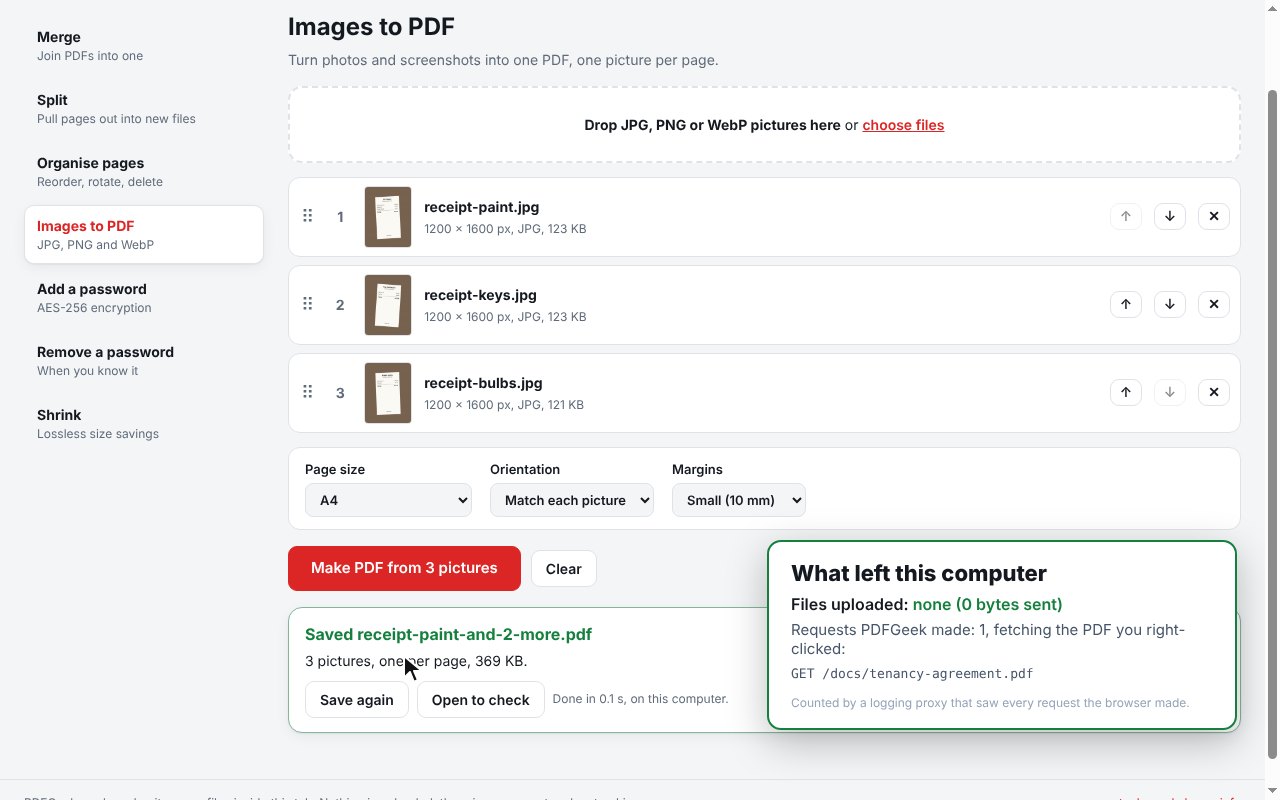
Every step, exactly as it looks in your browser.
Who it is for
Anyone who has ever uploaded a private document to a random PDF website and wondered where it went.
Home paperwork
Tenancy agreements, bills and receipts sorted into tidy PDFs without sharing them with anyone.
Work documents
Merge reports and lock contracts with a password, without breaking company rules on uploads.
IT and admins
A free, open-source PDF toolkit you can check yourself and roll out to users.
Requirements
Browser
Chrome, Microsoft Edge, Brave, Opera or Vivaldi on Windows, macOS or Linux, or Firefox 142 or newer.
Account
None.
Permissions
Storage and the right-click menu. Site access is asked for one site at a time, only when you open a PDF link in PDFGeek.
Download
About 1.2 MB, almost all of it the bundled PDF libraries. No installer.
Version
1.1.0, released 20 October 2026.
Licence
GPL-3.0. Free for everyone, including commercial use.
Frequently Asked Questions
Is PDFGeek really free?
Yes. There is no Pro version, no ads and no limit on files or pages. It is open source under the GPL-3.0, so you can read every line of it on GitHub.
Are my PDFs uploaded anywhere?
No. PDFGeek reads and writes your files inside your own browser. It has no server, no account, no analytics and nothing is sent anywhere.
How strong is the password protection?
PDFGeek uses AES-256, the strongest encryption PDF readers support. Without the password the file will not open in Adobe Reader, Chrome, Edge, Firefox or any other modern reader.
Can it remove a password from a PDF?
Yes, if you know the password. It also clears editing limits on files that open without a password.
Will it lower the quality of my PDF?
No. Shrink is lossless only, so pictures are never recompressed. If a file cannot get at least 2% smaller, PDFGeek says so and saves nothing.
Can PDFGeek crop a postage label?
Yes. Vinted, eBay and most carriers give you a label in one corner of an A4 page. Open Crop, pick the quarter or half it is in, press Trim white edges, and save it at its own size or fitted to 4 x 6 inch label paper for a thermal printer.
Why does it ask for access to a site?
Only when you right-click a PDF link and choose Open in PDFGeek, so it can download that one PDF. It asks for one site at a time, never at install.
Does it work on Firefox?
Yes. Download the Firefox version from this page. A Firefox Add-ons listing is in review and will make installing it permanent.
Is there a Windows app too?
Yes. PDFGeek for Windows is a separate free desktop app. The browser extension needs no install and works on Windows, macOS and Linux.
Version History
- v1.0.0: 20 October 2026. Initial public release.
Download PDFGeek today
Completely free. Version 1.1.0, no strings attached, and open source under the GPL-3.0 licence.
0 downloads so far