100% Free and Open Source · Version 1.0.0
SpeedGeek: speed up or slow down any video
Watch lessons, podcasts and long videos at any speed from 0.1x to 16x, with a key press or a click. SpeedGeek remembers your speed for each site. A free browser extension with nothing to sign up for.
Chrome, Edge, Brave, Opera, Vivaldi and Firefox · no account · nothing to pay · how to install it
0 downloads so far
Video Demo
From a lesson stuck at normal speed to exactly the speed you want, in a couple of key presses.
Any video, any speed
Works on HTML5 video and audio on almost any site, with keys, a speed box on the video and a menu.
Speed keys
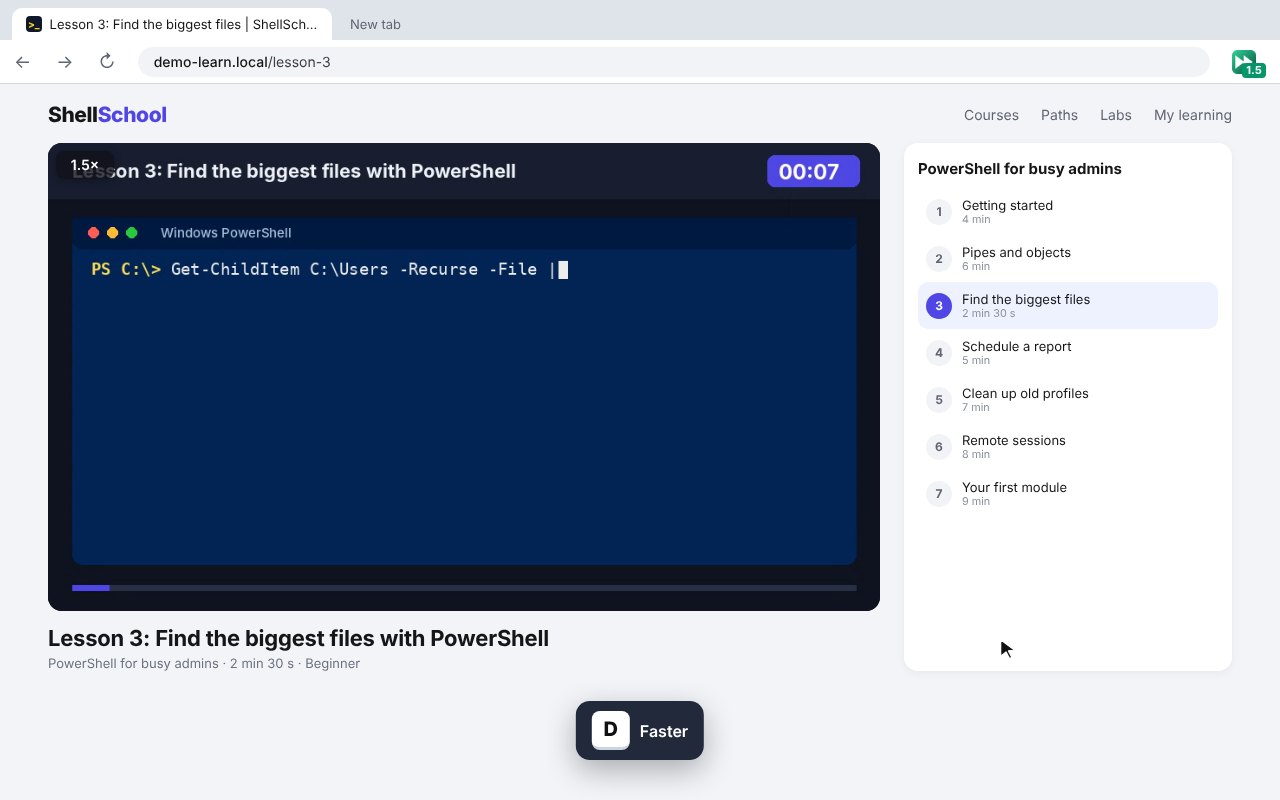
D faster, S slower, R back to normal, G for your favourite speed.
Skip back and forward
Z jumps back 10 seconds and X jumps forward, handy for catching a missed line.
0.1x to 16x
Go far past the 2x most players stop at, or slow right down to follow along.
Speed box on the video
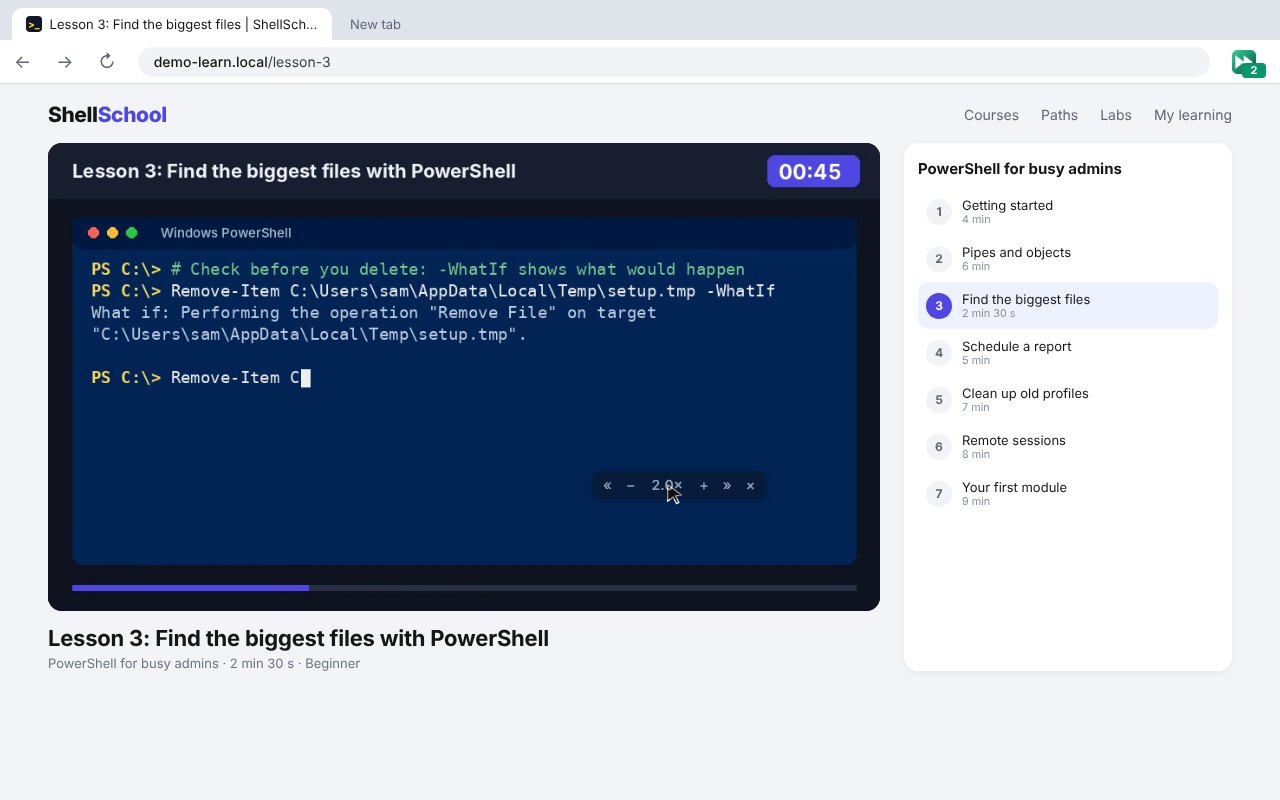
A small box shows your speed, then fades away. Drag it anywhere on the player.
Menu and slider
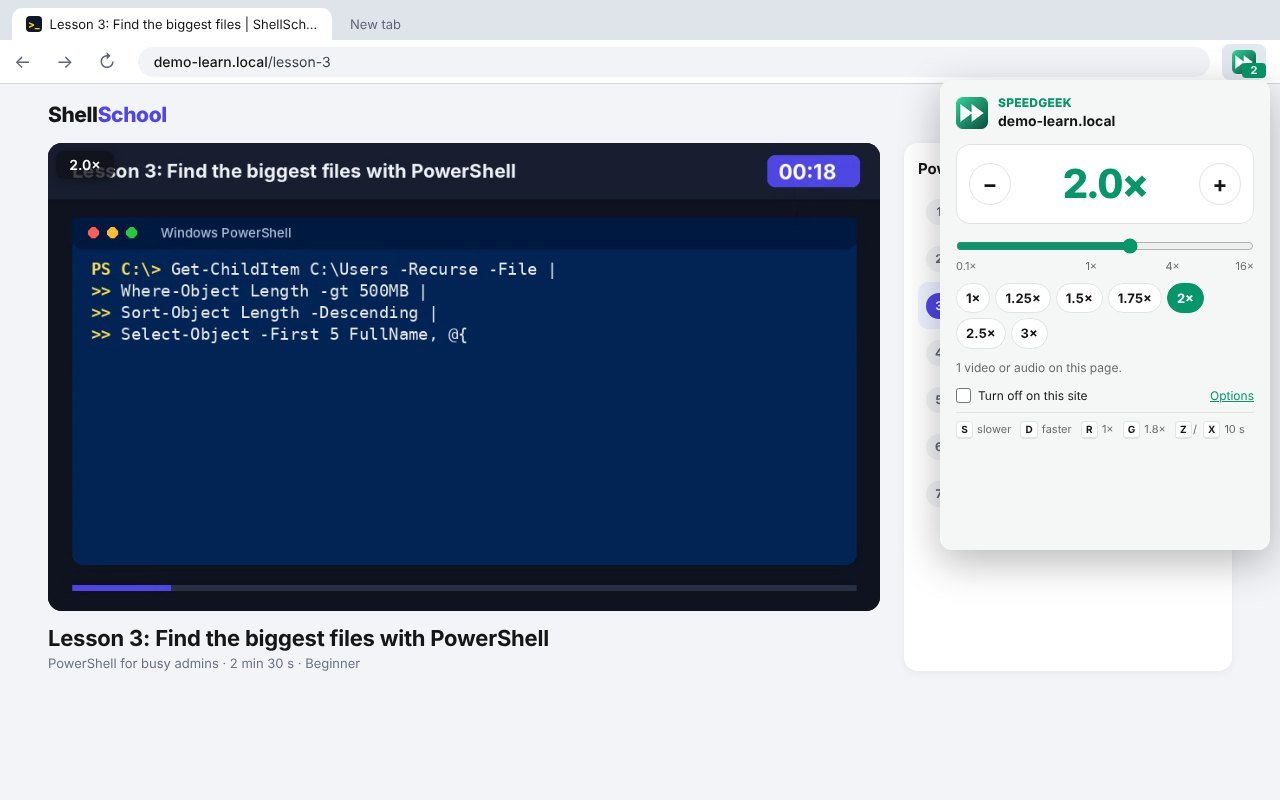
Click the icon for 1x to 3x buttons, plus and minus, and a slider.
Remembered per site
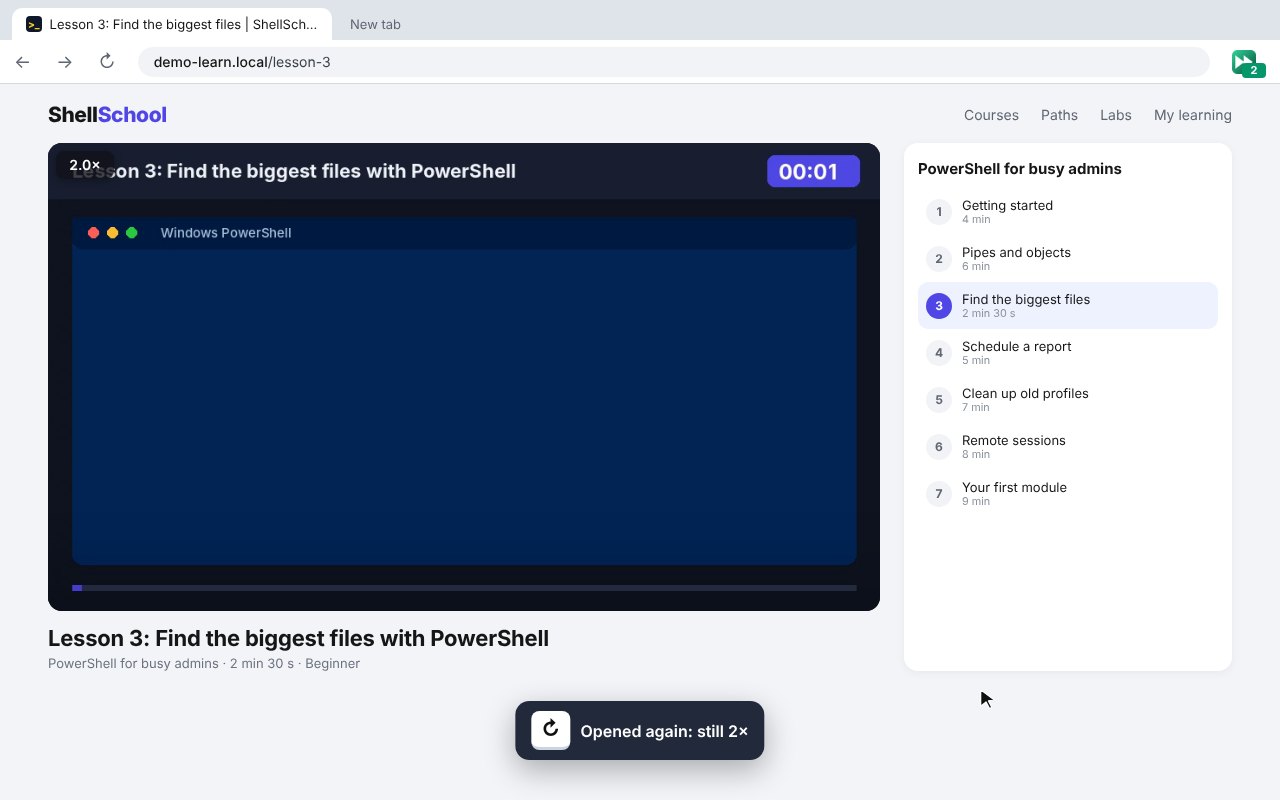
Open the site again and your speed is already set, shown on the toolbar icon.
Keeps your speed
When a site keeps putting the speed back to normal, SpeedGeek puts yours back.
Your keys
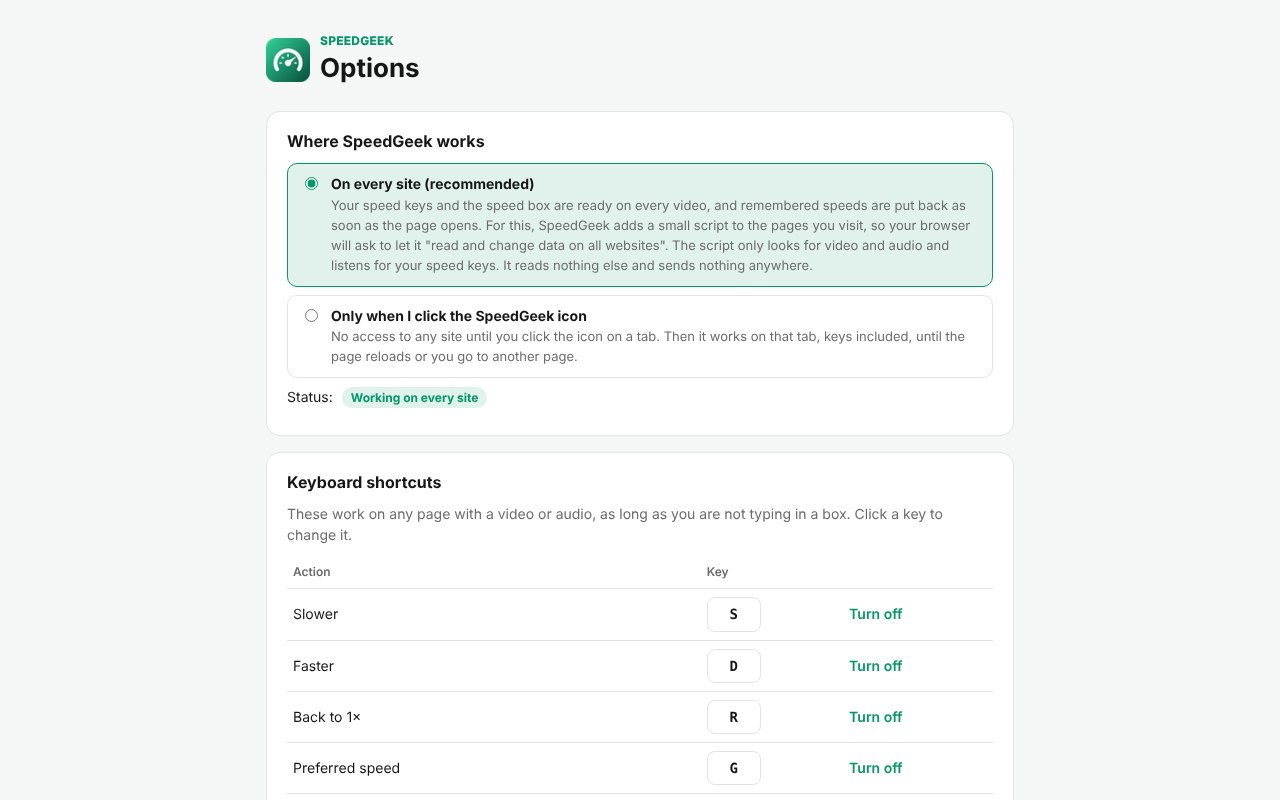
Change every key, the speed step, the skip time and your favourite speed.
Finds every video
Works with videos that load later, inside frames and in open shadow roots.
How to install it
About a minute, and you only do it once. Store listings for Edge and Firefox are on the way.
Download and unzip
Download the ZIP and unzip it somewhere you will keep it, such as Documents. The browser runs the extension from that folder, so leave it there.
Open your extensions page
Type chrome://extensions in the address bar. In Edge use edge://extensions, in Brave brave://extensions.
Switch on Developer mode
The switch is top right in Chrome and Brave, and bottom left in Edge. It just lets you add an extension from a folder.
Load unpacked
Click Load unpacked and pick the speedgeek folder. Then pin the SpeedGeek icon from the puzzle piece menu.
On Firefox, download the Firefox version, open about:debugging, choose This Firefox, then Load Temporary Add-on and pick the ZIP. Firefox removes temporary add-ons when it closes, so the Firefox Add-ons listing will be the easier option once it is approved.
See it in action
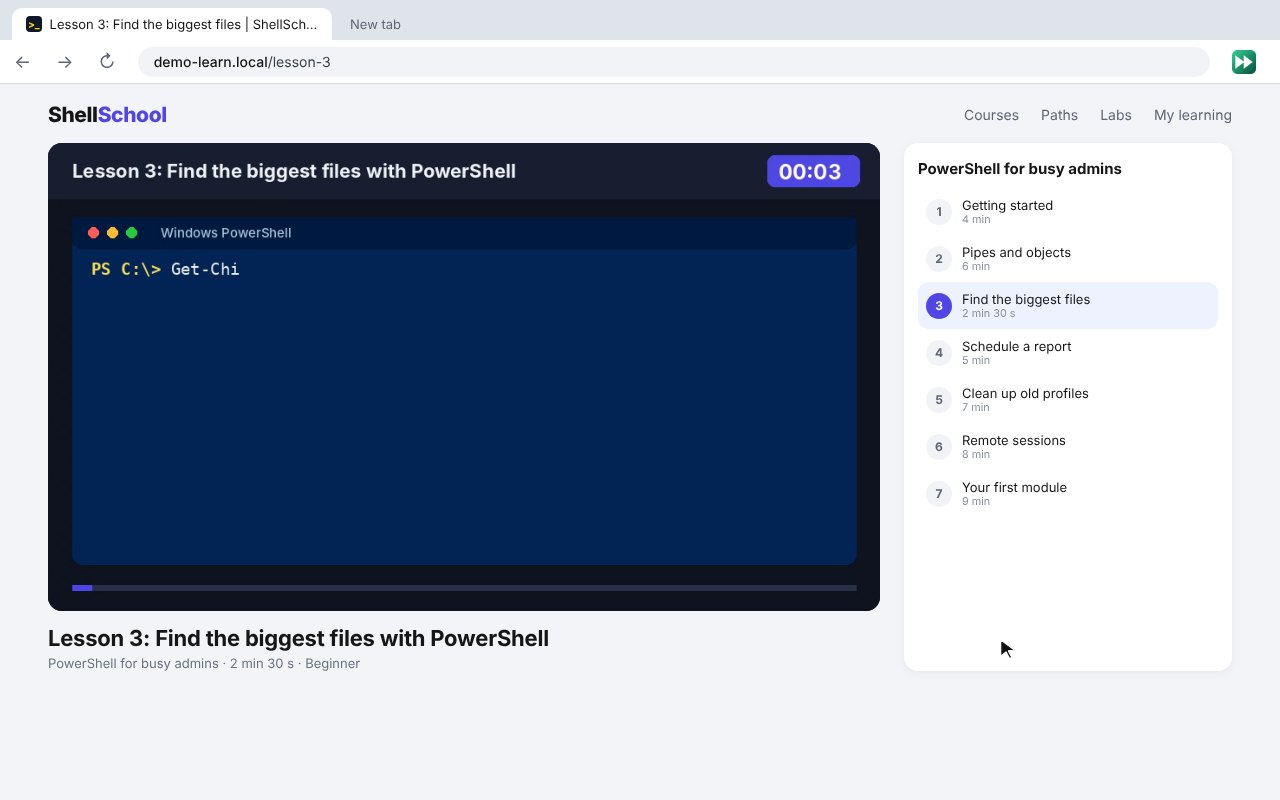
Every step, exactly as it looks in your browser.
Who it is for
Anyone who watches a lot of video and wishes it went a bit faster, or a bit slower.
Students and learners
Get through lectures and courses faster, or slow down to take notes.
Podcast and talk fans
Listen at 1.5x or 2x and get through twice as much.
IT and support
Speed through training videos and recorded meetings, and skip back when you miss a step.
Requirements
Browser
Chrome, Microsoft Edge, Brave, Opera or Vivaldi on Windows, macOS or Linux, or Firefox 142 or newer.
Account
None.
Permissions
Storage, scripting and the tab you click it on. Access to every site only if you choose On every site on the welcome page.
Download
About 40 KB. No installer.
Version
1.0.0, released 20 October 2026.
Licence
GPL-3.0. Free for everyone, including commercial use.
Frequently Asked Questions
Is SpeedGeek really free?
Yes. There is no Pro version, no ads and no limits. It is open source under the GPL-3.0, so you can read every line of it on GitHub.
Does SpeedGeek collect any of my data?
No. Everything happens in your own browser. There is no account, no analytics, no remote code and nothing is sent anywhere.
Does it work on YouTube?
Yes. It works on YouTube and most sites with HTML5 video or audio, including courses, podcasts and streaming sites.
Why does it ask for access to every site?
Only if you choose On every site on the welcome page, so your keys and remembered speeds work as soon as a page opens. Choose Only when I click the icon and it needs no site access at all.
Can I change the keys?
Yes. Every key, the speed step, the skip time and your favourite speed can be changed in the settings.
What if a site keeps resetting the speed?
SpeedGeek puts your speed back each time. Turn off Keep my speed in the settings if you would rather the site wins.
Does it work on Firefox?
Yes. Download the Firefox version from this page. A Firefox Add-ons listing is in review and will make installing it permanent.
Why is the sound muted at very high speeds in Firefox?
Firefox itself mutes sound below 0.25x and above 4x. Chrome and Edge keep the sound.
Version History
- v1.0.0: 20 October 2026. Initial public release.
Download SpeedGeek today
Completely free. Version 1.0.0, no strings attached, and open source under the GPL-3.0 licence.
0 downloads so far