100% Free and Open Source · Version 1.0.0
TabGeek: put tabs you are not using to sleep
Too many tabs open and your computer slowing down? TabGeek puts the tabs you have not used for a while to sleep, so they stop eating memory, and wakes each one the moment you click it. A free browser extension with nothing to sign up for.
Chrome, Edge, Brave, Opera, Vivaldi and Firefox · no account · nothing to pay · how to install it
0 downloads so far
Video Demo
From a browser full of tabs to most of them asleep, in one click.
Keep your tabs, lose the slowdown
TabGeek uses the browser’s own tab sleeping, so tabs stay where they are and come back when you need them.
Sleep other tabs
One click puts every tab but the one you are on to sleep.
Sleep by itself
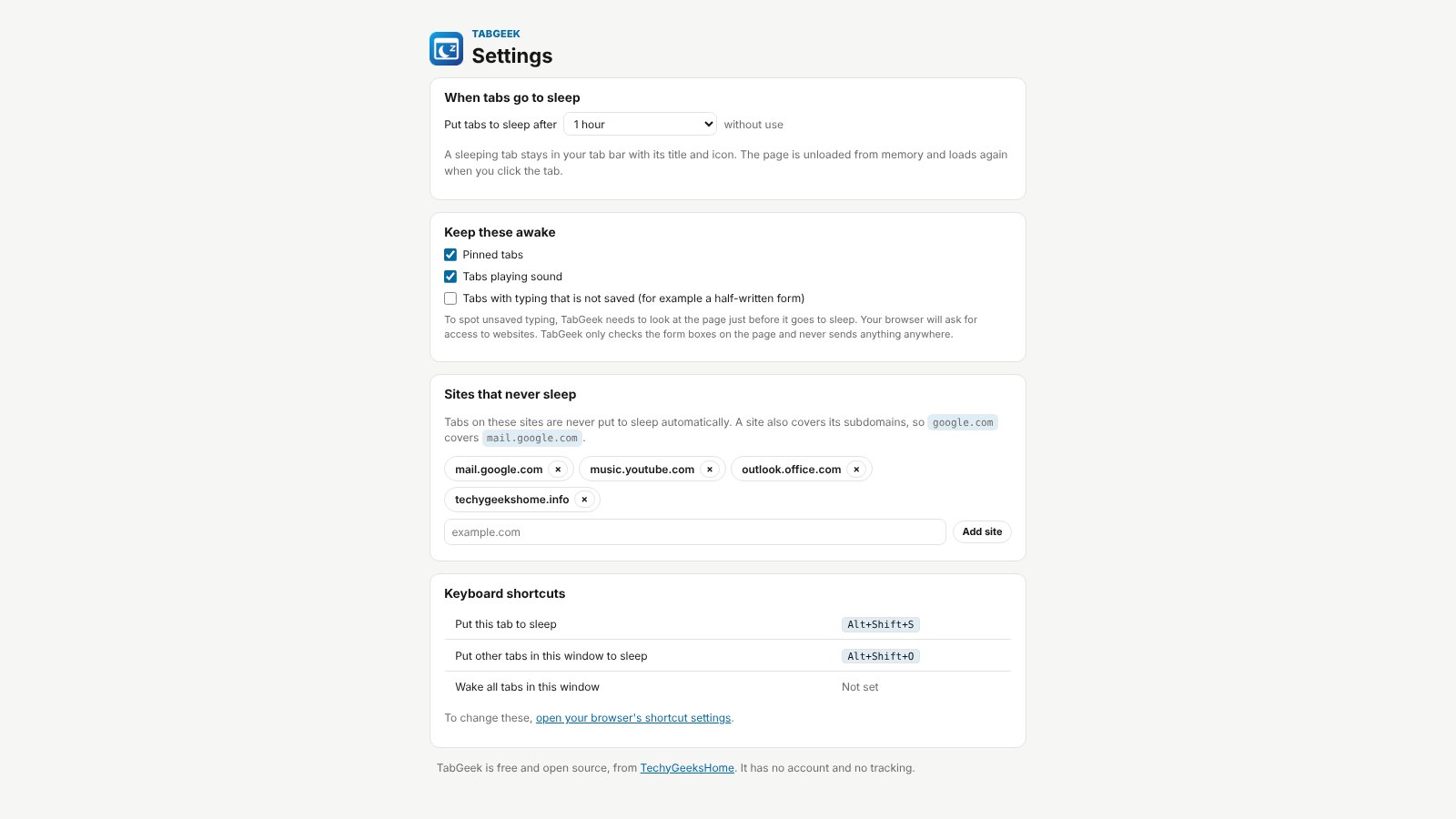
Tabs you have not used for 5, 15 or 30 minutes, 1, 2 or 6 hours, or a day go to sleep on their own.
Wake on click
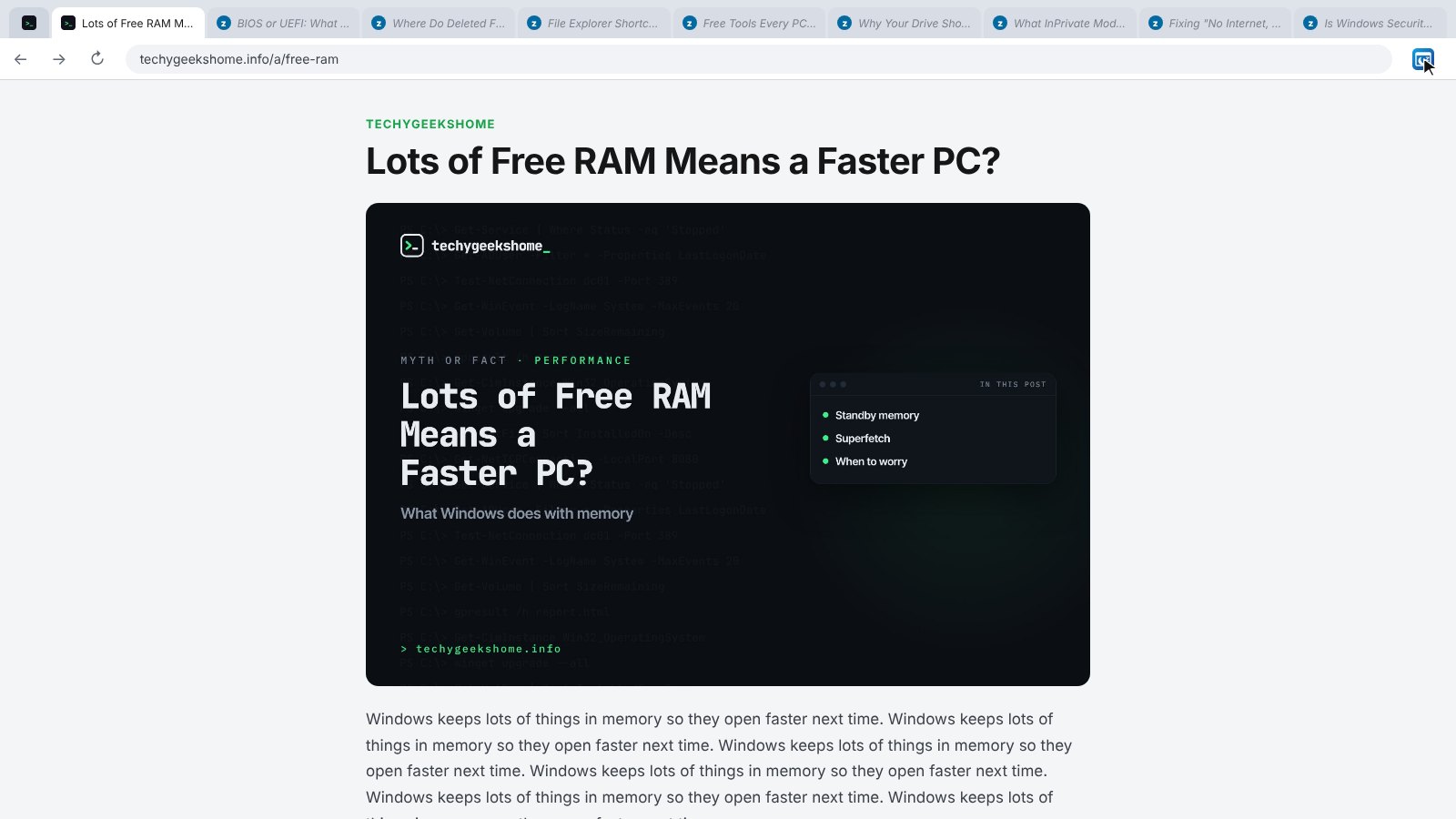
A sleeping tab keeps its title and icon and loads again the moment you click it.
Pinned tabs stay awake
Pinned tabs and the tab you are on are never put to sleep.
Playing tabs stay awake
Tabs playing music or video keep going.
Never-sleep sites
Add sites like your email or chat and their tabs always stay awake, subdomains too.
Half-written forms
Optionally leave tabs with typing you have not saved alone.
See what is asleep
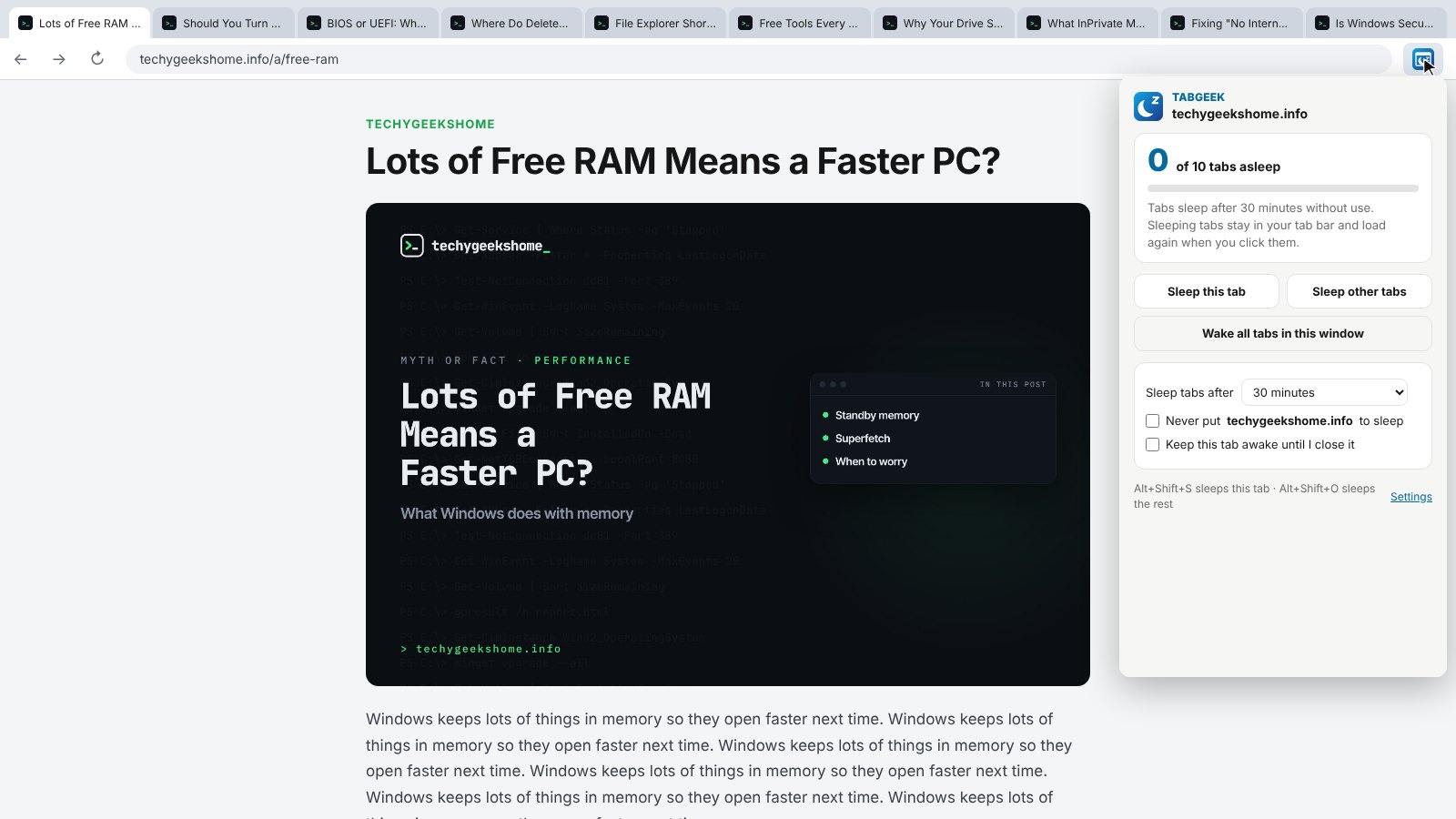
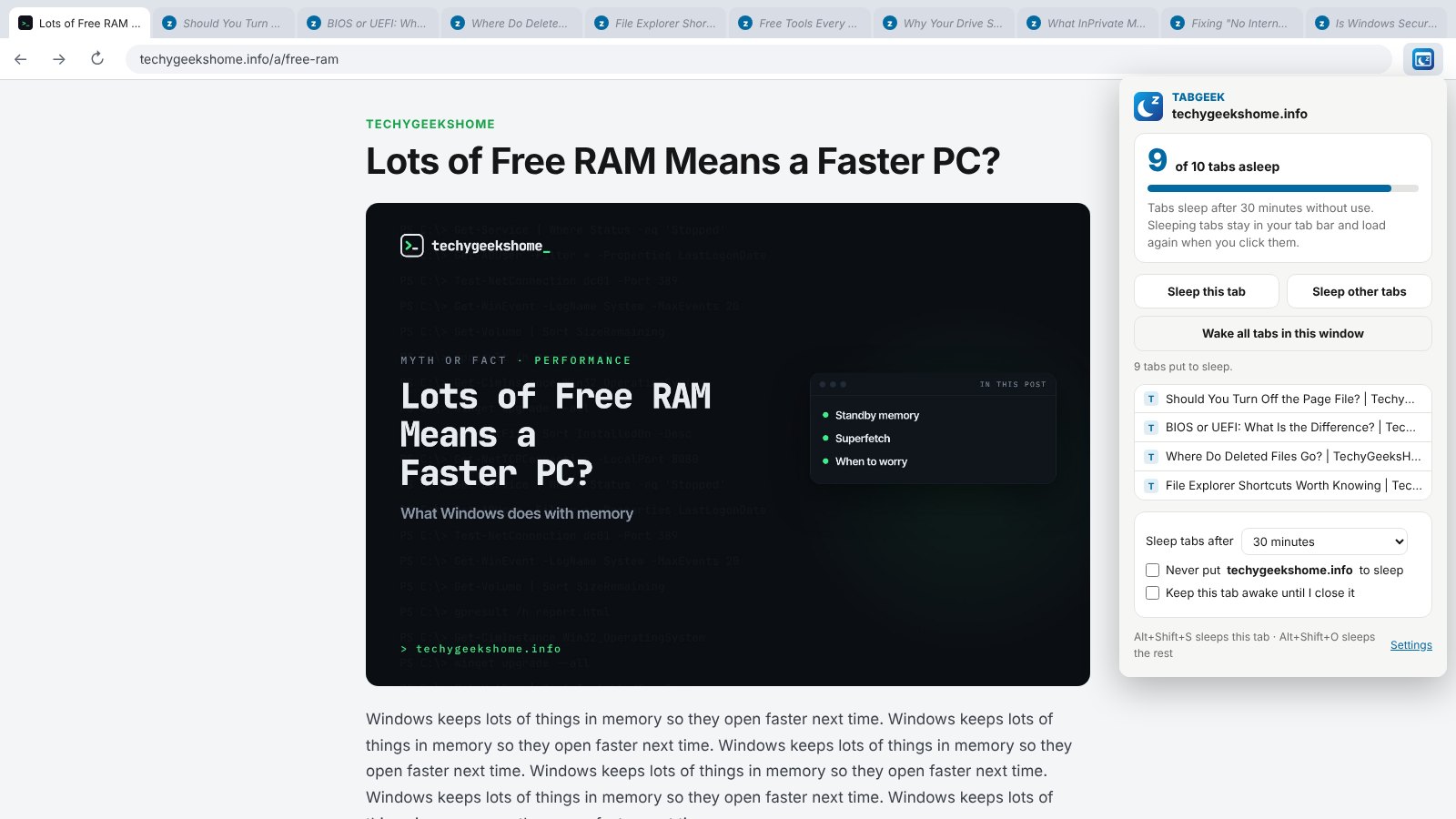
The menu shows how many tabs are asleep and lists them, with Wake all tabs.
Shortcuts
Alt+Shift+S sleeps this tab, Alt+Shift+O sleeps the others.
How to install it
About a minute, and you only do it once. Store listings for Edge and Firefox are on the way.
Download and unzip
Download the ZIP and unzip it somewhere you will keep it, such as Documents. The browser runs the extension from that folder, so leave it there.
Open your extensions page
Type chrome://extensions in the address bar. In Edge use edge://extensions, in Brave brave://extensions.
Switch on Developer mode
The switch is top right in Chrome and Brave, and bottom left in Edge. It just lets you add an extension from a folder.
Load unpacked
Click Load unpacked and pick the tabgeek folder. Then pin the TabGeek icon from the puzzle piece menu.
On Firefox, download the Firefox version, open about:debugging, choose This Firefox, then Load Temporary Add-on and pick the ZIP. Firefox removes temporary add-ons when it closes, so the Firefox Add-ons listing will be the easier option once it is approved.
See it in action
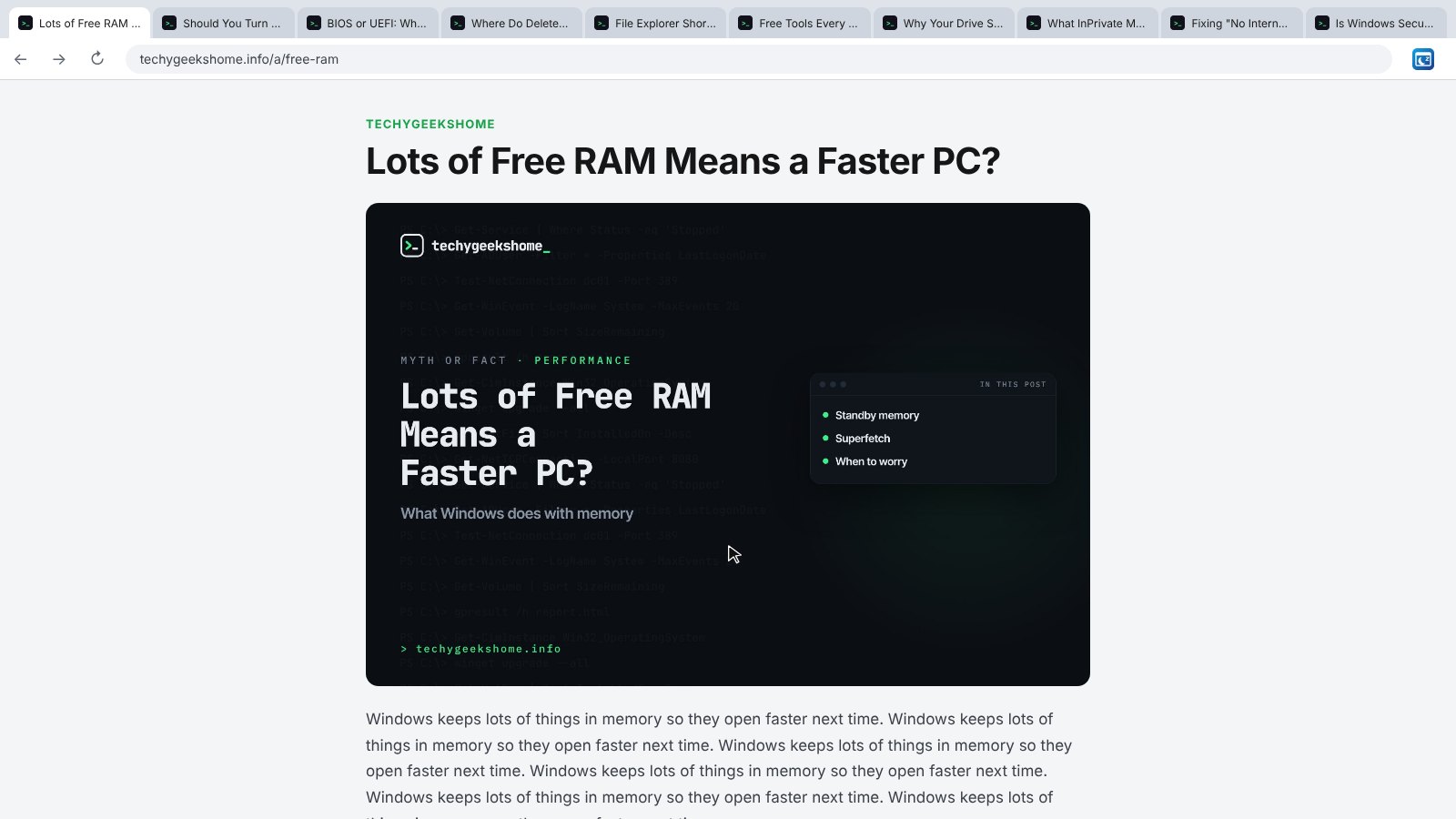
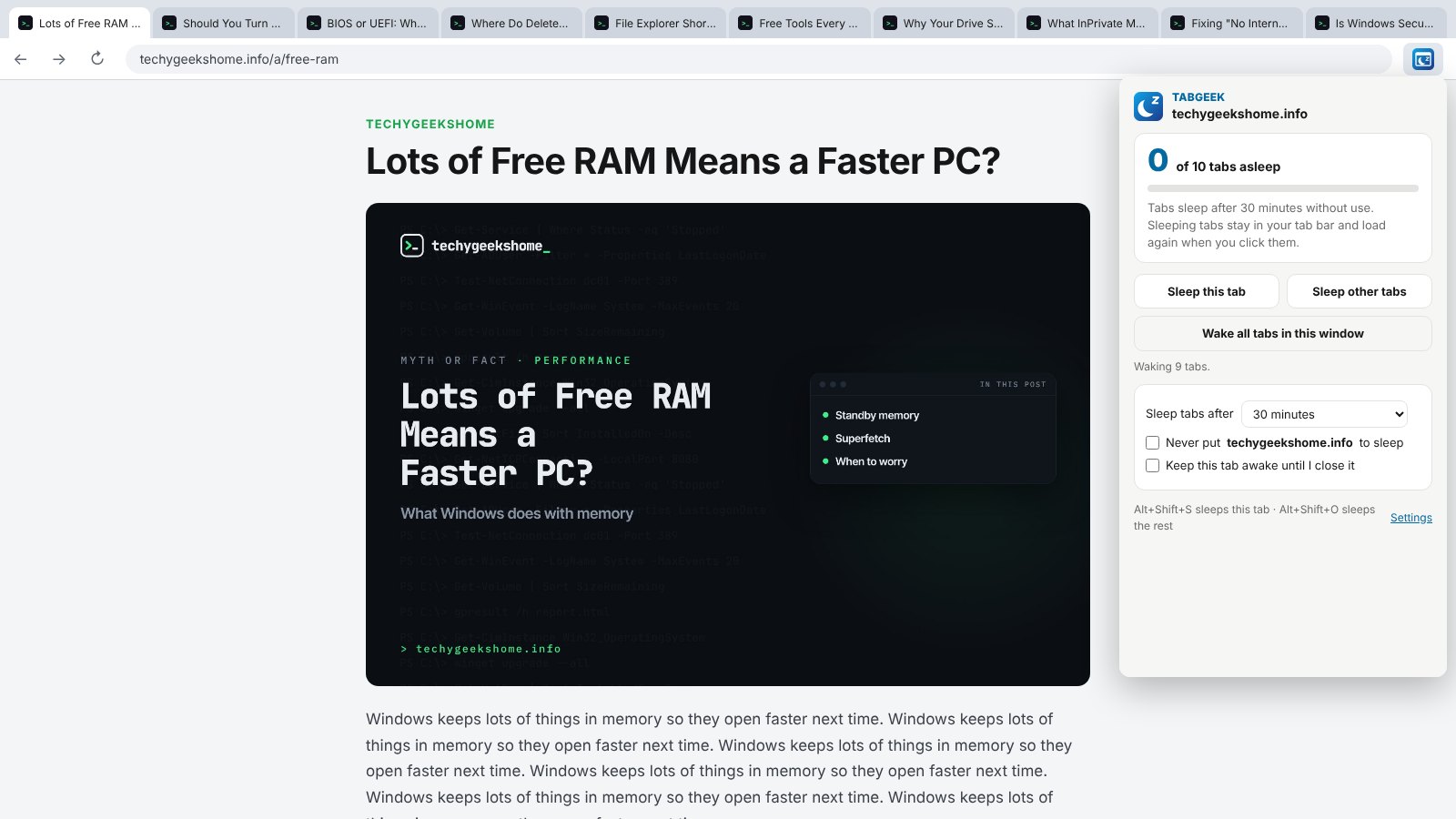
Every step, exactly as it looks in your browser.
Who it is for
Anyone who keeps dozens of tabs open and wonders why the computer is crawling.
Older or busy PCs
Free up memory without closing anything, so the rest of the computer keeps up.
Researchers and students
Keep every tab you need for later without them slowing you down now.
IT and admins
Leave consoles and docs open all day and let the ones you are not using rest.
Requirements
Browser
Chrome, Microsoft Edge, Brave, Opera or Vivaldi on Windows, macOS or Linux, or Firefox 142 or newer.
Account
None.
Permissions
Tabs, alarms and storage. Site access is asked for only if you turn on the unsaved typing option.
Download
About 40 KB. No installer.
Version
1.0.0, released 20 October 2026.
Licence
GPL-3.0. Free for everyone, including commercial use.
Frequently Asked Questions
Is TabGeek really free?
Yes. There is no Pro version, no ads and no limit on how many tabs it looks after. It is open source under the GPL-3.0, so you can read every line of it on GitHub.
Does TabGeek collect any of my data?
No. Everything happens in your own browser. There is no account, no analytics and nothing is sent anywhere.
What happens to a sleeping tab?
It stays in your tab bar with its title and icon, but the browser unloads the page to free up memory. Click it and it loads again.
Will I lose what I typed in a sleeping tab?
A sleeping tab reloads from the website when you wake it. Turn on Tabs with typing that is not saved and TabGeek leaves those tabs awake.
Which tabs never go to sleep?
The tab you are on, pinned tabs, tabs playing sound, tabs you mark keep awake, and sites on your never-sleep list.
How is it different from the old tab suspenders?
It uses the browser’s own tab sleeping, so there is no placeholder page, and your history and bookmarks keep the real address.
Does it work on Firefox?
Yes. Download the Firefox version from this page. A Firefox Add-ons listing is in review and will make installing it permanent.
How much memory does it save?
It depends on the sites. Browsers do not tell extensions how much memory each tab uses, so TabGeek shows how many tabs are asleep instead.
Version History
- v1.0.0: 20 October 2026. Initial public release.
Download TabGeek today
Completely free. Version 1.0.0, no strings attached, and open source under the GPL-3.0 licence.
0 downloads so far