 By Andrew Armstrong
Authy shut its desktop app down and a lot of people found out the hard way that every two-factor code they owned lived on one phone. Lose it, drop it, or watch it die on a Tuesday, and every account it protected has to be recovered one at a time through whatever proof of identity each service happens to accept. Some of them accept none.
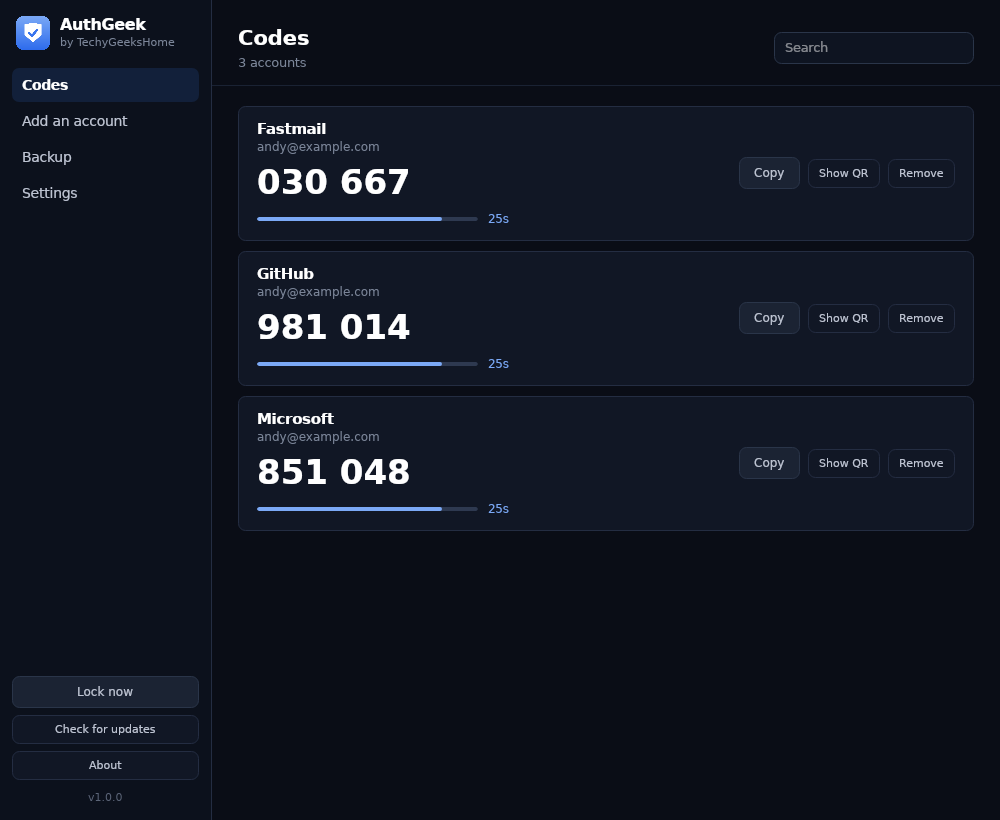
AuthGeek is a two-factor authenticator for the desktop. It is out today, version 1.0.0, free at home and at work, and everything it holds lives in one encrypted file on your own computer. No account, no server, no sync, nothing uploaded.
The backup was written before the thing it backs up
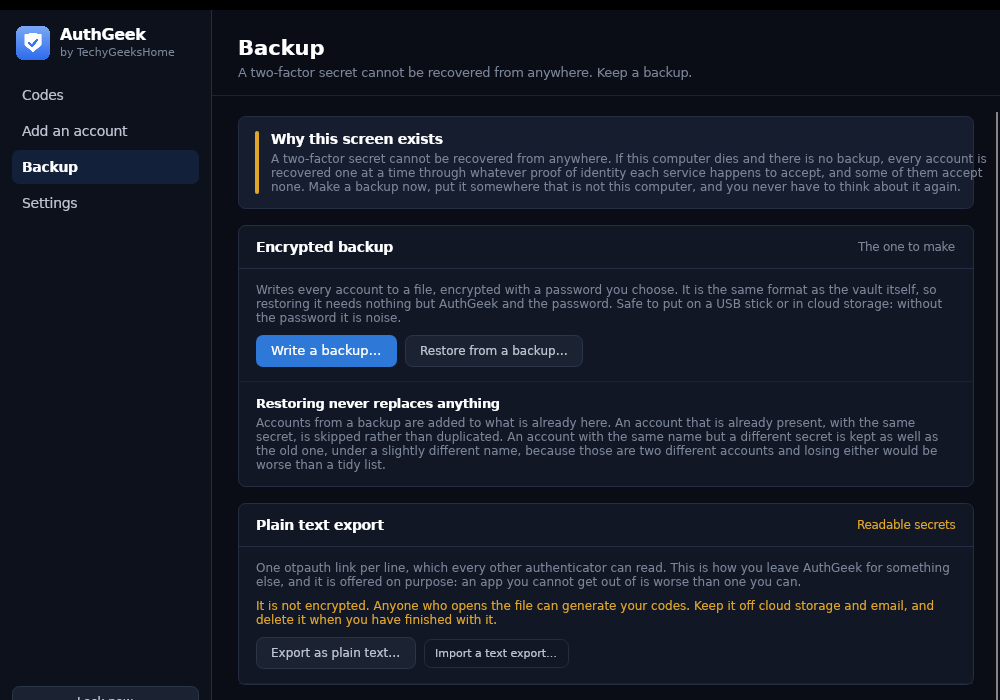
This is the only app in the range where that happened, and it is worth saying why. A two-factor secret cannot be recovered from anywhere. There is no reset email and no support desk that can send it back to you. Lose it and it is gone.
So AuthGeek has two ways out, and both are tested end to end on every build. An encrypted backup, in the same format as the vault itself, which opens with nothing more than AuthGeek and its password and is safe on a USB stick or in cloud storage. And a plain text export, one standard otpauth link per line, that every other authenticator can read.
That second one is readable secrets in a file, so AuthGeek makes you say so out loud before it writes one. Refusing to offer it would be worse: it would mean the only way out of AuthGeek was AuthGeek.
Restoring never replaces anything
Restore a backup onto a vault that already has accounts in it and nothing is overwritten. Accounts are added to what is there. An account that is already present with the same secret is skipped rather than duplicated. An account with the same name but a different secret is kept as well as the old one, under a slightly different name, and AuthGeek tells you it did that.
Those are two different accounts, and losing either one would be far worse than a slightly untidy list.
Getting your accounts in
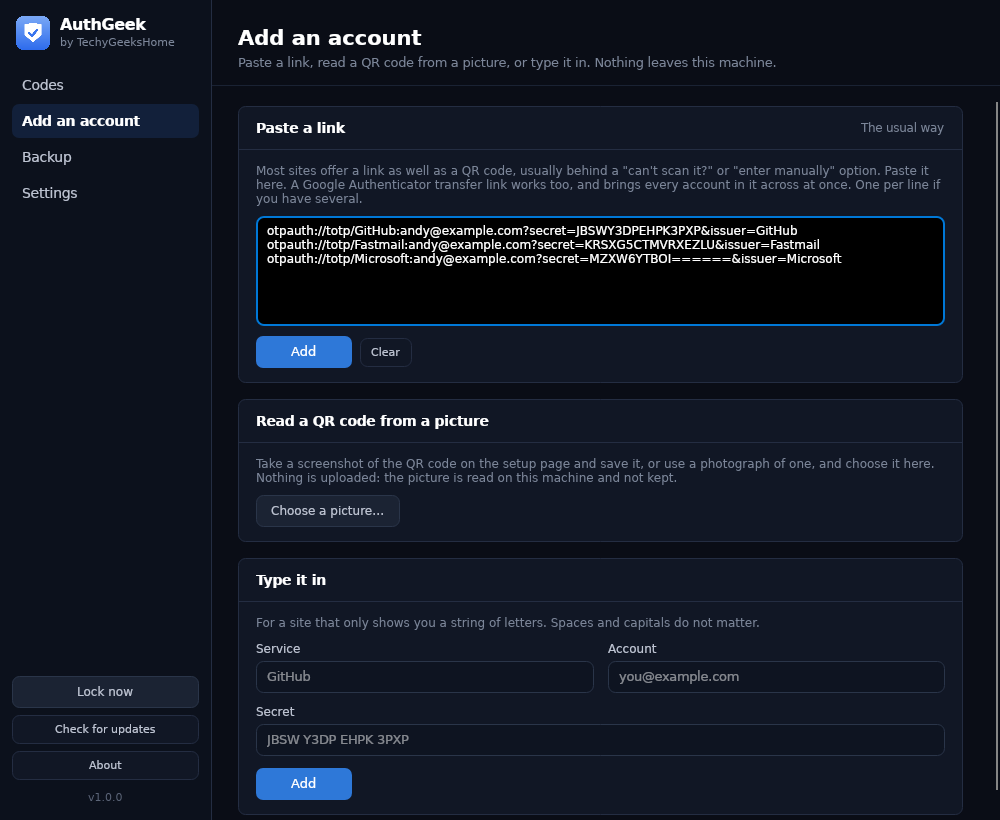
Three ways, none of which leave the machine. Paste an otpauth link, which most sites offer behind a “cannot scan it?” option, one per line if you have several. Choose a picture of a QR code, a screenshot or a photograph, which AuthGeek reads here and does not keep. Or paste Google Authenticator’s “Transfer accounts” link, which carries every account at once and comes across in one go rather than one at a time.
Going the other way is just as easy: any account can be shown as a QR code, so putting it on a phone is one screen rather than a project.
What it will not do
The same rules as the rest of the range, and they are stated inside the app as well as here.
- No sync and no account. There is no server to sign in to and nowhere for your secrets to go.
- No password reset. Not a policy, a fact: the master password is what the encryption key is made from. No recovery question, no email link, no back door, for you or for anyone else.
- No lock-in. Every account exports as a standard link or shows as a QR code. Leaving is a button, not a project.
- No home-made cryptography. Argon2id turns the password into a key, AES-256-GCM encrypts the accounts, and the codes are made to RFC 4226 and RFC 6238 and checked against the test vectors published in those documents on every build.
- No paid tier and no per-seat licence. Free at work as well as at home.
Get it
One installer, about 30 MB, with the .NET runtime bundled. Nothing to install first, and the uninstaller never touches your vault.
The full feature list, screenshots of every screen and the FAQ are on the AuthGeek product page.
What is next
Folders or tags once anyone has enough accounts to need them, and an optional read-only view for a second machine. Sync is not on the list, and will not be: the moment there is a server, there is a server holding your secrets.
If something will not import, open an issue on GitHub and say which app the link or QR code came from. Never paste the actual secret into an issue. A person reads them.
Discover more from TechyGeeksHome
Subscribe to get the latest posts sent to your email.
