 By Andrew Armstrong
Windows Update fails with 0x8024402C. A script dies with exit code -2147024891. Event Viewer shows 0xC0000005. Every admin has been there: a number that clearly means something, and a search engine full of forum threads that don’t agree.
Microsoft’s own answer is still a command line tool you download and run on a Windows machine. So we built ErrorGeek: select any Windows error code on a web page, right-click, and see what it means. It’s free, open source, works offline and has no tracking at all.
Quick Facts
- Free. No Pro tier, no ads and no limit.
- Open source under the GPL-3.0, with the full source on GitHub.
- Works in Chrome, Edge, Brave, Opera, Vivaldi and Firefox.
- More than 10,000 codes built in, so it works offline and nothing is sent anywhere.
What it does
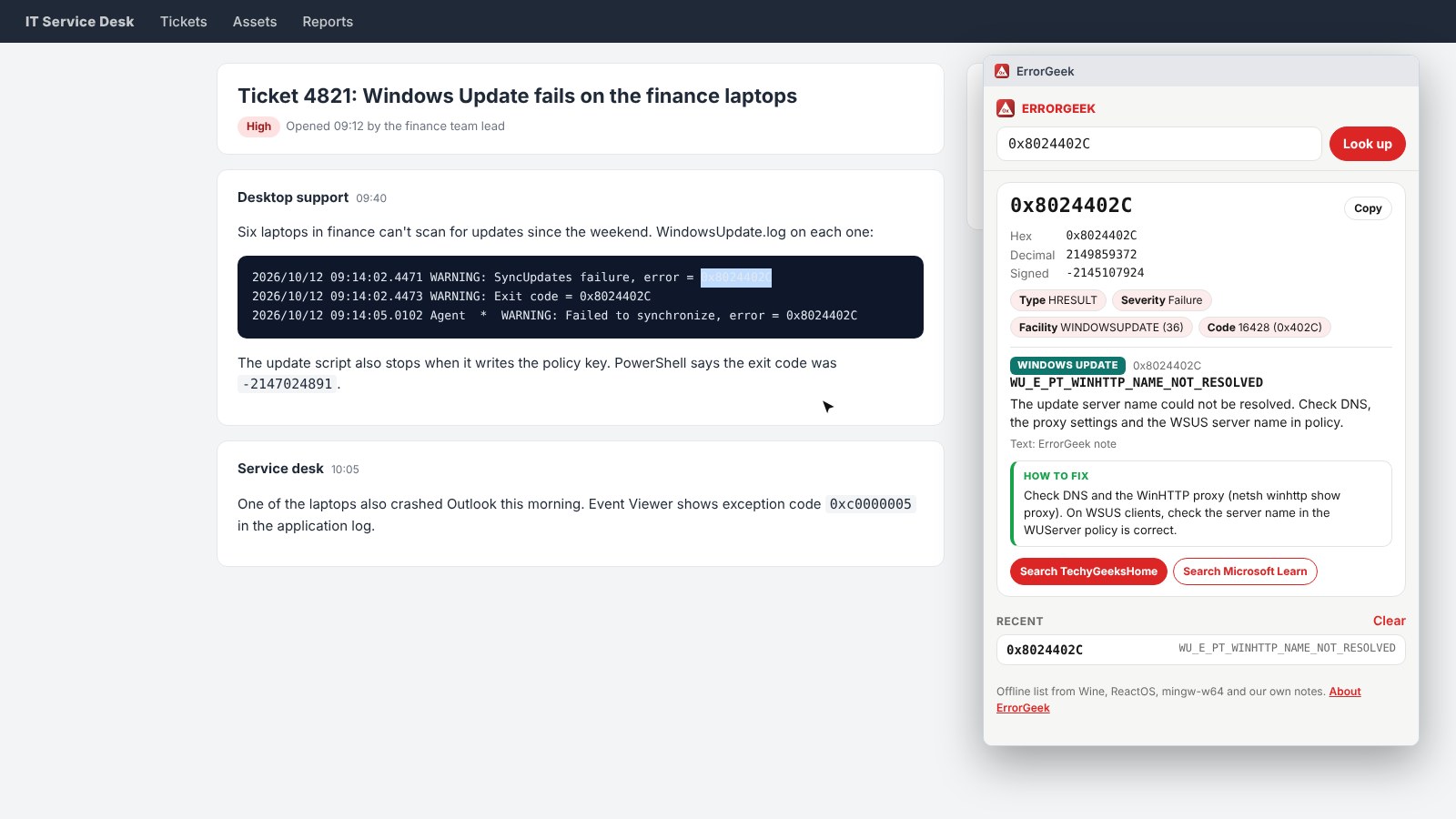
Select a code in a ticket, a forum post or a log file, right-click and choose Look up error code. Or type it into the box on the toolbar. You get:
- The symbolic name and message, such as
E_ACCESSDENIED. - Every form of the number: hex, decimal and the signed number PowerShell shows.
- The Win32 or NTSTATUS error hiding inside an HRESULT.
- A short tip on what to check first, for about 70 of the codes admins see most.
- Links to search TechyGeeksHome and Microsoft Learn.
Codes it knows
- Win32 errors, like
5or1603. - HRESULTs, including hundreds of Windows Update
0x8024codes. - NTSTATUS crash codes, like
0xC0000005. - Common DISM and servicing
0x800Fcodes. - Common Configuration Manager and Intune client codes, with the logs to check.
The names and messages come from open source lists (Wine, ReactOS and mingw-w64). The notes and fix tips are our own.
How to install it
Store listings for Edge and Firefox are on the way. Until then, adding it yourself takes about a minute:
- Download the ZIP and unzip it somewhere you’ll keep it.
- Go to
chrome://extensions(oredge://extensions) and switch on Developer mode. - Click Load unpacked and pick the
errorgeekfolder.
On Firefox, grab the Firefox version instead and load it from about:debugging. The ErrorGeek page walks through every step with screenshots.
Download it
Found a bug or want a feature? Open an issue on GitHub. ErrorGeek joins Image Format Saver, Reddit Saver, Page Saver, Board Saver for Pinterest, Grid Saver for Instagram and Clip Saver for TikTok in our browser extensions.
ErrorGeek is an independent tool made by TechyGeeksHome and is not affiliated with Microsoft.
Discover more from TechyGeeksHome
Subscribe to get the latest posts sent to your email.
