 By Andrew Armstrong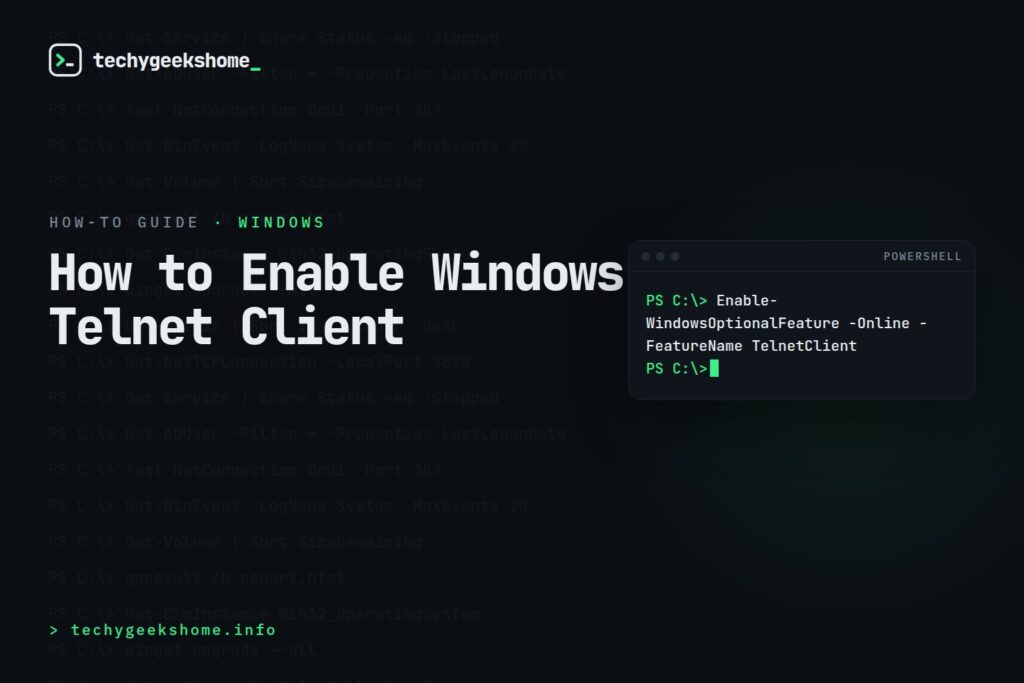
Enabling the Windows Telnet Client
Telnet Client isn’t installed by default on modern versions of Windows, but it’s still built in as an optional feature you can switch on in a couple of clicks if you need it for testing connectivity to a specific port or working with older network equipment that still relies on it. On Windows 10 and 11:- Open Control Panel and go to Programs and Features.
- Click Turn Windows features on or off in the left-hand panel.
- Scroll down, tick Telnet Client, and click OK.
telnet host port).
If you’d rather do this without the GUI, or want to script it across multiple machines, the same thing can be done from an elevated PowerShell prompt with:
Enable-WindowsOptionalFeature -Online -FeatureName TelnetClienttelnet host 25 to check an SMTP port is open, for example), but it shouldn’t be used for anything involving real credentials or sensitive data: for actual remote administration, use SSH or another encrypted protocol instead.
Deploying This at Scale, and a Quick 2026 Check
Telnet Client is still present as an optional Windows feature on current Windows 10 and Windows 11 builds (24H2/25H2): it hasn’t been dropped or replaced, so both the GUI toggle and theEnable-WindowsOptionalFeature command above remain the current, correct way to turn it on.
If you need it enabled across many machines rather than one at a time, the same PowerShell command wraps neatly into a Configuration Manager or Intune script/Win32 app, or a simple Group Policy startup script: there’s no separate deployment-specific switch or package needed, since it’s an in-box optional feature rather than something you install from external media.
Resources
🛠️
Gear We Recommend
A few general tech accessories worth having alongside this.
Browse our General Tech Accessories picks on AmazonAs an Amazon Associate, TechyGeeksHome earns from qualifying purchases.
Discover more from TechyGeeksHome
Subscribe to get the latest posts sent to your email.
