 By Andrew Armstrong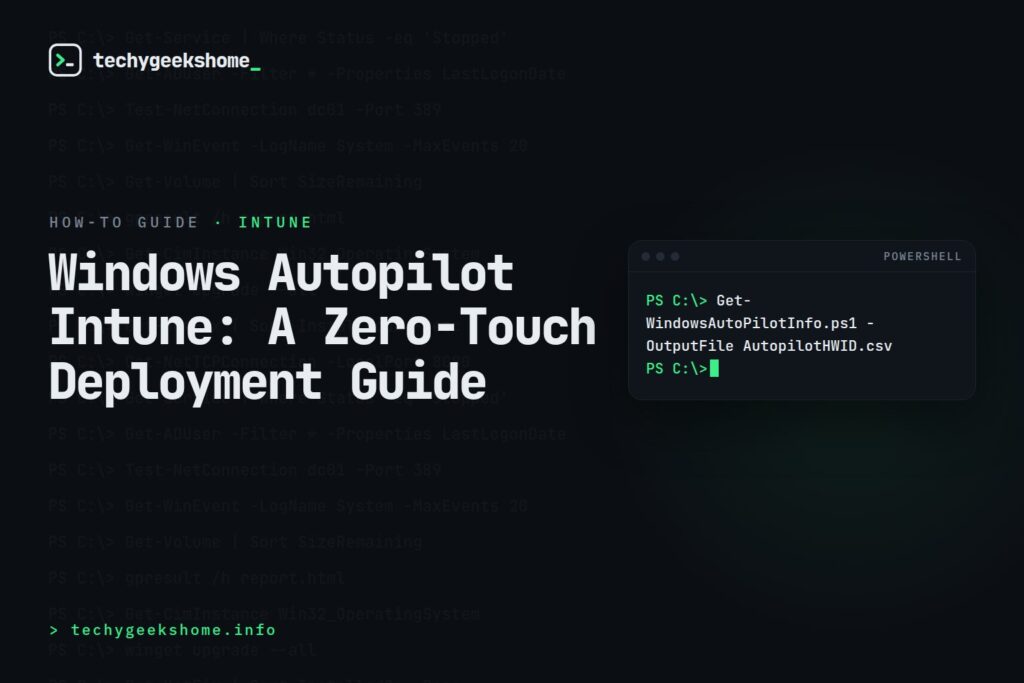
Part of our Intune, Autopilot and Entra ID guides: every related guide in one place.
Zero-touch deployment used to mean a lot of imaging infrastructure, task sequences, and hoping the driver pack matched the hardware. Windows Autopilot with Intune genuinely delivers on the promise now: a new device can go straight from the manufacturer to a user’s desk, get unboxed, connect to Wi-Fi, sign in, and come out the other side fully enrolled, policy-compliant, and with your apps installed. Here’s how to actually set it up, based on Microsoft’s official Autopilot documentation.
What You Need Before You Start
- An Intune licence (included in most Microsoft 365 Business Premium and E3/E5 bundles).
- Devices registered to your Autopilot tenant: either via OEM registration at purchase, or manually via hardware hash.
- A Microsoft Entra ID (Azure AD) tenant with automatic enrollment configured.
- A clear picture of which apps and policies the device actually needs on day one: don’t try to migrate every GPO on day one.
Step 1: Register Devices
The clean way is getting your hardware vendor to register devices to your tenant at the point of purchase: most major OEMs (Dell, HP, Lenovo, Microsoft) support this and it means zero manual work per device. For devices you already own, you’ll need to extract the hardware hash and upload it manually:
Get-WindowsAutoPilotInfo.ps1 -OutputFile AutopilotHWID.csvRun this from an elevated PowerShell session on the device itself (or via a WinPE boot disk for bulk registration), then import the resulting CSV in the Intune admin centre under Devices > Windows > Windows enrollment > Devices.
Step 2: Build a Deployment Profile
In the Intune admin centre, go to Devices > Windows > Windows enrollment > Deployment Profiles and create a new Autopilot profile. The settings that matter most for a first rollout:
- Deployment mode: User-Driven is the standard choice for most organisations.
- Join type: Microsoft Entra joined, unless you have a specific hybrid-join requirement.
- User account type: Standard, not Administrator, for anyone who isn’t IT staff.
- Hide change account options and hide privacy settings: worth enabling to keep the out-of-box experience clean for end users.
Step 3: Assign Apps and Configuration Profiles
Autopilot handles enrollment; Intune’s app and configuration assignment handles what actually lands on the device. Assign your required Win32 apps, configuration profiles, and compliance policies to the same Entra ID group your Autopilot devices (or users) belong to, and set a reasonable deadline so installation happens during the Enrollment Status Page rather than silently afterwards. If you need worked examples for common Win32 app packages, our guides on deploying the Google Chrome MSI installer and Adobe Acrobat Reader silently via Intune both cover the Win32 app wrapping process step by step.
Step 4: Configure the Enrollment Status Page
The Enrollment Status Page (ESP) is what keeps the device on a “setting up your device” screen until critical apps and policies have applied, rather than dumping the user onto a half-configured desktop. Set a realistic timeout: too short and users hit the desktop before line-of-business apps finish installing; too long and helpdesk gets calls about a device that looks “stuck.”
Testing Before a Full Rollout
Register one or two spare devices, run them through the full flow yourself end to end, and specifically check: Wi-Fi connects correctly, sign-in works with the account type you expect, apps install within the ESP timeout, and compliance policy correctly shows the device as compliant afterwards in Intune. Don’t skip this: the first real user’s unboxing shouldn’t be your first test.
Frequently Asked Questions
Does Autopilot work with devices I already own, not just new purchases?
Yes: you just need to extract and upload the hardware hash manually rather than relying on OEM pre-registration, as shown above.
What happens if a device fails Autopilot deployment partway through?
It typically drops back to a standard OOBE (out-of-box experience) or shows an error on the ESP screen. Check the Intune device’s Autopilot deployment status blade for the specific failure reason before re-attempting.
Can I use Autopilot alongside SCCM/Configuration Manager?
Yes, through co-management: Autopilot can handle initial enrollment while workloads are gradually shifted between SCCM and Intune as you migrate.
Gear We Recommend
Testing configs is easier with a dedicated admin machine set up right. Here’s the kit we use.
Browse our Windows Admin Toolkit picks on AmazonAs an Amazon Associate, TechyGeeksHome earns from qualifying purchases.
Discover more from TechyGeeksHome
Subscribe to get the latest posts sent to your email.
