 By Andrew Armstrong
Part of our PowerShell guides: every related guide in one place.
We recently had a requirement to restart a single service across a large number of devices on the network. The plan had originally been for the helpdesk to log on to each machine individually and restart it by hand: instead, this is easily scripted with PowerShell.PowerShell Script
This simple script reads a text file containing a list of device names and restarts the target service on each one in turn. Run it from an elevated PowerShell session:Get-Content C:\TGH\serverlist.txt | ForEach-Object { Restart-Service -InputObject $(Get-Service -Computer $_ -Name Spooler) }Variables
The two things you’ll want to change:- C:\TGH\serverlist.txt: the path to a text file containing the NETBIOS name of each target device, one per line. You can build this list manually, or export it from Active Directory or Configuration Manager data.
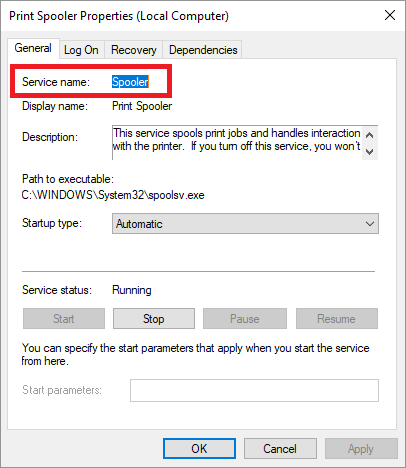
- Spooler: the service name (not the display name) of the service you want to restart. This example uses the Print Spooler service, whose service name is
Spooler.
Running it in parallel
The script above processes devices one at a time, which is fine for a handful of machines but slow across a large list. If you’re targeting many devices and have PowerShell remoting enabled,Invoke-Command will run against all of them concurrently instead:
Invoke-Command -ComputerName (Get-Content C:\TGH\serverlist.txt) -ScriptBlock { Restart-Service -Name Spooler }Feedback
If you have any questions or feedback on this guide, then please feel free to leave us a message below in our comments section. Don’t forget that you can also download this guide as a free PDF eBook.Resources
- Active Directory
- Powershell: Export all members of all AD Security Groups to CSV
- Import Active Directory Powershell Module
- Start a stopped service on multiple devices using Powershell
- Enable Windows Remote Desktop Protocol and Set Firewall Rules using PowerShell
- Browse our Windows Admin Toolkit picks on Amazon
Discover more from TechyGeeksHome
Subscribe to get the latest posts sent to your email.
