Transfer FSMO roles to a new Server

Transfer FSMO roles to a new Server

In this post, we’re continuing our series of YouTube video guides. We recently came across a detailed and well-made guide that explains exactly how to transfer FSMO (Flexible Single Master Operations) roles to a new server. This process is essential for maintaining your Active Directory setup and ensuring smooth server management.

We’ve found this guide to be incredibly helpful, and we believe it will be beneficial if you need to carry out this task in your own environment. Below, we’ll walk you through the main steps, so you can confidently transfer FSMO roles to a new server.

Steps to Transfer FSMO Roles:

  1. Step 1: Open the Command Prompt or PowerShell and run the required commands to identify the current FSMO role holders.
  2. Step 2: Use the ntdsutil tool to transfer the FSMO roles.
  3. Step 3: Verify the roles are transferred successfully by running diagnostic tests.

For a more detailed step-by-step guide, be sure to check out the video below:

Comments

If you have any questions or comments about transferring FSMO roles then please feel free to leave a comment below using our comments system.

Create a capture boot image in Windows Deployment Services WDS

create a capture boot image using wds

If you are using Windows Deployment Services (WDS) then you will need to know how to capture a boot image.

In the video demo below, this shows you exactly how to carry out this task correctly.

Video Walkthrough

Comments

If you have any comments or questions on this guide, please feel free to leave us a message below using our comments system.

Add drivers to a boot image in Windows Deployment Services (WDS)

add drivers to wds boot image

If you are using Windows Deployment Services (WDS) and you need to add a boot image into the system, then you should view the below tutorial video demonstration on how to successfully carry this out.

Comments

If you have any questions or comments on this guide, then please feel free to leave us a message below using our comments system and we will try and get back to you as soon as possible.

DOSBox – 16-Bit Application Emulator

DosBox

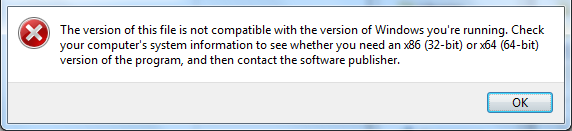
If you have an old 16-bit application that you need to run on Windows 7 or 8.1 or maybe even an old classic game you want to play, you will find that the chances are the modern operating systems will not run them and you will run into an error like this for Windows 7:

win7

Or this one for Windows 8:

win8

So, what can you do?

Well there is hope! There is an excellent DOS emulator that we have tested and now using called DOSBox. It seems to work with all of the DOS programs that we have tested it with and we even downloaded some old DOS games to test it and all worked perfectly.

With a little bit of simple configuration, the DOSBox emulator loads your DOS program in no time and allows you access back into these old programs.

Download

You can download the latest version of the DOSBox program from SourceForge using the link below:

DosBox Download

Instructions

Once you have downloaded the DOSBox program there is a little configuration you have to carry out in the options to get your program “mounted” and then to run, but it is extremely simple to do. Below is a video guide on how to configure the program to run:

Video Demo

Comments

If you are still struggling or have any questions or comments, then please feel free to leave us to message below using our comments section and we will try and get back to you as soon as we can.

Remove a Windows Server 2008 R2 Domain Controller from an Existing Domain

Microsoft Blue Logo

We have been viewing some video guides on YouTube over the last few days so we thought that we would share some good ones that we have found that we feel you may find useful.

We have scheduled a number of these videos to be posted to our site over the next few days so make sure you check back here to see whether there is anything here to help you out!

To begin with, we thought we would start with the basics, removing a domain controller from an existing domain is a fairly simple process but if you need a hand with doing this, the below video is an excellent guide on what to do.

COMMENTS

If you have any questions or comments on removing a domain controller from your existing domain, then please feel free to leave a comment below using our comments system.