 By Andrew Armstrong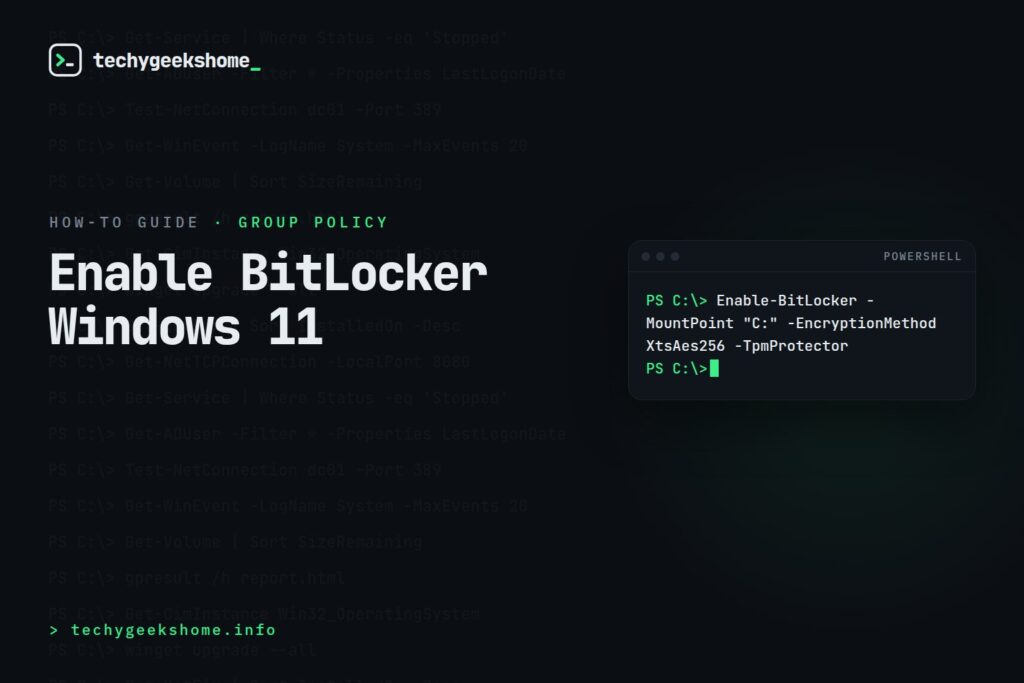
BitLocker is Windows’ built-in drive encryption tool that protects data on laptops and desktops from unauthorised access. This guide covers how to enable and manage BitLocker on Windows 10 and Windows 11 via the GUI, PowerShell and Group Policy for enterprise environments in 2026.
Prerequisites
- Windows 10 Pro, Enterprise or Education: BitLocker is not available on Windows Home
- TPM 1.2 or later (most PCs from 2015 onwards have this)
- UEFI firmware with Secure Boot enabled (recommended)
- Administrator account
Enable BitLocker via Windows Settings
- Go to Settings → Privacy and Security → Device Encryption
- If Device Encryption is available toggle it on: this is a simplified BitLocker for supported devices
- For full BitLocker: go to Control Panel → BitLocker Drive Encryption
- Click Turn on BitLocker next to your C: drive
- Choose how to unlock at startup: TPM only (automatic, no PIN) or TPM + PIN (more secure, requires PIN on boot)
- Choose where to save your recovery key: Save to Microsoft account, Save to a file or Print the recovery key
- Choose whether to encrypt used space only or the entire drive: entire drive is recommended for existing systems
- Choose encryption mode: New encryption mode (XTS-AES) for fixed drives
- Click Start Encrypting
Enable BitLocker via PowerShell
# Enable BitLocker on C: drive with TPM protector
Enable-BitLocker -MountPoint "C:" -EncryptionMethod XtsAes256 -TpmProtector

# Add a PIN in addition to TPM
$pin = ConvertTo-SecureString "YourPIN" -AsPlainText -Force
Enable-BitLocker -MountPoint "C:" -EncryptionMethod XtsAes256 -TpmAndPinProtector -Pin $pin

# Save recovery key to Active Directory
Backup-BitLockerKeyProtector -MountPoint "C:" -KeyProtectorId (Get-BitLockerVolume -MountPoint "C:").KeyProtector[0].KeyProtectorId

# Check BitLocker status
Get-BitLockerVolume -MountPoint "C:" | Select-Object MountPoint, EncryptionMethod, VolumeStatus, ProtectionStatus, EncryptionPercentage
Enable BitLocker via Group Policy (Enterprise)
- Open Group Policy Management Console
- Create or edit a GPO linked to your workstations OU
- Navigate to Computer Configuration → Administrative Templates → Windows Components → BitLocker Drive Encryption → Operating System Drives
- Enable Require additional authentication at startup
- Enable Choose how BitLocker-protected operating system drives can be recovered and configure recovery key backup to AD DS
- Enable Enforce drive encryption type on operating system drives and set to Full encryption
Save BitLocker Recovery Keys to Active Directory
# Back up all BitLocker recovery keys to Active Directory
# Run on each machine or deploy via SCCM script

$volume = Get-BitLockerVolume -MountPoint "C:"
foreach($protector in $volume.KeyProtector) {
    if($protector.KeyProtectorType -eq "RecoveryPassword") {
        Backup-BitLockerKeyProtector -MountPoint "C:" -KeyProtectorId $protector.KeyProtectorId
        Write-Host "Recovery key backed up to AD for $env:COMPUTERNAME"
    }
}
Frequently Asked Questions
Does BitLocker slow down my PC?
On modern hardware with hardware AES acceleration (virtually all PCs from 2013 onwards) the performance impact of BitLocker is less than 1%. On older hardware without hardware acceleration there may be a small but noticeable impact on disk-intensive operations. For most users the security benefit far outweighs any performance consideration.
What happens if I forget my BitLocker PIN?
You will need your 48-digit recovery key to unlock the drive. This is why saving the recovery key to Active Directory or a safe location during setup is critical. Without the recovery key and without the PIN, the data on the drive is permanently inaccessible.
Is BitLocker available on Windows 11 Home?
No: BitLocker full disk encryption requires Windows 10 or 11 Pro, Enterprise or Education. Windows Home includes Device Encryption which is a simplified version that only works on devices meeting specific hardware requirements and uses your Microsoft account for recovery.
Can I enable BitLocker without a TPM?
Yes: via Group Policy you can configure BitLocker to use a startup USB key or password instead of TPM. Navigate to Computer Configuration → Administrative Templates → Windows Components → BitLocker Drive Encryption → Operating System Drives → Require additional authentication at startup and enable Allow BitLocker without a compatible TPM.
Gear We Recommend
Managing BitLocker across a fleet is smoother with the right USB drives and cable testers on hand.
Browse our Windows Admin Toolkit picks on AmazonAs an Amazon Associate, TechyGeeksHome earns from qualifying purchases.
Related: Schedule Windows Shutdown Using a Command Prompt
Discover more from TechyGeeksHome
Subscribe to get the latest posts sent to your email.
