If your Windows computer is stuck on shutdown showing “Working on updates, don\’t turn off your PC”, “Installing Update — Please do not power off or unplug your machine”, or “Configuring Windows Updates 3 of 3 0% Completed” — you are in the right place. This is the complete fix guide covering every known cause and solution for Windows 10 and Windows 11 in 2026.
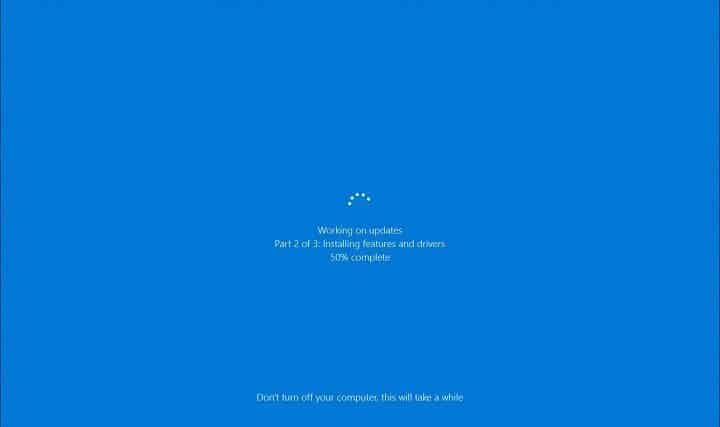
This guide consolidates all our previous Windows Update stuck guides into one comprehensive resource. Bookmark it — it covers every scenario.
How Long Should You Wait?
Before jumping to fixes — make sure your machine is actually stuck. Large Windows Feature Updates (like Windows 10 22H2 or Windows 11 23H2) can genuinely take 30-90 minutes to install depending on your hardware.
Our rule of thumb: If your computer has shown the same percentage or the same message for more than 3 hours without any change, it is definitely stuck and you need to act. Under 30 minutes — be patient. 30 minutes to 3 hours — watch it. Over 3 hours — follow this guide.
Video Demo
Watch the video demo below which shows the SoftwareDistribution fix being carried out live. Read the full written guide below for all methods and 2026-specific details.
Step 1 — Force Shutdown Your Machine
The first thing you need to do is get back into Windows. Hold down the physical power button on your computer tower or laptop (not the monitor screen!) for around 10 seconds until it completely shuts off.
Turn it back on. One of three things will happen:
- Best case — Windows boots normally. Follow Fix 1 below before doing anything else.
- Middle case — Windows boots into Safe Mode or recovery. Follow Fix 2 below.
- Worst case — Windows will not boot at all. The update may have corrupted your installation and you may need a repair install or rebuild.
Critical: Once you are back in Windows, do NOT shut down or reboot again until you have applied one of the fixes below — you will immediately get stuck again.
Fix 1 — Reset the Windows Update SoftwareDistribution Folder
This is the fix that resolves the problem in the vast majority of cases. The SoftwareDistribution folder is where Windows downloads and tracks all updates. When this folder or its database becomes corrupt, Windows gets stuck in a loop trying to install an update that has already failed.
The solution is to stop the Windows Update service, rename the corrupt folder (so Windows cannot find it), then restart the service — Windows will automatically create a fresh clean SoftwareDistribution folder.
Open an Elevated Command Prompt
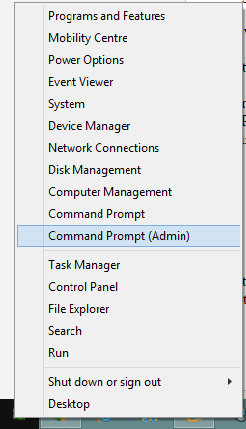
In Windows 10 or Windows 11, right click the Start button and click Windows PowerShell (Admin) or Command Prompt (Admin):
You should see a black command prompt window:

Run These Three Commands
Command 1 — Stop the Windows Update service:
net stop wuauservWait for the confirmation message that the service has stopped before continuing.
Command 2 — Rename the corrupt SoftwareDistribution folder:
ren c:\windows\softwaredistribution sd.oldThis renames the folder to sd.old — Windows cannot find it so it will create a fresh one. You can delete sd.old later to recover disk space but it is not urgent.
Command 3 — Restart the Windows Update service:
net start wuauservWindows will automatically recreate the SoftwareDistribution folder. You should now restart your computer — it will boot normally without the stuck update screen.
Important note: The next time you run Windows Update it may show an error or say updates have never been checked. This is normal — just click Check for Updates and Windows will re-download and catch up with any missing updates automatically.
Fix 2 — Rename the Pending.xml File (Configuring Updates 3 of 3 Fix)
If your machine is stuck specifically on “Configuring Update 3 of 3 0% Completed”, the cause is different. A file called pending.xml in the Windows WinSxS folder incorrectly thinks it has updates waiting to be configured when it actually doesn’t. Renaming this file forces Windows to recreate it cleanly.
You will need your Windows installation media (USB stick or DVD) to access the Recovery Console for this fix.
Steps
- Insert your Windows USB or DVD and boot from it (you may need to change boot order in BIOS)
- At the Windows Setup screen, click Repair your computer
- Click Troubleshoot → Advanced Options → Command Prompt
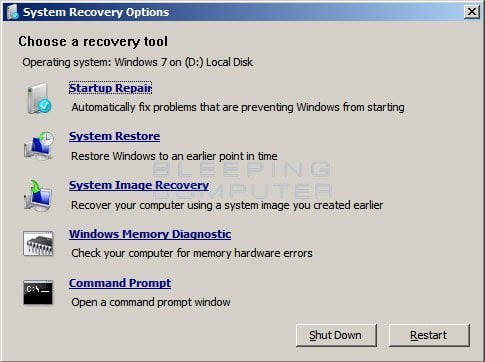
In the Command Prompt, type the following commands one at a time pressing Enter after each:
c:
cd windows
cd winsxs
ren pending.xml pending.old
Close the Command Prompt and restart your machine. Windows will recreate a fresh pending.xml and should boot straight into Windows without the stuck update screen.
Fix 3 — Force Immediate Shutdown to Bypass Update Screen
If you are repeatedly seeing “Configuring Windows Updates — Do Not Power Off Your Computer” on every shutdown but your machine is otherwise working fine, you can force an immediate shutdown that bypasses the update screen entirely.
Open Command Prompt and run:
shutdown /s /t 0This forces Windows to shut down immediately. Note: This bypasses the problem but does not fix it — the update will likely try again next shutdown. Use Fix 1 for a permanent solution.
Fix 4 — Enterprise Fix for IT Admins (Multiple Machines)
If you work in IT and need to push this fix out to multiple machines across your estate, here are the enterprise options.
PowerShell Remote Fix
$computers = @("PC001","PC002","PC003")
foreach ($computer in $computers) {
    Invoke-Command -ComputerName $computer -ScriptBlock {
        Stop-Service wuauserv -Force
        Rename-Item "C:\Windows\SoftwareDistribution" "C:\Windows\SoftwareDistribution.old" -ErrorAction SilentlyContinue
        Start-Service wuauserv
        Write-Host "$env:COMPUTERNAME - Fixed" -ForegroundColor Green
    }
}
Replace the computer names with your own machine names or pull them from Active Directory. See our PowerShell Active Directory management guide for how to run this against a whole OU.
SCCM / Configuration Manager
This fix can be packaged and deployed as a Script or Task Sequence step in SCCM/ConfigMgr. Create a Run Script with the PowerShell commands above and target your affected collection. We have deployed this fix to thousands of machines this way.
Group Policy
Create a Computer Startup Script in Group Policy that runs the net stop/rename/net start commands as a batch file. This will run the fix automatically on next machine startup for all machines in the targeted OU.
Which Fix Should I Use?
| Symptom | Recommended Fix |
|---|---|
| Stuck on “Working on updates, don\’t turn off your PC” | Fix 1 |
| Stuck on “Installing Update — Please do not power off” | Fix 1 |
| Stuck on “Configuring Update 3 of 3 0% Completed” | Fix 2 |
| Update screen appears every shutdown but machine boots fine | Fix 3 |
| Multiple machines affected across an IT estate | Fix 4 |
| Windows will not boot at all after forced shutdown | Repair Install |
Frequently Asked Questions
Is it safe to force power off a PC stuck on Windows Update?
Yes — if your machine has been stuck for more than 3 hours, holding the power button is safe. Modern Windows versions are designed to handle unexpected power loss during updates. In rare cases the update may corrupt your Windows installation but this is uncommon and can usually be repaired.
Will I lose my files if I force power off during a Windows Update?
Your personal files such as Documents and Pictures are very unlikely to be affected. The worst case is that Windows itself becomes unbootable and needs a repair installation — your files would still be intact on the drive.
Why does my PC keep getting stuck on Windows Updates?
The most common causes are corrupt update files in the SoftwareDistribution folder, insufficient disk space, hardware issues such as a failing hard drive, or a conflict between the update and existing software. Fix 1 in this guide resolves the corrupt files issue. For recurring problems check your disk health using chkdsk /f in an elevated Command Prompt.
How do I get into Safe Mode on Windows 10 or Windows 11?
If Windows boots normally, hold Shift and click Restart, then go to Troubleshoot → Advanced Options → Startup Settings → Restart → F4. If Windows will not boot, the same menu appears automatically after two failed boot attempts.
What is the SoftwareDistribution folder?
It is the folder at C:\Windows\SoftwareDistribution where Windows stores all downloaded update files and the Windows Update database. It is completely safe to rename or delete — Windows will automatically recreate it and re-download any needed updates.
The fix worked but now Windows Update shows an error — is that normal?
Yes, completely normal. After renaming the SoftwareDistribution folder, Windows Update loses its history and may show an error on first run. Simply click Check for Updates and it will rebuild its database and download any outstanding updates fresh.
Does this fix work on Windows 7?
Yes — Fix 1 and Fix 2 both work on Windows 7 as well as Windows 10 and Windows 11. Note that Windows 7 reached end of life in January 2020 and no longer receives security updates. We strongly recommend upgrading to Windows 11.
My machine is stuck before Windows loads — what do I do?
Boot from Windows installation media, choose Repair your computer → Troubleshoot → Advanced Options → Command Prompt and run Fix 2 from this guide. If Fix 2 does not help, try Startup Repair from the same Advanced Options menu.
Glossary
| Term | Meaning |
|---|---|
| SoftwareDistribution | The Windows folder (C:\Windows\SoftwareDistribution) where update files are downloaded and the update database is stored |
| wuauserv | The Windows Update service — the background process that manages downloading and installing Windows updates |
| pending.xml | A file in C:\Windows\WinSxS that tracks Windows updates waiting to be configured. Corruption here causes the “Configuring Updates 3 of 3 0%” error |
| WinSxS | Windows Side by Side — a folder containing Windows component files and update staging data |
| Recovery Console | A command-line environment accessible from Windows installation media that allows you to run repair commands when Windows will not boot |
| Feature Update | A major Windows update (like Windows 10 22H2 or Windows 11 23H2) that upgrades the entire OS version — these are large and can take 60-90 minutes legitimately |
| Safe Mode | A minimal Windows boot mode that loads only essential drivers — useful for troubleshooting when Windows will not boot normally |
Still Having Problems?
If none of the above fixes resolve your issue, try the built-in Windows Update Troubleshooter — go to Settings → Update & Security → Troubleshoot → Windows Update → Run the troubleshooter.
You can also run System File Checker to check for corrupt Windows system files:
sfc /scannowAnd run the DISM tool to repair the Windows component store:
DISM /Online /Cleanup-Image /RestoreHealthLeave a comment below with your specific error message and we will do our best to help. Include which version of Windows you are running and which fix you already tried.
About The Author

Discover more from TechyGeeksHome
Subscribe to get the latest posts sent to your email.